Teachers can share their custom word lists with other teachers directly inside Vocab Loco. The teacher who owns the lists marks their group as Shareable, and the other teacher imports them using the owner's email address. No files needed — everything happens in the app.
Part 1: Make your lists shareable
Word lists live inside List Groups (folders). Sharing is controlled at the group level — when a group is set to Shareable, all lists inside it become available for other teachers to find and import.
To share lists from a new group:
- In the sidebar, click Word Lists, then open the Custom Lists tab.
- Click New List Group to create a group (folder) for your lists.
- In the Privacy section, select Shareable.
- Shareable — other teachers can find this group using your email address.
- Private — only you can see this group (this is the default).
- Finish setting up the group and save.
- Add your word lists to this group.
Once the group is Shareable, any teacher can import your lists by entering your Vocab Loco email address in the Import Teacher Lists modal.
What if the group already exists?
If you created the group before and left it as Private, you need to change its privacy setting before other teachers can find it. Groups are Private by default.
To update the privacy of an existing group:
- In the Custom Lists tab, find the group you want to share.
- Click the settings menu on the group card and select Edit group.
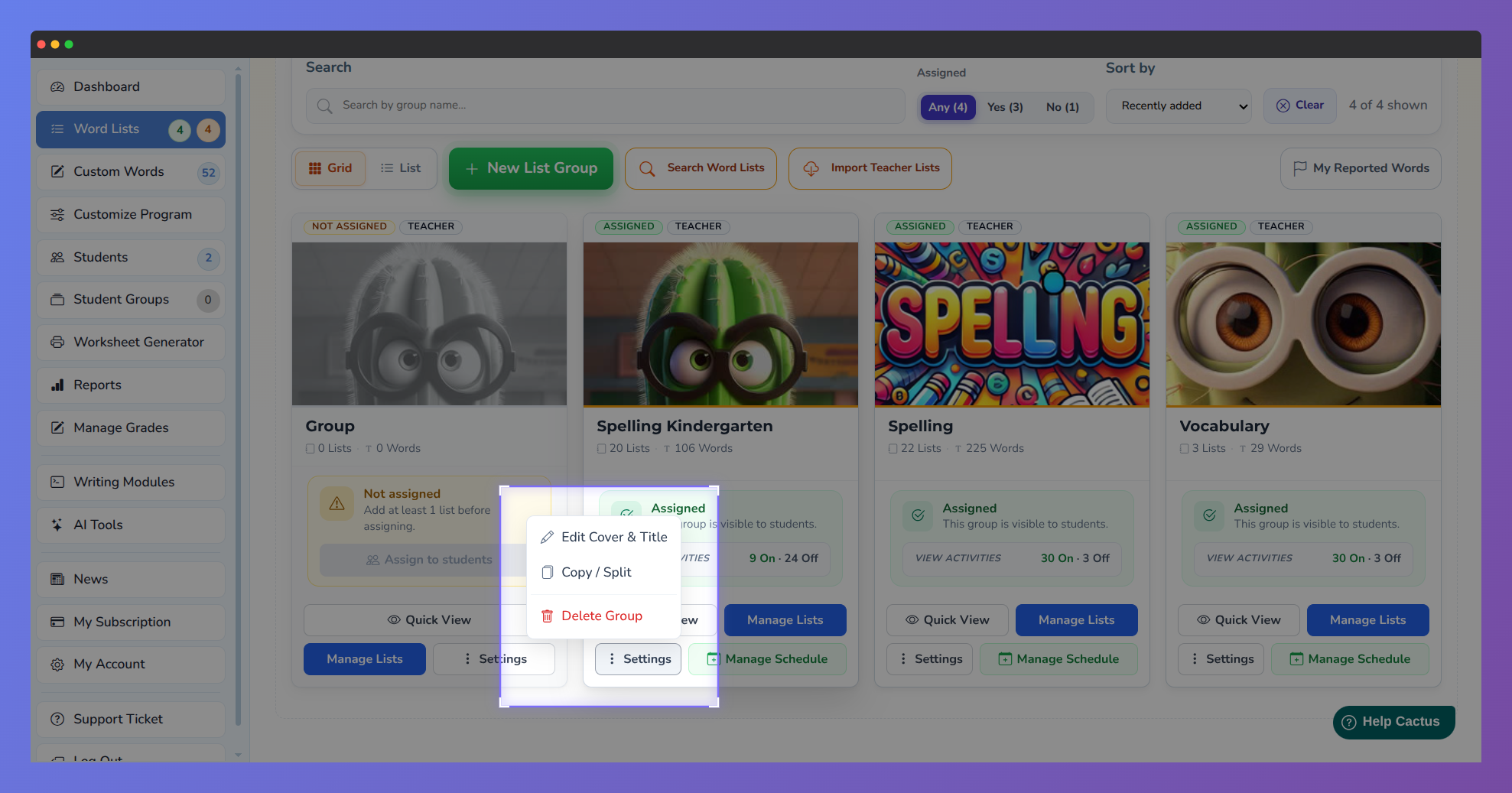 Screenshot of Vocab Loco highlighting the "Edit cover & title" button.
 - In the Privacy section, change the setting to Shareable.
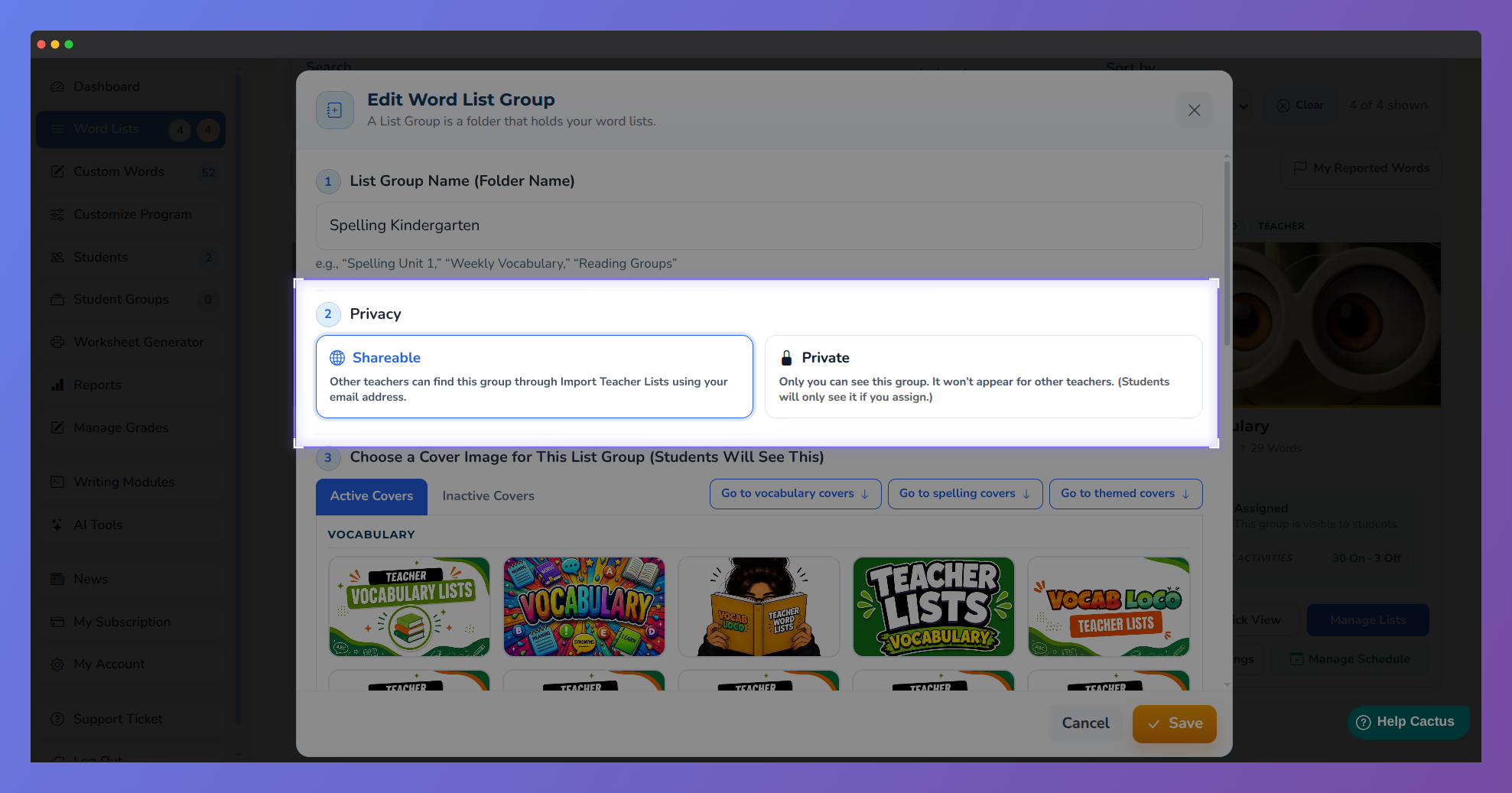 Screenshot of Vocab Loco highlighting the selected "sharable" option.
 - Save the group.
The group card will now show a globe icon () to indicate it is Shareable. Private groups show a lock icon.
Part 2: Import lists from another teacher
To import another teacher's word lists into your account:
- In the sidebar, click Word Lists, then open the Custom Lists tab.
- Click Import Teacher Lists.
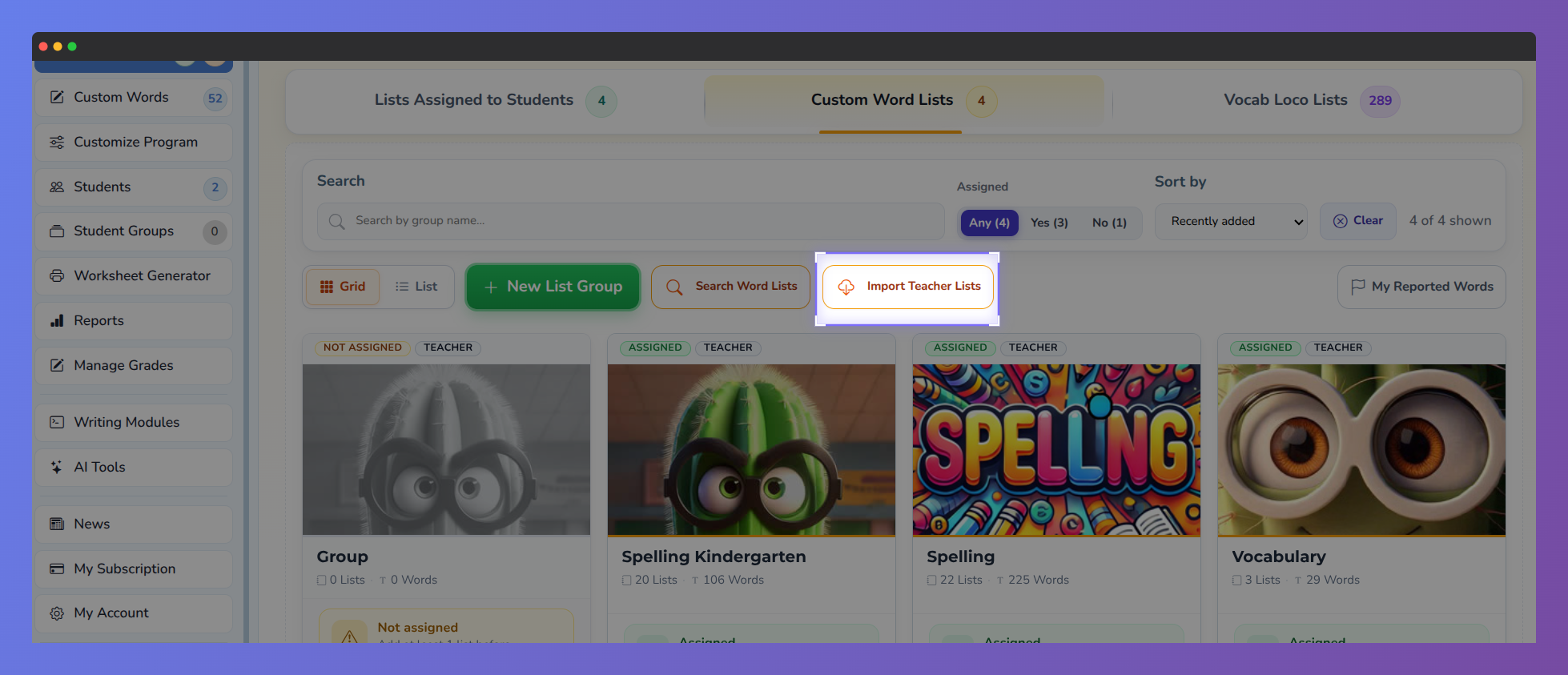 Screenshot of Vocab Loco highlighting the "Import Teacher Lists" button.
 - Enter the other teacher's Vocab Loco email address and click Search lists.
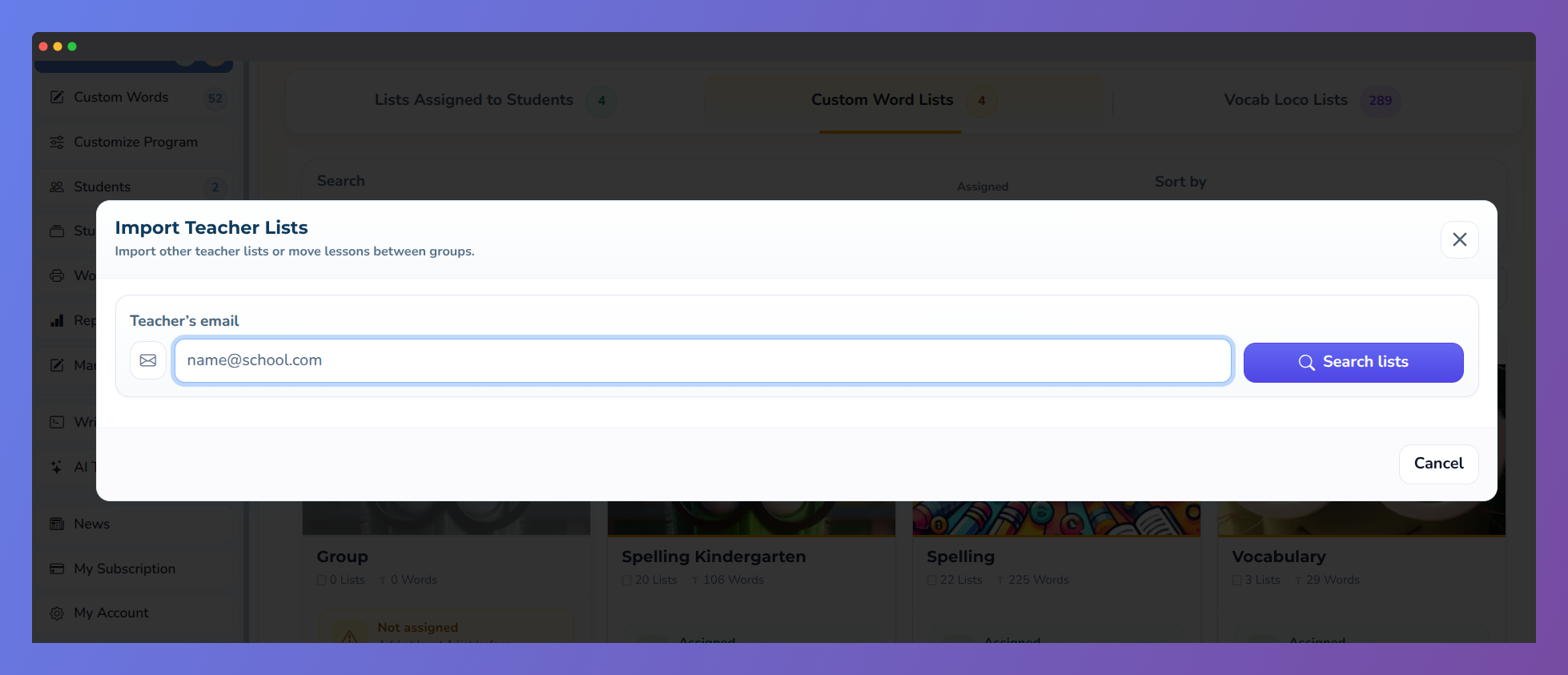 Screenshot of Vocab Loco showing the modal for searching lists by the teacher's email.
 - The available word lists from that teacher's Shareable groups will appear. Select the lists you want to import using the checkboxes.
- Click Import Selected Lists.
- Choose where to put the imported lists (see below), then click Import.
If you search a teacher's email and see "No shareable lists found," it means the teacher has lists but they are all set to Private. Ask them to follow the steps in Part 1 above to make their group Shareable.
Choosing where to put the imported lists
When importing, you can choose one of three options:
- Keep original group names — Vocab Loco creates new groups in your account with the same names as the original groups. This mirrors the other teacher's structure.
- Import into an existing group — The selected lists are added to one of your existing groups. Choose which group from the dropdown.
- Import into a new group — A new group is created with a name you choose, and all selected lists are placed inside it.
Imported lists are a copy. Edits you make to imported lists do not affect the original, and changes the original teacher makes after import do not update your copy.
Was this article helpful?
That’s Great!
Thank you for your feedback
Sorry! We couldn't be helpful
Thank you for your feedback
Feedback sent
We appreciate your effort and will try to fix the article