Groups are folders that hold your word lists. Before adding any words, you need to create a group to organize them. Here's how to get started.
- Step 1: Go to Word Lists
- Step 2: Open the Custom Word Lists tab
- Step 3: Create a new group
- Step 4: Name your group
Step 1: Go to Word Lists
- From your Teacher Dashboard, click Word Lists in the left sidebar.
Step 2: Open the Custom Word Lists tab
- At the top of the page, select the Custom Word Lists tab.
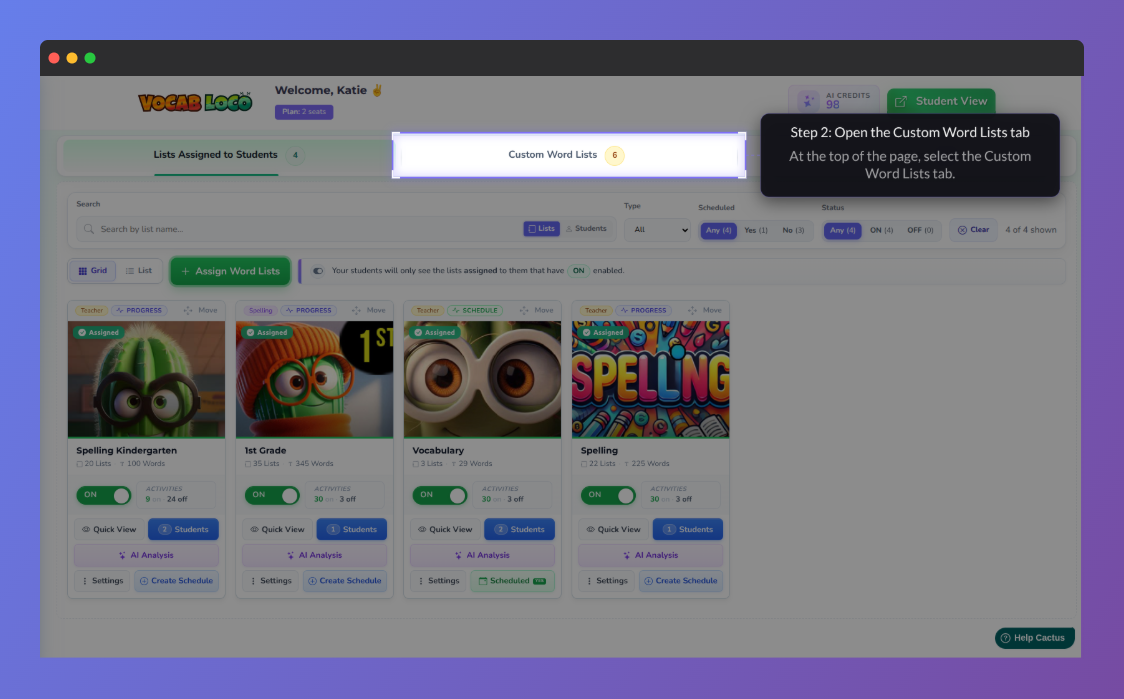
Screenshot of the Vocab Loco Word Lists page highlighting the Custom Word Lists tab at the top of the screen during Step 2 of the setup process.
Step 3: Create a new group
- Click the + New Group for Lists button in the top toolbar.
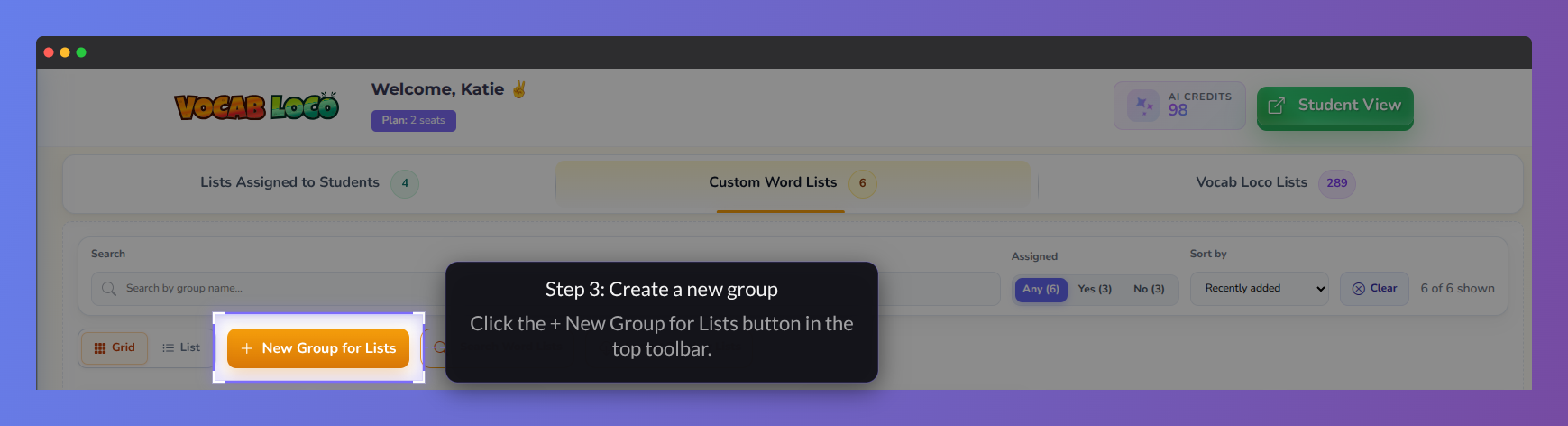
Screenshot of the Vocab Loco Custom Word Lists page highlighting the New Group for Lists button in the toolbar during Step 3 of the setup process.
Step 4: Name your group
- A pop-up appears. Type a name for your group (e.g., "Grade 3 – Science") and click OK.
- Your new group appears on the page as a card, ready to use.
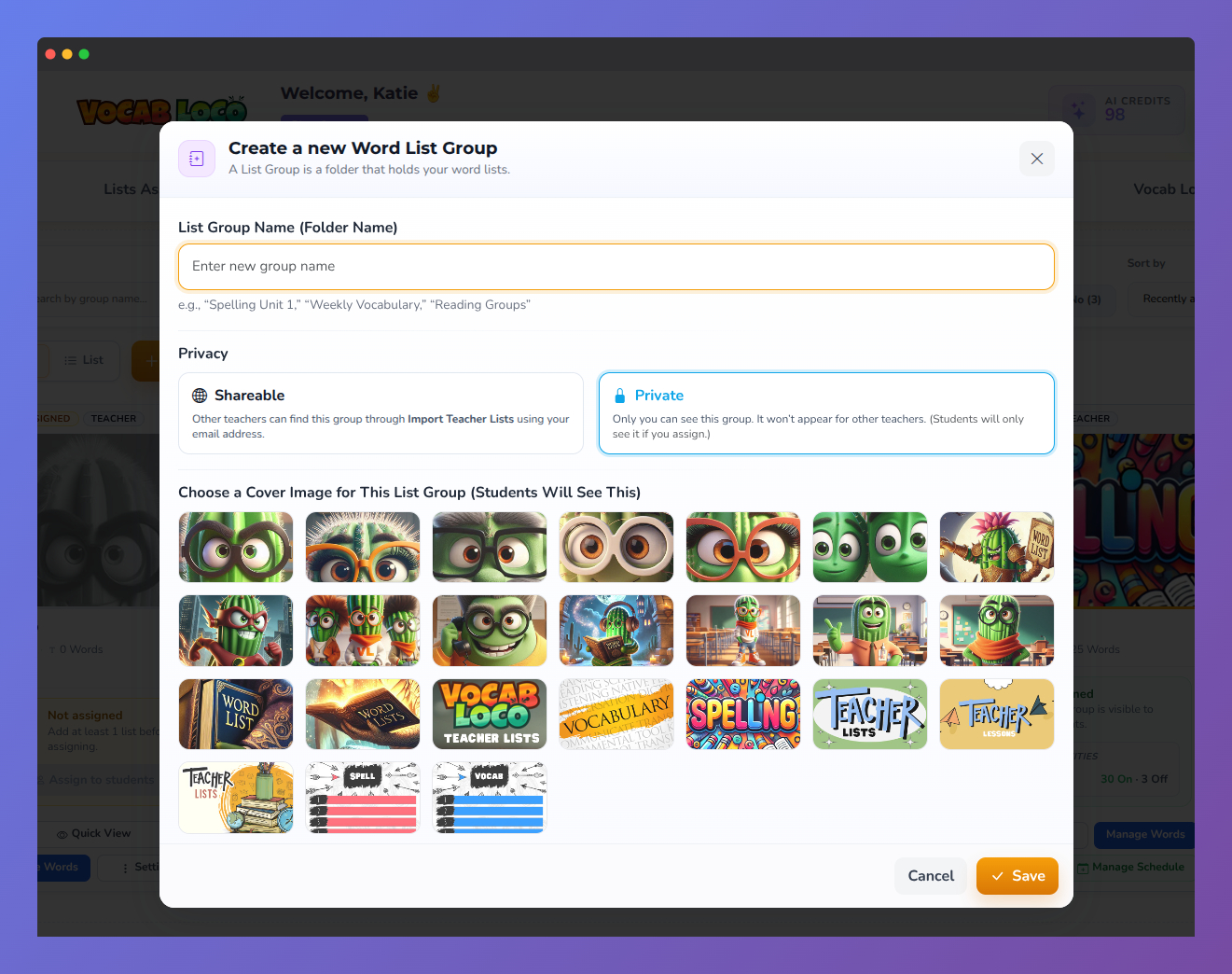
Screenshot of the Create a New Word List Group modal in Vocab Loco showing fields for the group name, privacy settings, and cover image selection.
Pro Tip: Use descriptive group names that include the grade level or theme. This makes it easier to manage multiple groups later.
Q: Can I rename a group after creating it?
A: Yes. Click the three-dot icon on the group card and select Edit Group to rename it or change the cover image.
Q: How many groups can I create?
A: There is no limit on the number of groups, but each group can hold up to 60 word lists.
Was this article helpful?
That’s Great!
Thank you for your feedback
Sorry! We couldn't be helpful
Thank you for your feedback
Feedback sent
We appreciate your effort and will try to fix the article