Vocab Loco's AI Word List Generator allows you to create custom vocabulary lists in seconds based on grade level, topic, and difficulty. These lists are saved directly into your Custom Word Lists and can be edited, assigned, or reused at any time.
- Step 1: Access the AI generator
- Step 2: Configure your word list
- Step 3: Choose your target audience
- Step 4: Generate your word lists
- Step 5: Review, edit, and save
Note: AI-generated word lists require AI credits. You will always be shown the credit cost and your current balance before generating — credits are only used when you confirm.
Step 1: Access the AI generator
- From your Teacher Dashboard, click Word Lists in the left sidebar.
- Select the Custom Word Lists tab.
- Click Edit Lists on the group you want to add lists to.
- Click Create New List, then choose Generate with AI.
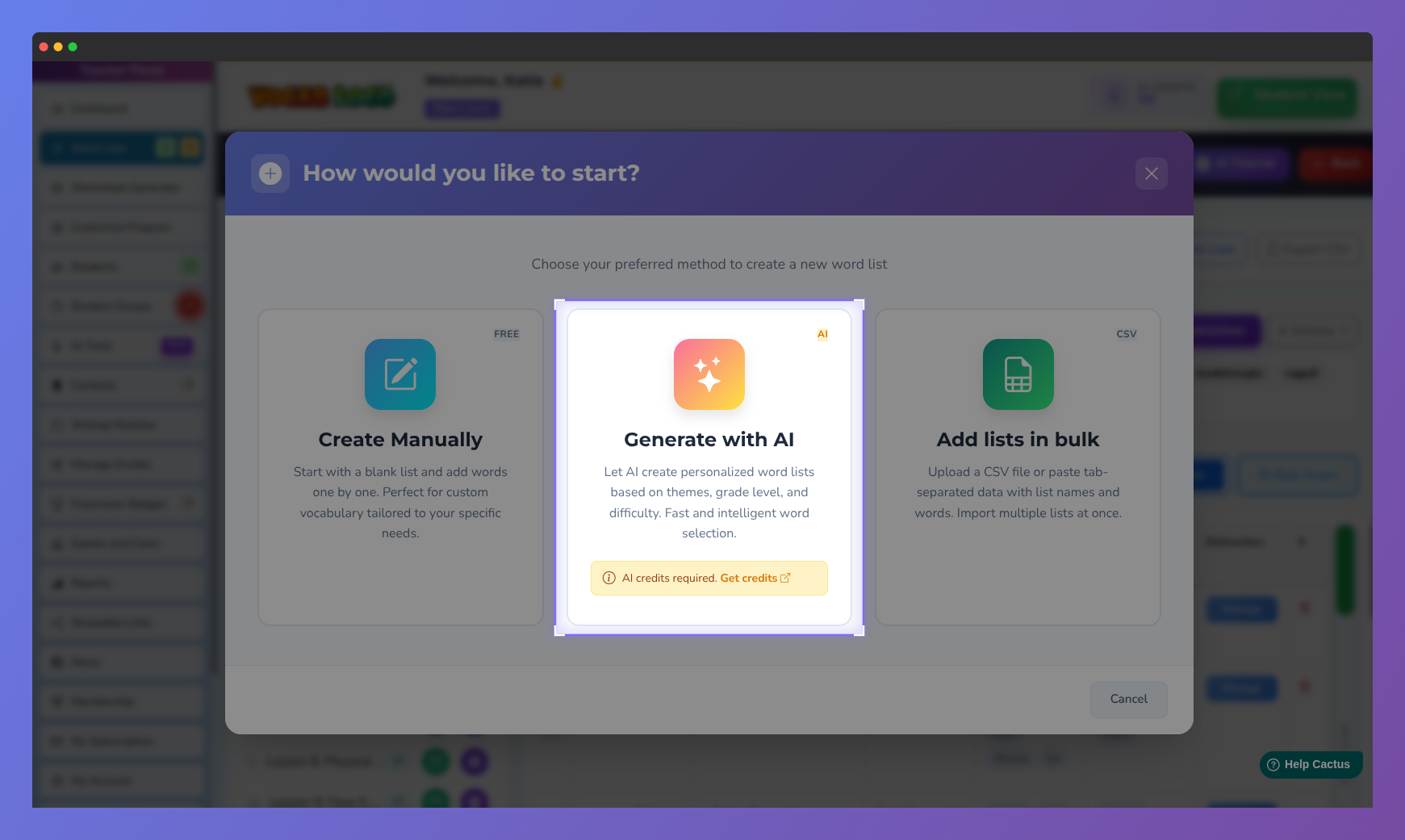
Screenshot of the Custom Word Lists page in Vocab Loco showing the Create New List button and the Generate with AI option.
Step 2: Configure your word list
- In the Describe Your Wordlist Themes field, type what you want the list to focus on. Be as specific as possible. Examples:
- Seasonal weather vocabulary
- 5th grade science words about ecosystems
- Character traits for upper elementary reading
- Academic verbs for writing instruction
- Select your list settings:
- Number of Lists — 1 to 20
- Words per List — 5 to 25
- Word Types — Nouns, Verbs, Adjectives, Adverbs, or Mixed
- Click Next to continue.
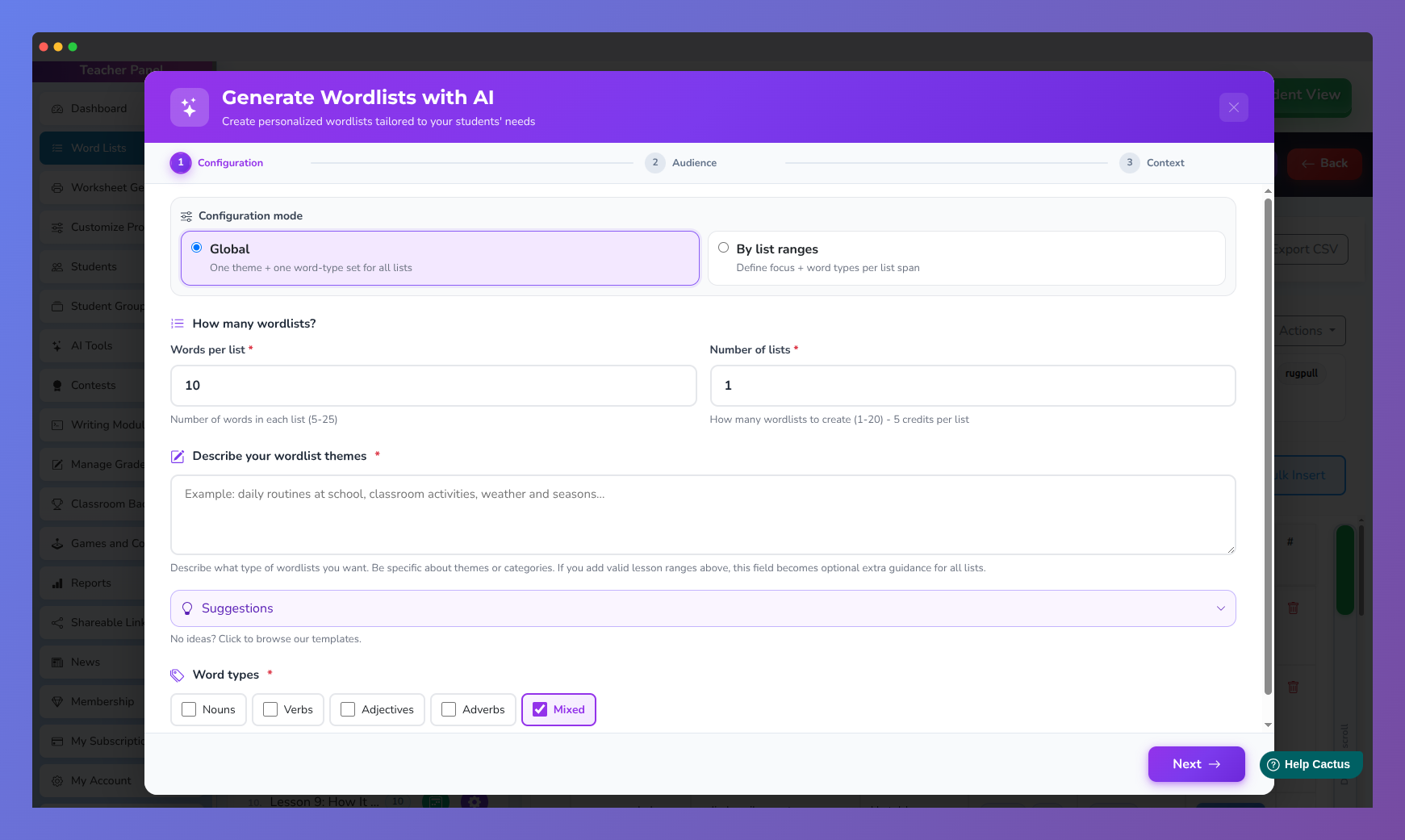
Screenshot of the AI Word List Generator configuration form in Vocab Loco showing the theme description field and list settings.
Step 3: Choose your target audience
- Select the Grade Level for your students.
- Select a Difficulty Level:
- Basic — simpler, foundational words
- Intermediate — grade-level academic vocabulary
- Advanced — more complex or challenge words
- Click Next when finished.
Step 4: Generate your word lists
- A confirmation screen shows the AI Credit Cost and your Current AI Credit Balance.
- Click Yes, Generate to create your lists. The AI will generate vocabulary based on your selections and organize the words into lists automatically.
Step 5: Review, edit, and save
- Once generated, you can:
- Rename lists
- Remove individual words
- Regenerate lists if the results don't match what you need
- When ready, click Save & Import. Your AI-generated lists will appear in Word Lists → Custom Word Lists, ready to be assigned to students or edited further at any time.
Pro Tip: More detailed theme descriptions produce better results. Instead of "science words," try "5th grade science words about ecosystems and food chains."
Pro Tip: Not happy with the results? Click Regenerate before saving — it won't use additional credits until you confirm again.
Was this article helpful?
That’s Great!
Thank you for your feedback
Sorry! We couldn't be helpful
Thank you for your feedback
Feedback sent
We appreciate your effort and will try to fix the article