Vocab Loco's AI generator can create complete word lists in seconds. Just provide a topic and your students' level.
- Step 1: Open the Custom Word Lists tab
- Step 2: Click Generate with AI
- Step 3: Configure your request
- Step 4: Set your audience
- Step 5: Add context
- Step 6: Review and save
Step 1: Open the Custom Word Lists tab
- Go to Word Lists and click the Custom Word Lists tab.
Step 2: Click Generate with AI
- On the group card, click Manage Words.
- In the group header toolbar, click Generate with AI.
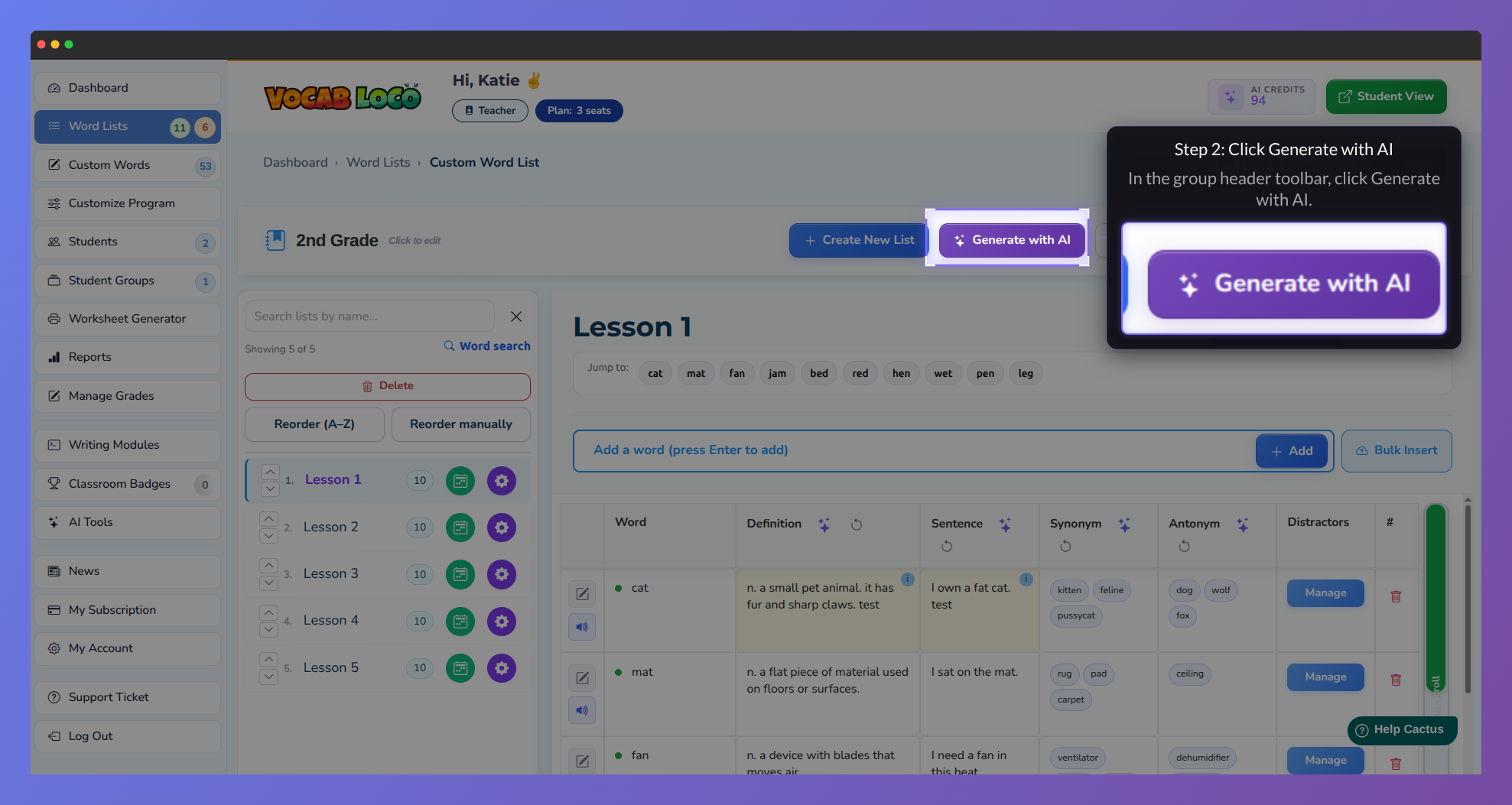
Screenshot of the Vocab Loco Custom Word List editor highlighting the Generate with AI button in the group toolbar during the AI word list creation process.
Step 3: Configure your request (Step 1 of 3)
- Choose how many lists to generate and how many words per list.
- Apply settings globally or by list range: You can apply the same settings to all lists (global configuration) or customize them for a specific list range (for example, Lists 1–2 for easier practice and Lists 3–4 for a challenge).
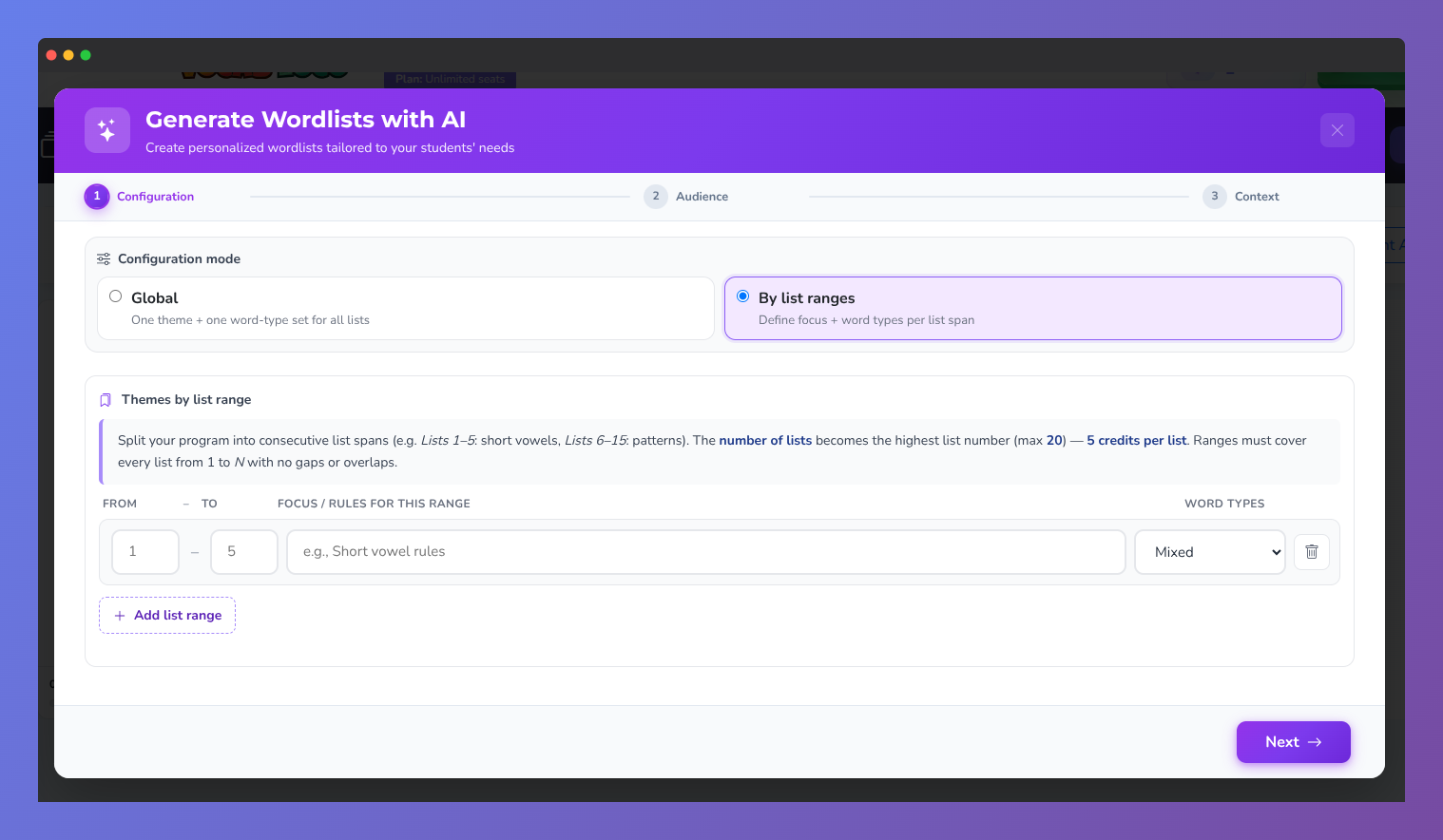
Screenshot of the Generate Wordlists with AI modal in Vocab Loco showing Step 1 configuration options, including list ranges, themes, and word type settings.
Step 4: Set your audience (Step 2 of 3)
- Enter your students' level and profile — for example, "2nd grade, English learners."
Step 5: Add context (Step 3 of 3)
- Describe the topic or goal. Examples: "Short vowel rules for 2nd grade" or "Animals found in the rainforest."
- Click Generate.
Step 6: Review and save
- The AI generates lists with words, definitions, sentences, and more.
- Review the content. Edit anything you want, then save the lists you want to keep.
Pro Tip: Be specific in the context field. The more details you give — grade level, skill focus, curriculum theme — the more targeted and useful the AI-generated lists will be.
Q: Can I edit AI-generated words before saving?
A: Yes. The generated lists are fully editable. You can remove words, add new ones, or adjust definitions.
Q: Does using AI cost credits?
A: Yes. AI generation uses AI credits from your account. Check your credit balance in your account settings.
Was this article helpful?
That’s Great!
Thank you for your feedback
Sorry! We couldn't be helpful
Thank you for your feedback
Feedback sent
We appreciate your effort and will try to fix the article