My Custom Words lets you personalize the definition, sentence, synonyms, antonyms, distractors, and letter casing for any word in the Vocab Loco dictionary. Customizations apply globally — wherever that word appears across your word lists, students will always see your version.
Changes you make in My Custom Words apply to the word itself, not to a single list. Every word list in your account where that word appears will reflect your customizations automatically. You can also customize a word before adding it to any list.
Step 1 — Access My Custom Words
Click My Custom Words in the sidebar navigation. The page displays all your customized words in a grid or list view, along with three summary cards showing the total number of words you have customized, how many fields were filled with AI assistance, and how many of your custom words are currently used in one of your lists.
Use the search bar to find a word by name, definition, or sentence. Use the filter dropdown to narrow the list by words used in your lists, words not yet in any list, words with distractors, or words with letter casing configured.
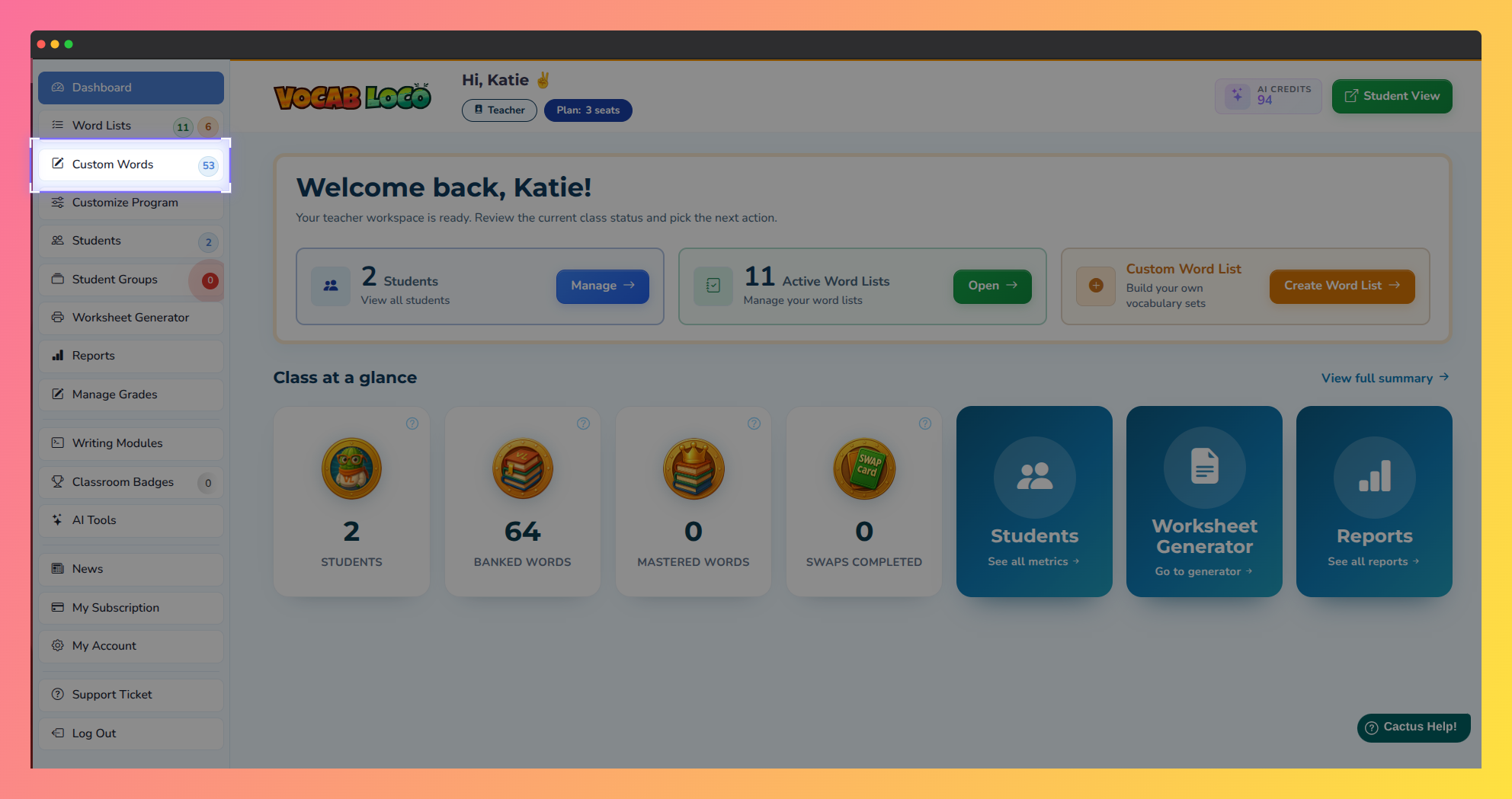
Screenshot showing the Custom Words menu in the Vocab Loco Teacher Panel.
Step 2 — Add a word
Click Add Custom Word in the top right corner. A dialog opens with a search field — start typing a word to search the dictionary and select it from the suggestions. Click Customize word to open the editor for that word.
Step 3 — Edit word fields
Clicking a word opens an editor panel on the right side of the screen. You can override any of the following fields:
- Definition — replace the default dictionary definition with your own.
- Sentence — provide a custom example sentence for the word.
- Synonyms — enter synonyms separated by semicolons.
- Antonyms — enter antonyms separated by semicolons.
Each field has an AI button to generate a suggestion using AI (uses AI credits) and a Restore button to revert that field to the original dictionary value. When you are done, click Save changes.
Changes saved here apply immediately across all lists in your account where this word appears. There is no need to update each list individually.
Step 4 — Configure first letter casing
The First letter casing field controls how students must type the first letter of this word in spelling and typing activities. There are four options:
- Default (as in dictionary) — uses the dictionary's standard capitalization.
- Always uppercase (Aa) — the word must start with a capital letter.
- Always lowercase (aa) — the word must start with a lowercase letter.
- Accept both (Aa/aa) — either capitalization is accepted as correct.
Step 5 — Manage distractors
The Distractors section lets you define the wrong answer options that appear in vocabulary multiple-choice activities. Click Manage distractors to open the distractors editor. You can add options manually using Add option, or generate them with AI by selecting how many distractors you want — 3, 6, or 10 — and clicking Generate. When done, click Save distractors.
Option A is always the correct answer. The distractors you add become the wrong answer options that students see during vocabulary activities.
Step 6 — Restore or reset
To undo a change to a single field, click the Restore button next to that field. This returns only that field to its original dictionary value without affecting the others.
To remove all customizations for a word at once, click Reset word to defaults at the bottom of the editor. This clears every override — definition, sentence, synonyms, antonyms, letter casing, and distractors — and restores the word to its original state.
Was this article helpful?
That’s Great!
Thank you for your feedback
Sorry! We couldn't be helpful
Thank you for your feedback
Feedback sent
We appreciate your effort and will try to fix the article