Vocab Loco includes a Games Page where students can play fun arcade-style games as a reward for completing their vocabulary activities. As a teacher, you have full control over which games are available, which days students can access them, and how many games they can play per day.
What are these games?
The Games Page features a large library of arcade and casual games, completely separate from the vocabulary activities in your word lists. These are free-play games that students can access as a break or reward. You can control which games are visible, set the days they are available, and limit how many games each student can play per day.
Step 1: Go to Customize Program
- From your Teacher Dashboard, click Customize Program in the left sidebar, then open the Games tab.
Step 2: Configure access settings
- Use Games Available Days to choose which days students can access the Games Page. Options include Always Available, Weekdays Only, specific days of the week, or Game Page Off to disable it entirely.
- Use Daily Game Limit to set the maximum number of games a student can play per day. Set it to Unlimited or choose a number between 1 and 30.
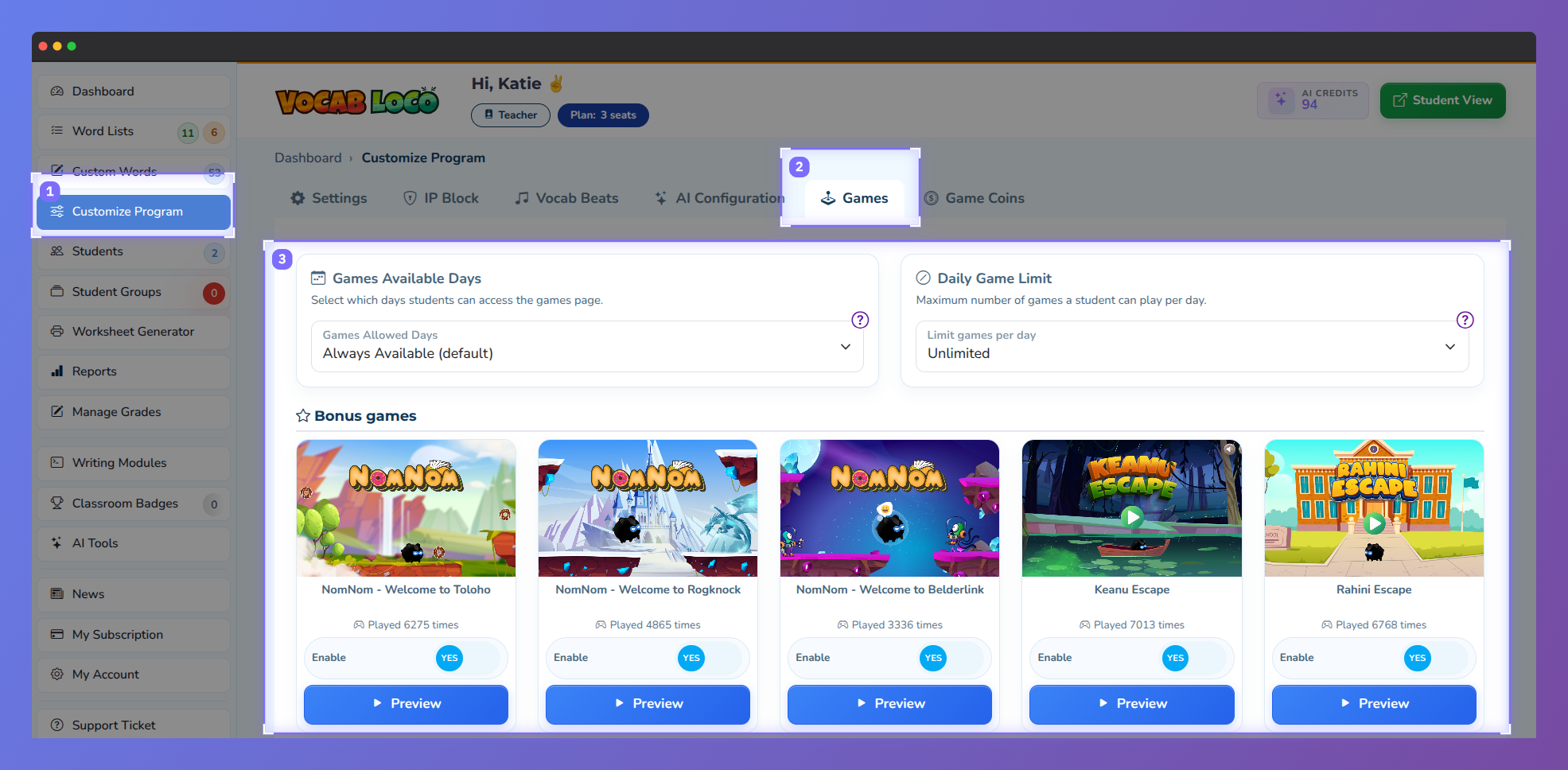
Screenshot showing the Games settings section in the Vocab Loco Teacher Panel.
Step 3: Toggle each game on or off
- Each game is displayed as a card. Use the Enable switch on each card to turn it on or off.
- Disabled games are immediately hidden from all students.
- Changes apply automatically, with no further action needed.
You can also preview any game before enabling it by clicking the Preview button on its card.
Q: Are these the same as the vocabulary games in my word lists?
A: No. The Games Page features general arcade games available as a reward. Vocabulary activities like Connect It! and Word Pop are managed separately inside your word list assignments.
Was this article helpful?
That’s Great!
Thank you for your feedback
Sorry! We couldn't be helpful
Thank you for your feedback
Feedback sent
We appreciate your effort and will try to fix the article