After a parent or guardian accepts your invitation, they log in to Vocab Loco Family — a separate family account (not a teacher login). This guide shows what they can see and do, so you can explain the portal with confidence.
Step 1: Parent Login
- Families open the invite in their email or scan the QR letter, then sign up for (or sign in to) a Vocab Loco Family account.
- They can come back anytime with Parent Login on the main Vocab Loco login page.
- Parents only see children they have accepted an invite for. With more than one linked child, they pick the child at the top of each page.
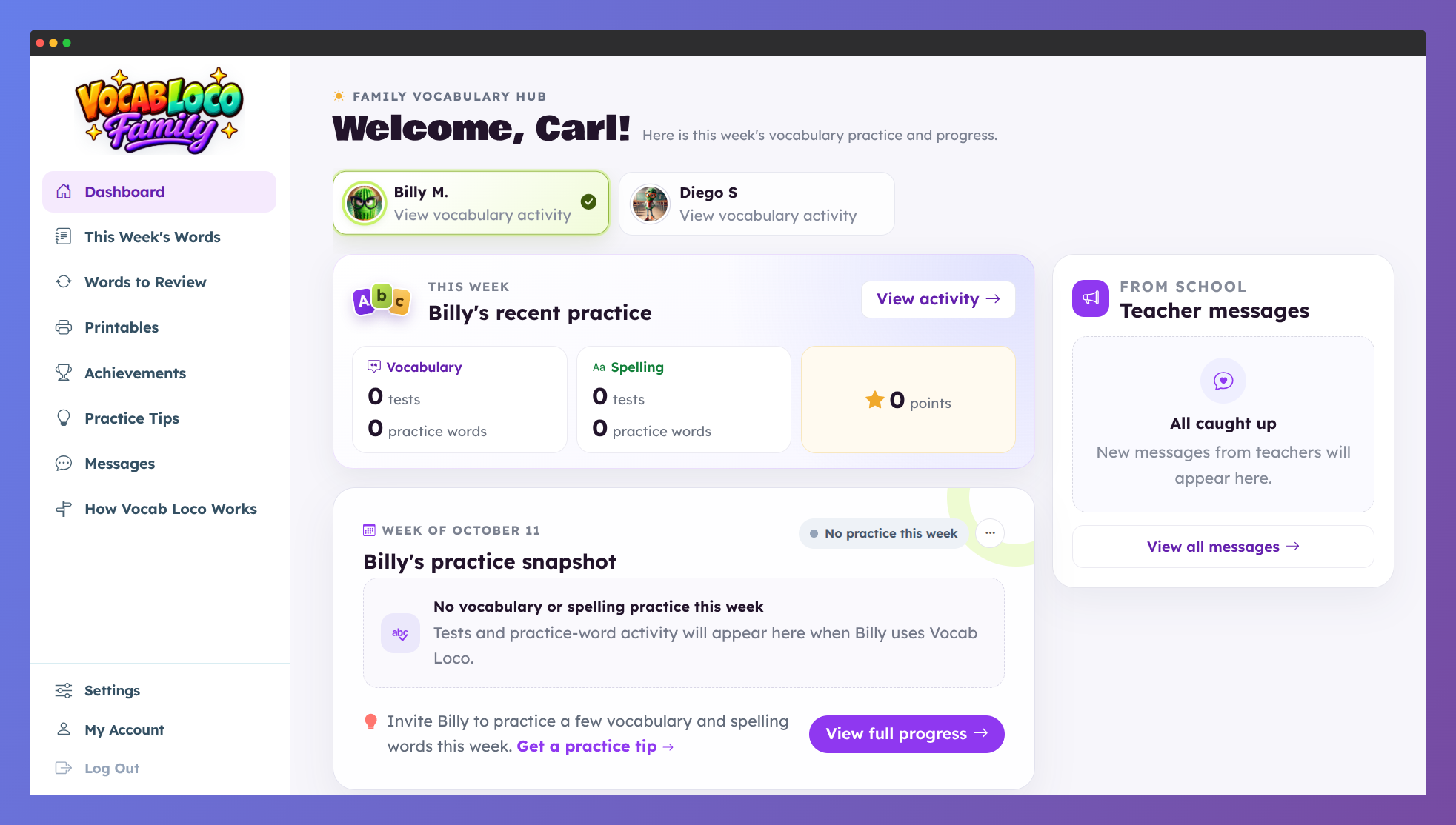 Vocab Loco Family Dashboard with weekly progress and teacher messages.
Step 2: Dashboard weekly snapshot
- The Dashboard is the family hub for each linked child.
- It shows a plain-language weekly status for vocabulary and spelling progress, such as:
- On track
- Some practice
- No practice
- Families also see this week's tests, practice words, and activity points for each subject, a Get a practice tip link, and View full progress for more detail.
Pro Tip: Encourage families to open the Dashboard once a week — it's the fastest way to know how the child is doing and what to practice at home.
Step 3: This Week's Words and practice games
- Open This Week's Words in the sidebar to see the child's current vocabulary and spelling lists. Tap any word to hear it.
- Under Practice together, families pick a game:
- Flashcards (vocabulary) — flip each card for the meaning and an example sentence.
- Spell it (spelling) — hear the word, spell it out loud, then flip to check.
- Missing vowel (spelling) — fill in the missing a, e, i, o, u to complete the word.
- Families mark each word Got it or Again. At the end, Practice missed words runs only the ones that need another try.
- If the child has no list of one kind this week, those games stay visible but grayed out, with the reason.
Step 4: Words to Review
- Words to Review lists the words the student missed and still has to practice, in two columns: Vocabulary and Spelling.
- Each word shows how it was missed: the spelling the child typed next to the correct one, or the quiz question with the child's pick and the right answer. For words missed in games, families see the game and the day.
- The same Practice together games are ready for a quick review at home.
Step 5: Printables
- Printables has worksheets made with the child's current list and words to review — the same worksheets teachers use, such as Word Search, Missing Vowel, Say It! Trace It! Write It!, Word Jumble, and Spelling Quiz.
- Every sheet comes with the child's name and today's date.
- The Word bank and Black & white switches apply to every sheet on the page. Black & white saves ink.
- Use the arrows to browse, or View all worksheets to see the full list.
Note: Worksheets follow the list's subject. Spelling lists get spelling sheets; vocabulary lists also get meaning and writing sheets.
Step 6: Achievements and Practice Tips
- Achievements — the total of words in the word bank, certificates, and game coins, plus a week-by-week look at the new words in the word bank.
- Practice Tips — home practice ideas suited to how the week went for that child, with Another idea to try something else.
Note: Practice Tips are suggestions for families — they do not change grades or assignments in your teacher account.
Step 7: Messages, How it Works, and Settings
- Messages — notes you send through Parent Messages in the teacher sidebar appear here for linked families (with an unread badge for anything new).
- How Vocab Loco Works — a short, parent-friendly explainer of lists, games, tests, and rewards.
- Settings — families can turn PDF progress reports on or off and choose how often to receive them: weekly, every 2 weeks, or monthly.
- My Account — change the name, email, or password on the family account.
Q: Can parents change assignments or grades?
A: No. Vocab Loco Family is for viewing progress and practicing at home. Teaching controls stay in your teacher account.
Q: Do the games in the portal count toward the child's scores?
A: No. Practice together games and printed worksheets are for practice at home only. They don't record scores or change the child's Practice Words.
Q: What if a family has more than one child in Vocab Loco?
A: After each child's invite is accepted, the parent can switch children inside the portal.
Pro Tip: Share this article (or a short class note) along with your invites so families know how to start: Dashboard first, then This Week's Words.
Was this article helpful?
That’s Great!
Thank you for your feedback
Sorry! We couldn't be helpful
Thank you for your feedback
Feedback sent
We appreciate your effort and will try to fix the article