Vocab Loco Family lets parents and guardians follow a child's vocabulary and spelling progress at home — without a teacher login. As the teacher, you send the invitation from My Class by email or with a printable QR letter, then track who has connected.
Step 1: Go to My Class
- From your Teacher Dashboard, click My Class in the left sidebar.
- At the top of your student list, look for the Invite Your Families banner. It shows how many families are already connected and includes Invite All Families for bulk invites.
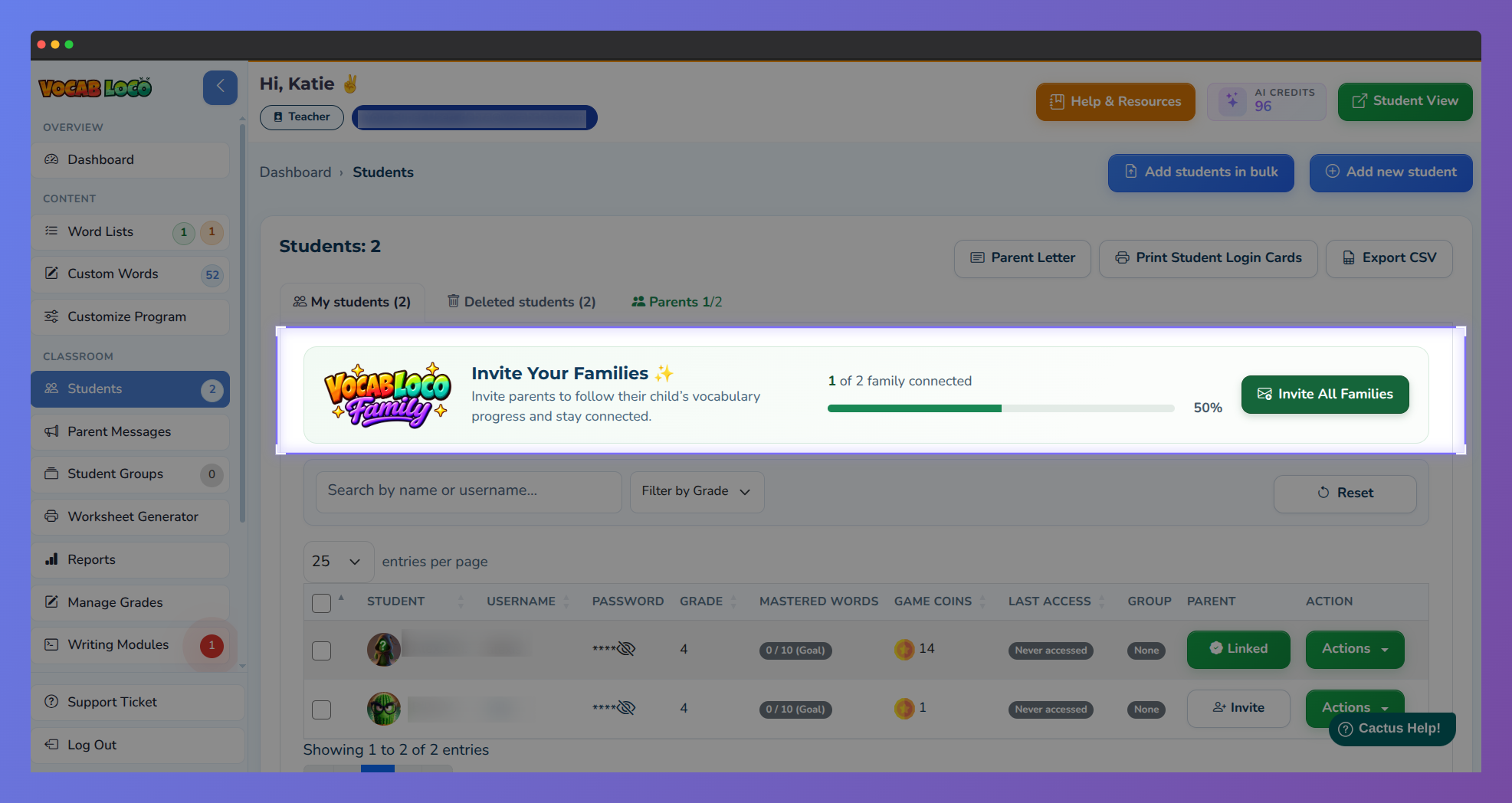 Vocab Loco My Class with Invite Your Families banner
Step 2: Invite one parent or guardian
- On the Students tab, find the student in your roster.
- Open Actions for that student and choose Invite Parent — or use the invite option in the Parent column.
- The Invite a Parent / Guardian modal opens with the student's name at the top.
Step 3: Choose email or QR letter
- Under Choose an option, pick one of the following:
- Send by email — enter the parent's email address, then click Send Invitation. They receive a secure link to create or log into their family account and accept the invite. No personal student data is included in the email (COPPA compliant).
- Generate letter (PDF) — choose English or Spanish, then download a printable letter with a QR code the family can scan to connect.
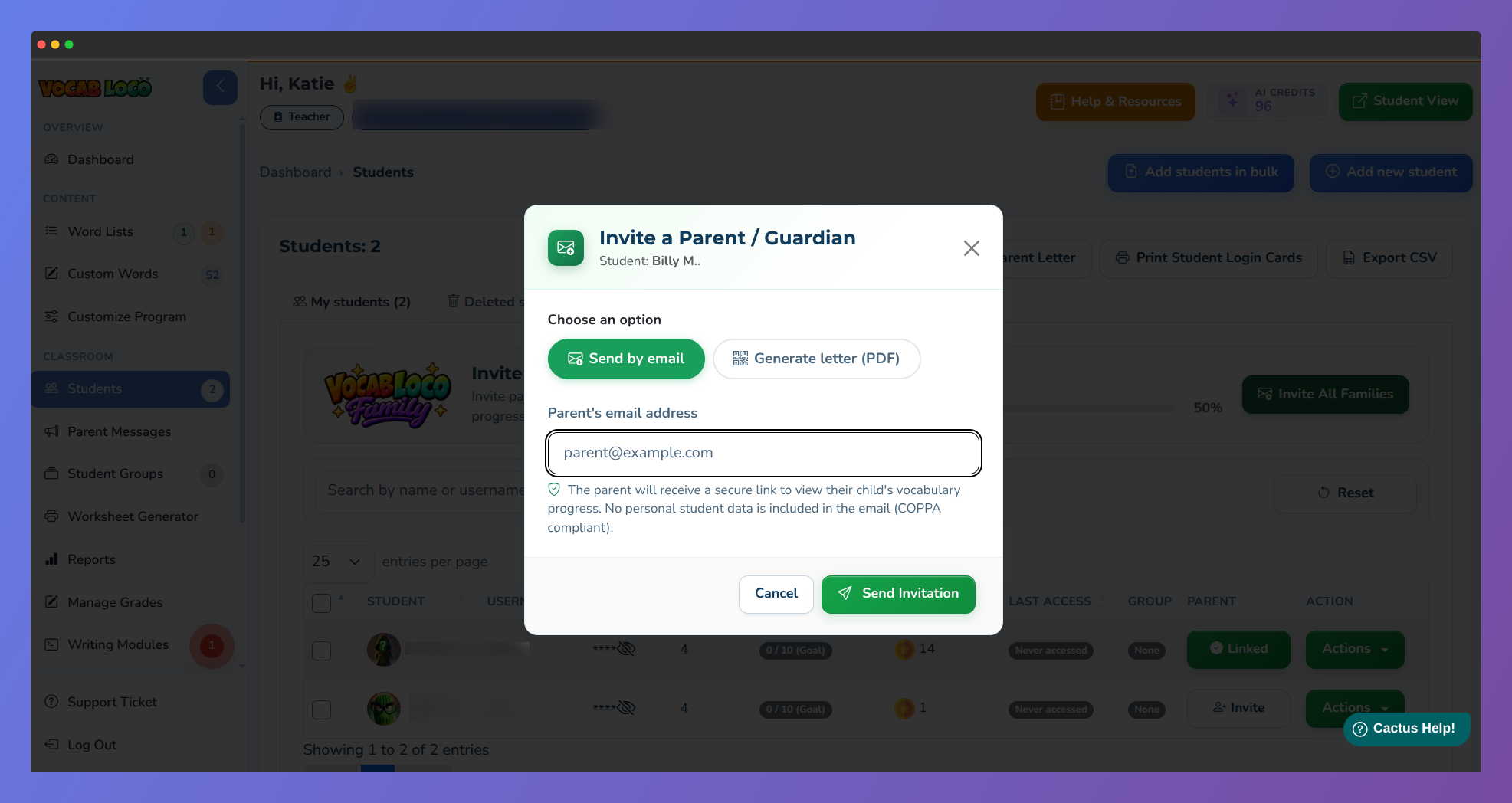 Invite a Parent / Guardian modal with Send by email selected.
Pro Tip: Use the QR letter when a family does not have a reliable email address, or when you prefer to send a paper invite home in the backpack.
Note: While an invitation is pending, the email address is locked. To invite a different address, cancel the invitation on the Parents tab first, then send a new one.
Step 4: Check the Parent column
- After you send an invite, the Parent column on your student list updates so you can see connection status at a glance (for example, awaiting acceptance vs. linked).
- The Invite Your Families banner progress bar also updates as more families accept.
Step 5: Manage invites on the Parents tab
- Open the Parents tab in My Class to see all invitations in one place, with a summary of linked, pending, and declined.
- For each invite you can:
- Resend — send the email again when status is pending.
- Revoke — cancel a pending invitation.
- Remove — unlink a parent who already accepted, if you need to end family access for that student.
- From this tab you can also open Invite all (bulk) or Download QR letters for the whole class.
Q: What happens after a parent accepts?
A: They can log in with Parent Login and see that child's weekly progress in Vocab Loco Family — this week's words, words to review, achievements, and practice tips.
Q: Can I invite more than one family member for the same student?
A: Each student has one active parent link at a time. To connect a different email, remove or revoke the current invitation first, then send a new one.
Pro Tip: Need to invite the whole class at once? Use Invite All Families on the banner (or Invite all (bulk) on the Parents tab) to enter emails, upload a CSV, or download QR letters for every student.
Was this article helpful?
That’s Great!
Thank you for your feedback
Sorry! We couldn't be helpful
Thank you for your feedback
Feedback sent
We appreciate your effort and will try to fix the article