The Parent Portal — branded for families as Vocab Loco Family — is a free account parents and guardians use to follow their child’s vocabulary progress at home. Teachers invite families from My Class. Parents create their own account, then see this week’s words, words to review, achievements, practice tips, and messages from you — without changing anything in your classroom.
Overview: What families can see
- Dashboard — a quick weekly snapshot of their child’s vocabulary activity
- This Week’s Words — current word lists, with listen-along and a simple “Quiz me” review
- Words to Review — words that still need practice
- Achievements — certificates and progress milestones
- Practice Tips — short ideas for practicing at home
- Messages — updates you send through Parent Messages
- Settings — optional emailed progress reports (weekly, every 2 weeks, or monthly)
Note: Vocab Loco Family is view-only for parents. They do not log in as the student, change scores, or edit your class. Access starts only after a parent accepts your invitation.
Step 1: Open My Class
- From your Teacher Dashboard, open My Class.
- Look for the Invite Your Families banner at the top of your roster.
- You can also use the Parents tab for invite tools, status, and printable letters.
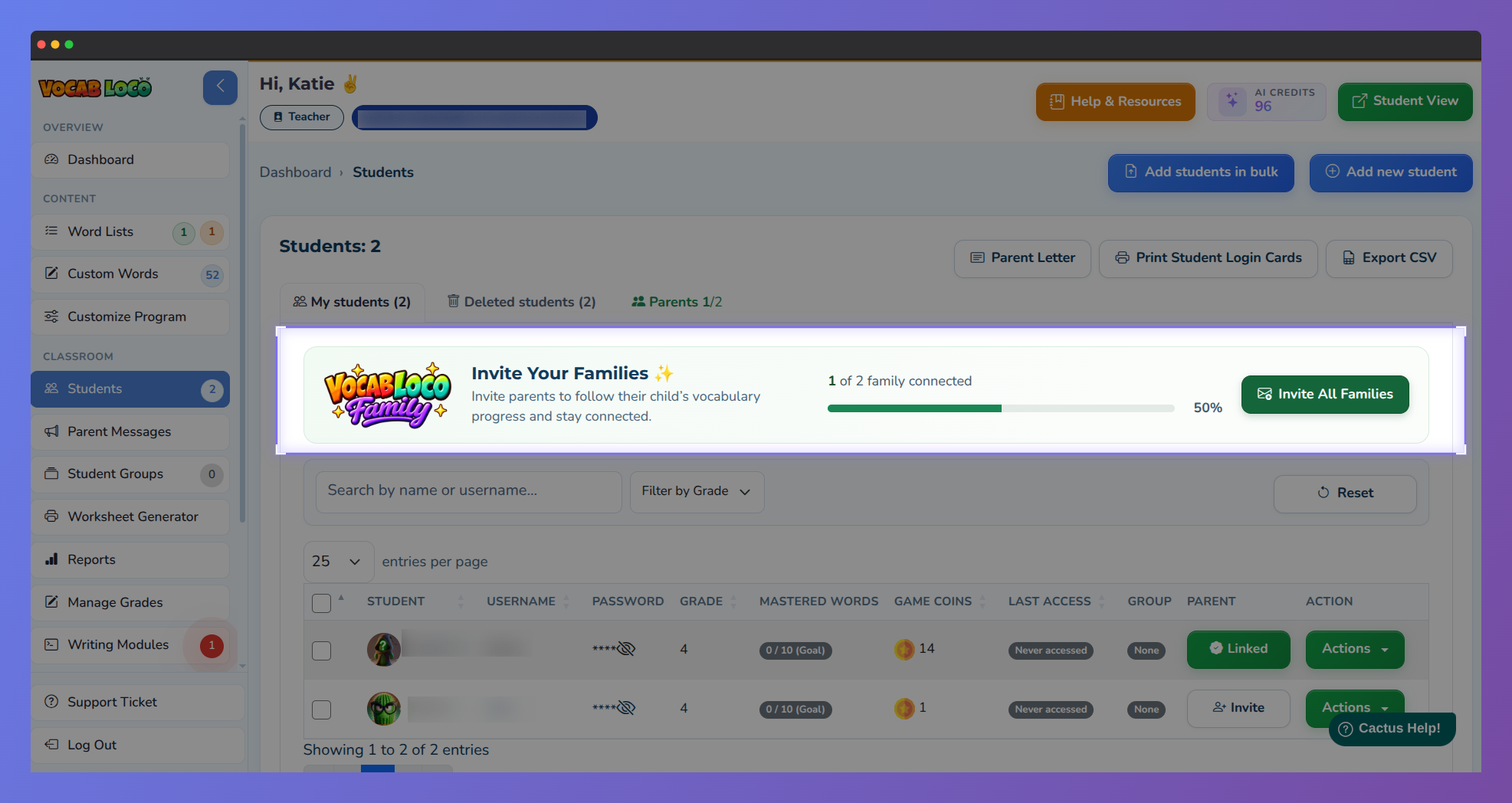
Screenshot: My Class with the Invite Your Families banner highlighted.
Note: If you do not see invite tools, ask your school admin to enable Allow this teacher to invite parents on your teacher account.
Step 2: Invite families
- Choose the invite method that fits your classroom:
- Email (one student) — open the student’s Actions menu → Invite Parent → Send by email
- Invite all (bulk) — enter parent emails for the whole class, or upload a spreadsheet
- QR letters (PDF) — print a personalized letter with a unique QR code for conferences, folders, or take-home packs (English or Spanish)
- Each invite is unique to that student. Families should not share their link with others.
- Email invites do not include personal student data in the message body.
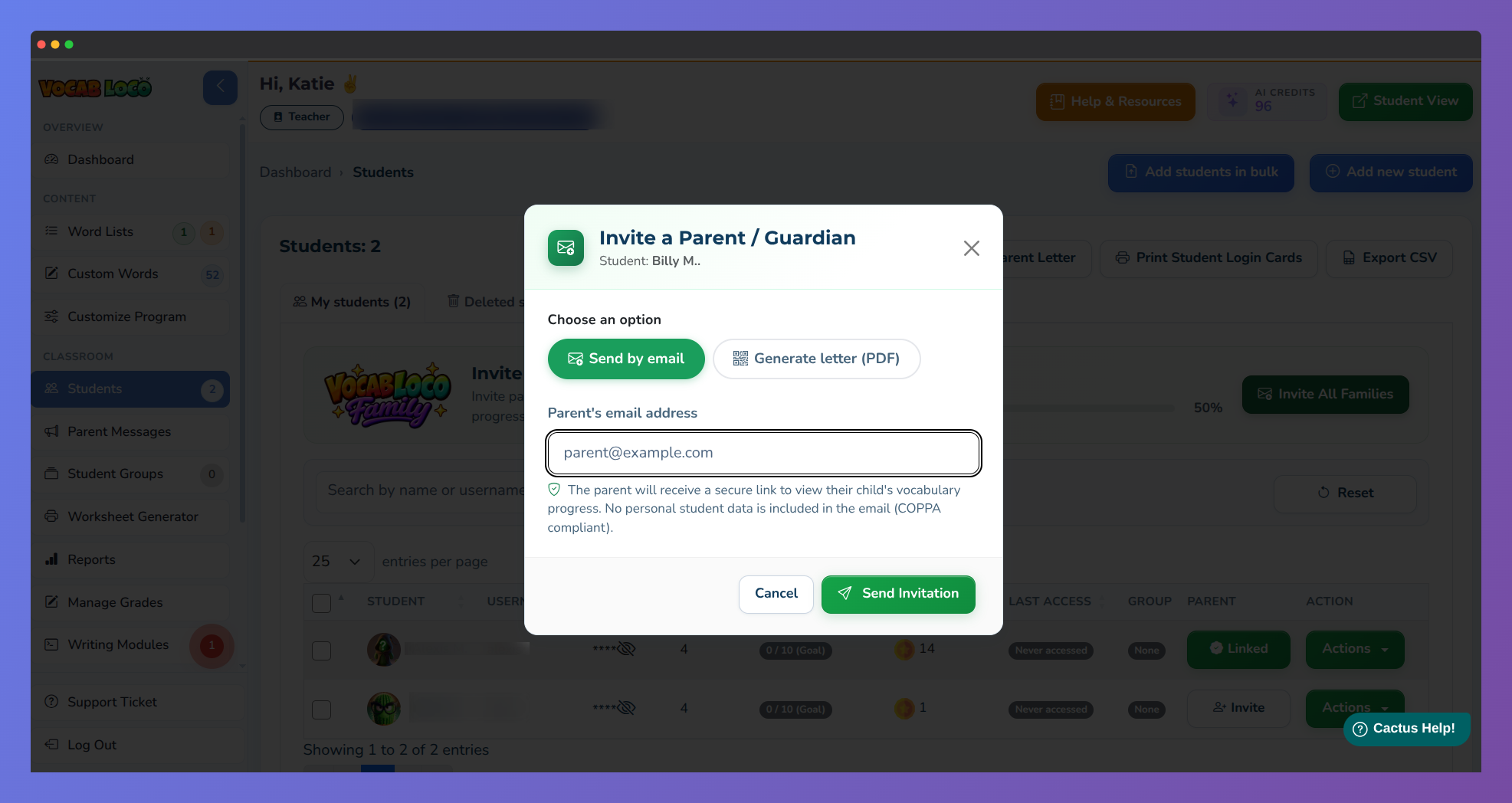
Screenshot: Invite a Parent / Guardian modal, or Parents tab with Invite all and Download QR letters.
Pro Tip: Use email when you already have parent addresses. Use QR letters for back-to-school night, conferences, or any time printed take-home materials work better.
Step 3: Track connections
- On My Class, the parent column shows whether a family is linked, pending, or not invited yet.
- Open Parent Invitations (My Class → parent invite list) to see statuses such as Pending, Accepted, Revoked, or declined / removed by the parent.
- From there you can Resend or Revoke an invitation when needed.
- After a parent accepts, they create a Vocab Loco Family account and can follow progress at home.
Step 4: Stay in touch with Parent Messages
- Once families are connected, use Parent Messages in the left sidebar to send class updates, reminders, and celebrations.
- Families see your note under Messages in Vocab Loco Family. You can track read receipts from the teacher side.
- Only connected families receive messages — invite parents first if nobody is linked yet.
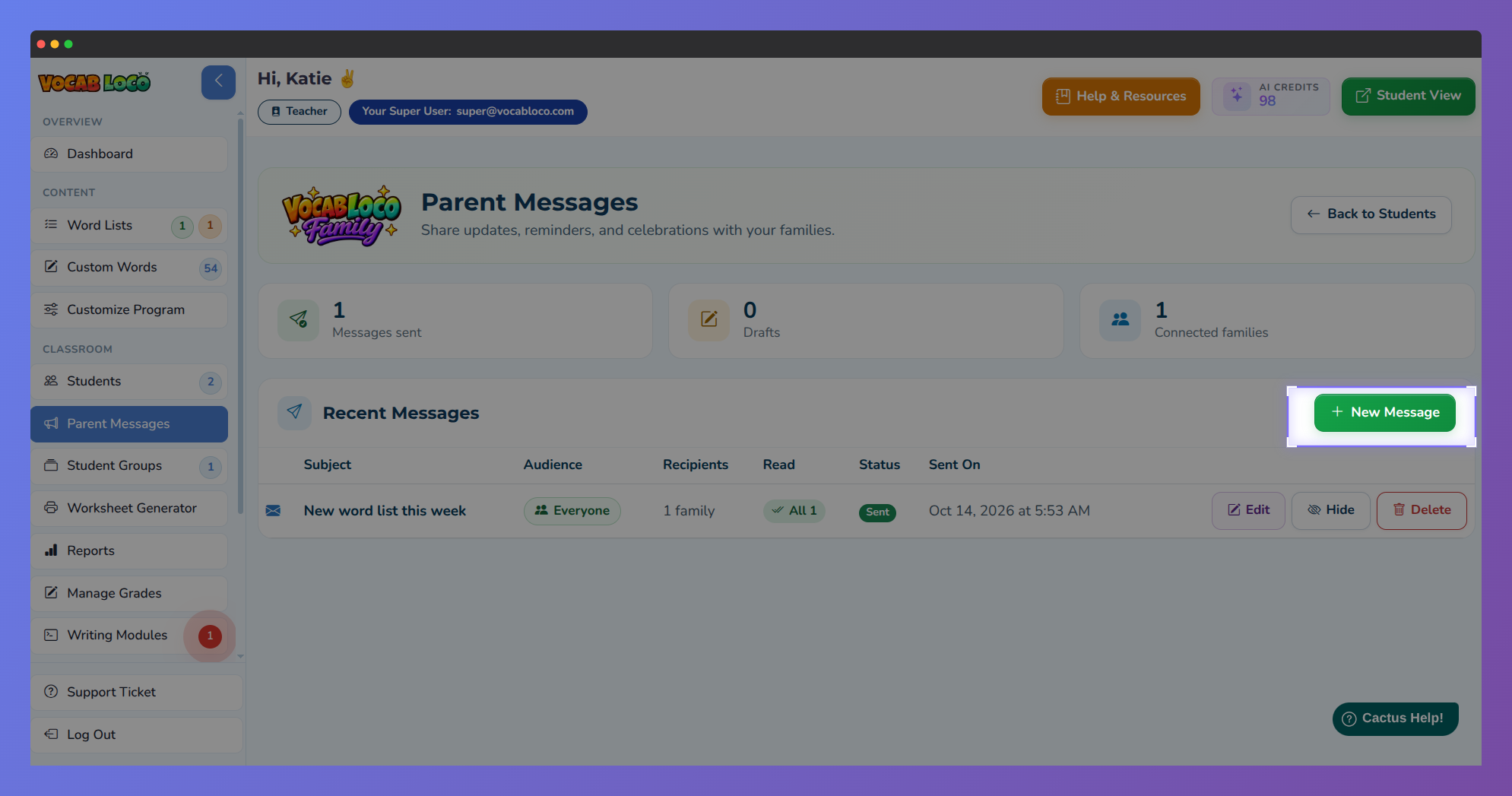 Parent Messages page with New Message button highlighted.
Pro Tip: For a full walkthrough of compose, audience, and read receipts, see the Parent Messages help article.
For families: Where parents sign in
- After accepting an invite, parents sign in anytime at vocabloco.com/parent/login.
- On the main Vocab Loco login page, they can also choose the Parent Login option.
- If a family has more than one child on Vocab Loco, they can switch between children in the portal.
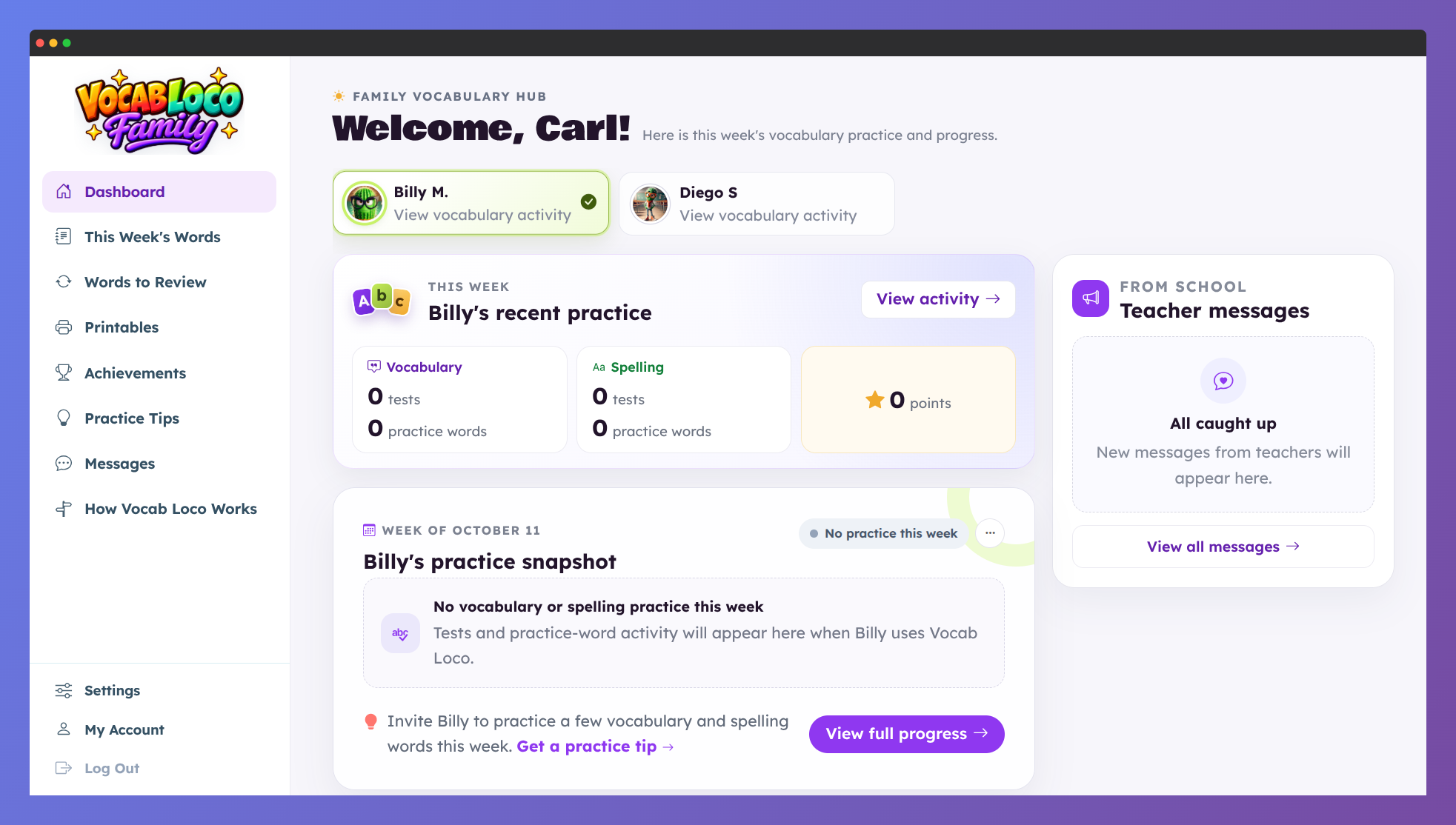 Vocab Loco Family Dashboard with weekly progress and teacher messages.
Q: Is Vocab Loco Family the same as the Parent Portal?
A: Yes. Vocab Loco Family is the name families see. Teachers and school admins often call it the Parent Portal.
Q: Do parents need a student password?
A: No. They create their own family account from your invite. They never use the student login.
Q: Can I invite a family before I have their email?
A: Yes. Download a QR letter for that student and send it home. When they scan the code, they create an account and connect to the child.
Pro Tip: Invite a few families early, then open Parent Messages for a short welcome note. Checking read receipts shows you who is already using Vocab Loco Family at home.
Was this article helpful?
That’s Great!
Thank you for your feedback
Sorry! We couldn't be helpful
Thank you for your feedback
Feedback sent
We appreciate your effort and will try to fix the article