Need to connect the whole class? Vocab Loco Family lets you invite every student's parent or guardian in one pass — by typing emails, uploading a CSV spreadsheet, or downloading printable QR letters. Here's how.
Step 1: Open Invite All Families
- From your Teacher Dashboard, go to My Class.
- Click Invite All Families on the Invite Your Families banner — or open the Parents tab and click Invite all (bulk).
- The Invite Parents — All Students modal opens with your full roster.
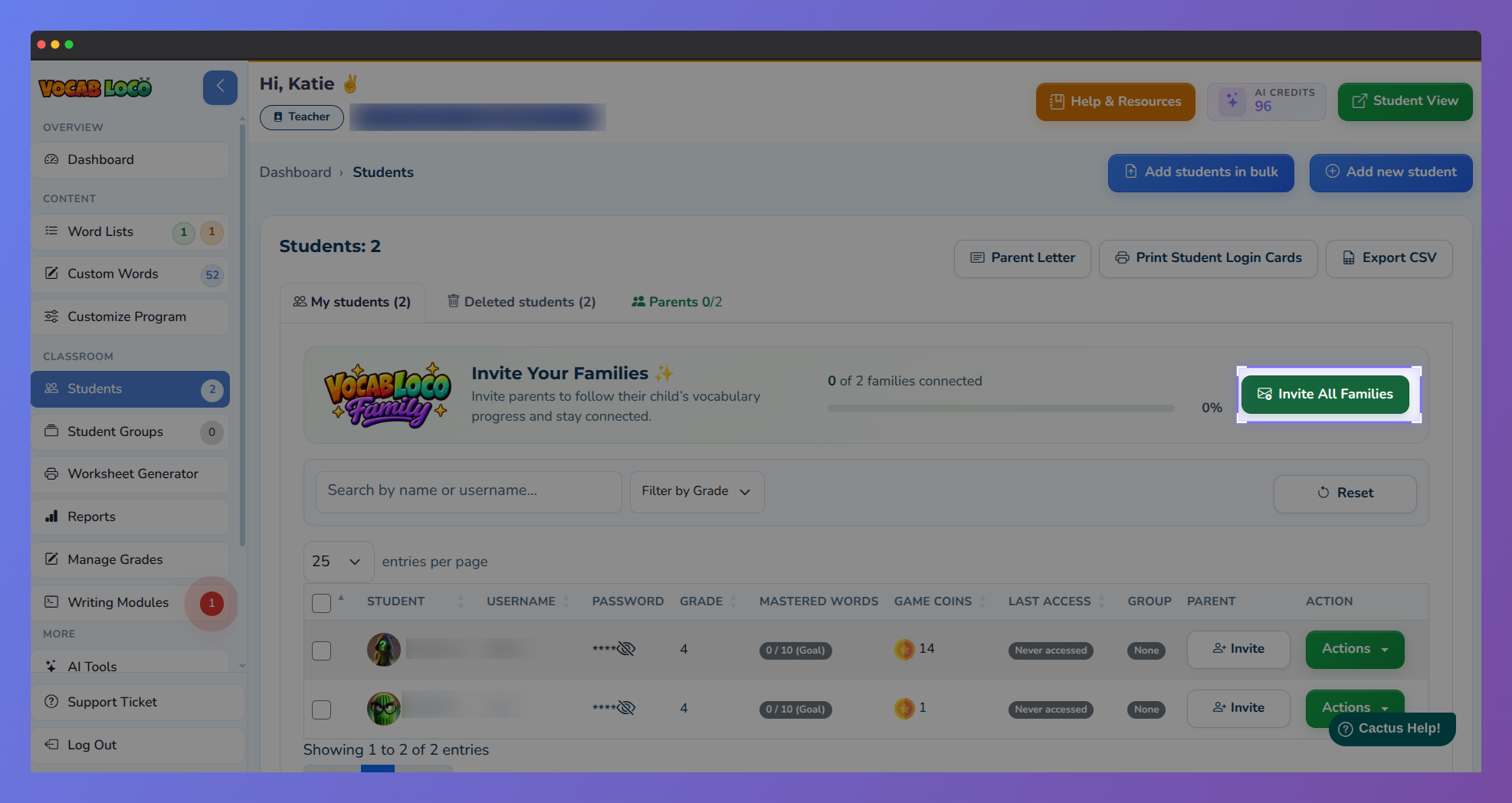 Invite All Families button on the Invite Your Families banner.
Step 2: Enter parent emails
- In the table, each row shows the student, a Parent Email field, invitation status, and actions.
- Type an email next to each student you want to invite. Leave the field blank to skip that student.
- Status badges help you see who is already connected:
- Not invited — ready for a new email
- Pending — invitation sent, waiting for acceptance
- Linked — parent already connected
- Declined — family declined; you can resend
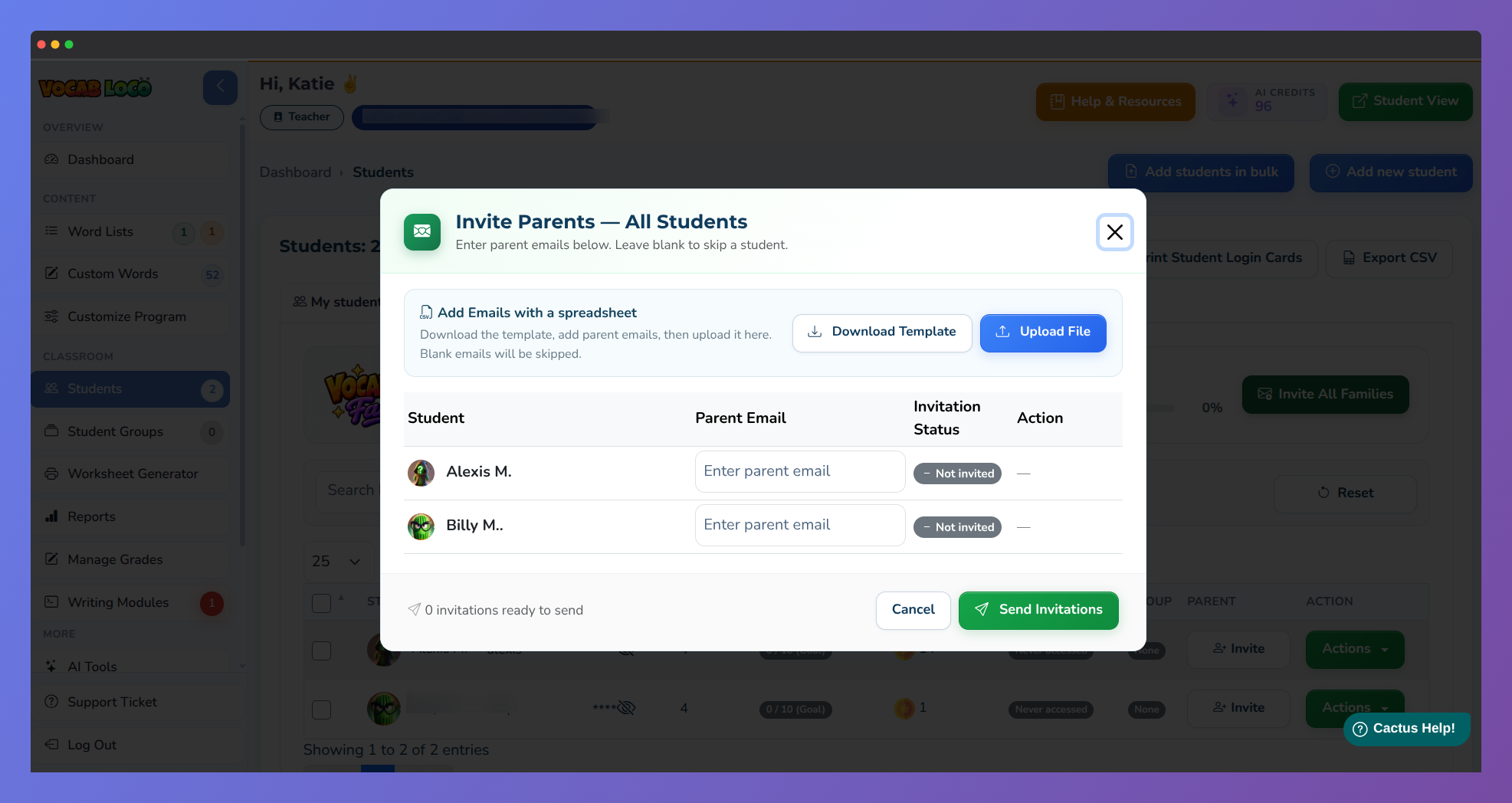 Invite Parents — All Students modal with email fields and CSV upload.
Note: While an invitation is pending, that email address is locked. Use Cancel in the Action column (or revoke on the Parents tab) before sending to a different address. For linked students, use Unlink if you need to remove access.
Step 3: Use a CSV spreadsheet
- At the top of the modal, under Add Emails with a spreadsheet, click Download Template.
- Open the file and fill in the parent_email column for each student username. Leave emails blank for students you want to skip.
- Click Upload File and select your completed CSV. Matching emails fill into the table automatically; blank rows and students who are already linked are skipped.
Pro Tip: Keep the template columns as they are (username and parent_email). Renaming or removing them will prevent the file from importing.
Step 4: Send the invitations
- Review the emails in the table, then click Send Invitations.
- Only rows with a valid email that are not already linked are queued. Families receive a secure invite link to join Vocab Loco Family.
- After sending, check the Parents tab for linked, pending, and declined counts. Use Resend on any pending email invite if needed.
Note: Bulk invitations are processed in the background. Most emails go out within about a minute.
Step 5: Download QR letters
- On the Parents tab, click Download QR letters to open the letter options modal.
- Choose a language: English or Spanish.
- Choose a format:
- Single PDF — one document with 2 letters per page
- Individual PDFs (ZIP) — one PDF per student, packaged in a ZIP file
- Click Download. Students who already have a linked parent are not included.
Pro Tip: QR letters are ideal for backpacks and conferences when you do not have every parent email on file. Families scan the code to create or log into their Vocab Loco Family account and connect to the student.
Q: Can I mix email invites and QR letters?
A: Yes. Invite some families by email in the bulk modal, then download QR letters for students who still need a paper invite. Linked students are skipped from letter downloads automatically.
Q: What if a parent declines?
A: Their status shows as Declined. You can click Resend in the bulk modal or on the Parents tab to send a new invitation.
Was this article helpful?
That’s Great!
Thank you for your feedback
Sorry! We couldn't be helpful
Thank you for your feedback
Feedback sent
We appreciate your effort and will try to fix the article