Parent Messages lets you send class updates to parents and guardians who have already connected through Vocab Loco Family. Families see your note in their portal, and you can track read receipts from the teacher side.
Step 1: Open Parent Messages
- From your Teacher Dashboard, click Parent Messages in the left sidebar.
- The page shows recent messages plus quick stats for sent messages, drafts, and connected families.
- Click New Message to start the compose wizard.
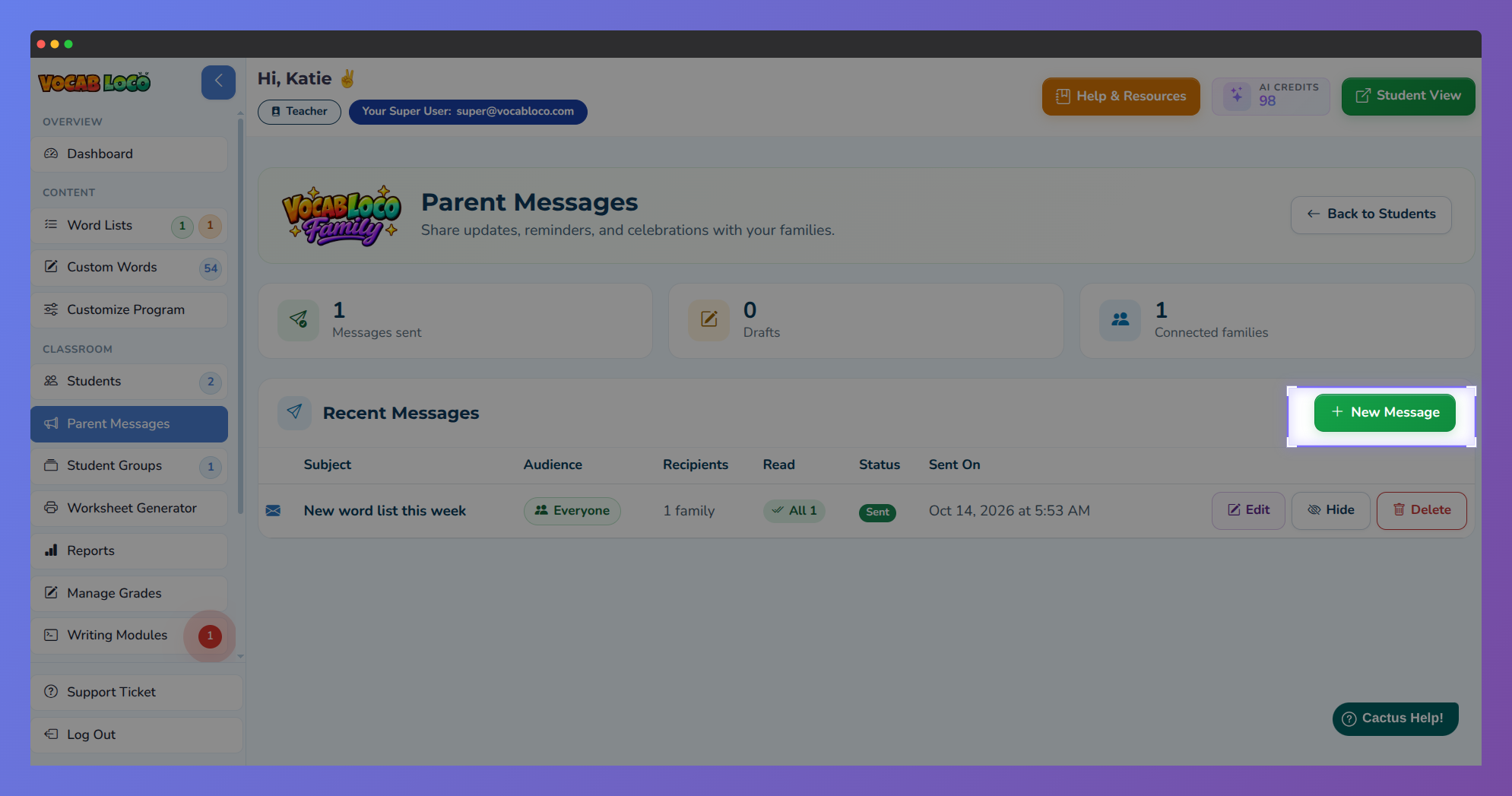 Parent Messages page with New Message button highlighted.
Note: Only families with a linked Vocab Loco Family account receive messages. Invite parents from My Class first if no one is connected yet.
Step 2: Choose your audience
- In Step 1: Choose Audience, pick who should receive the message:
- Everyone — all connected families in this class
- Individual Students — select one or more students (only connected families can be checked)
- Groups — message a student group; only connected families in that group are included
- Students without a linked parent are skipped automatically.
- Click Next Step to continue.
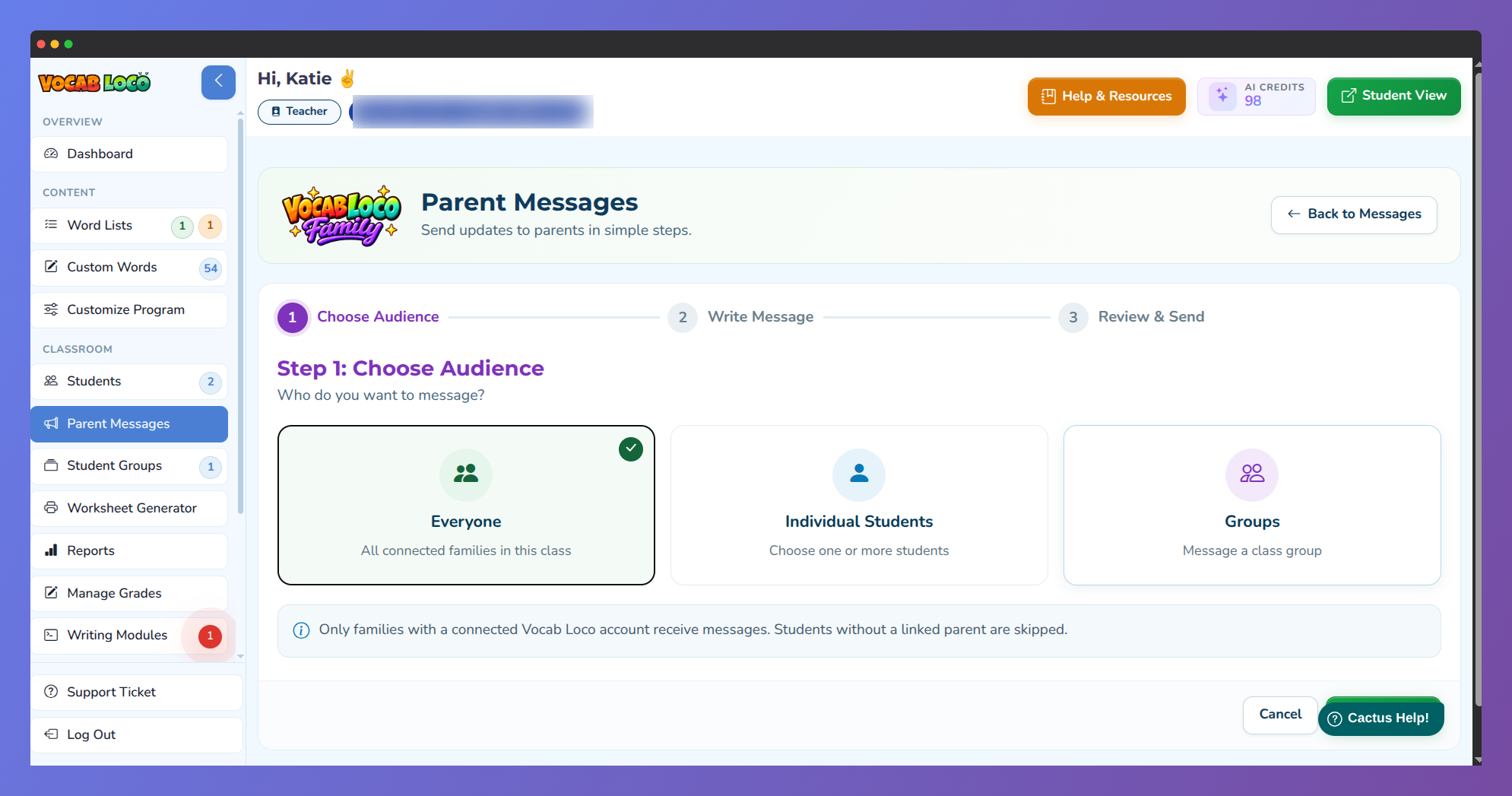 Parent Messages Step 1: Choose Audience with Everyone selected
Pro Tip: If your audience reaches nobody, you can still Save as draft — then invite families and send when they are connected.
Step 3: Write your message
- In Step 2: Write Message, enter a Subject and the Message body.
- Optionally set Visible from and Visible until dates if you want the note to appear only during a specific window.
- Click Next Step to review.
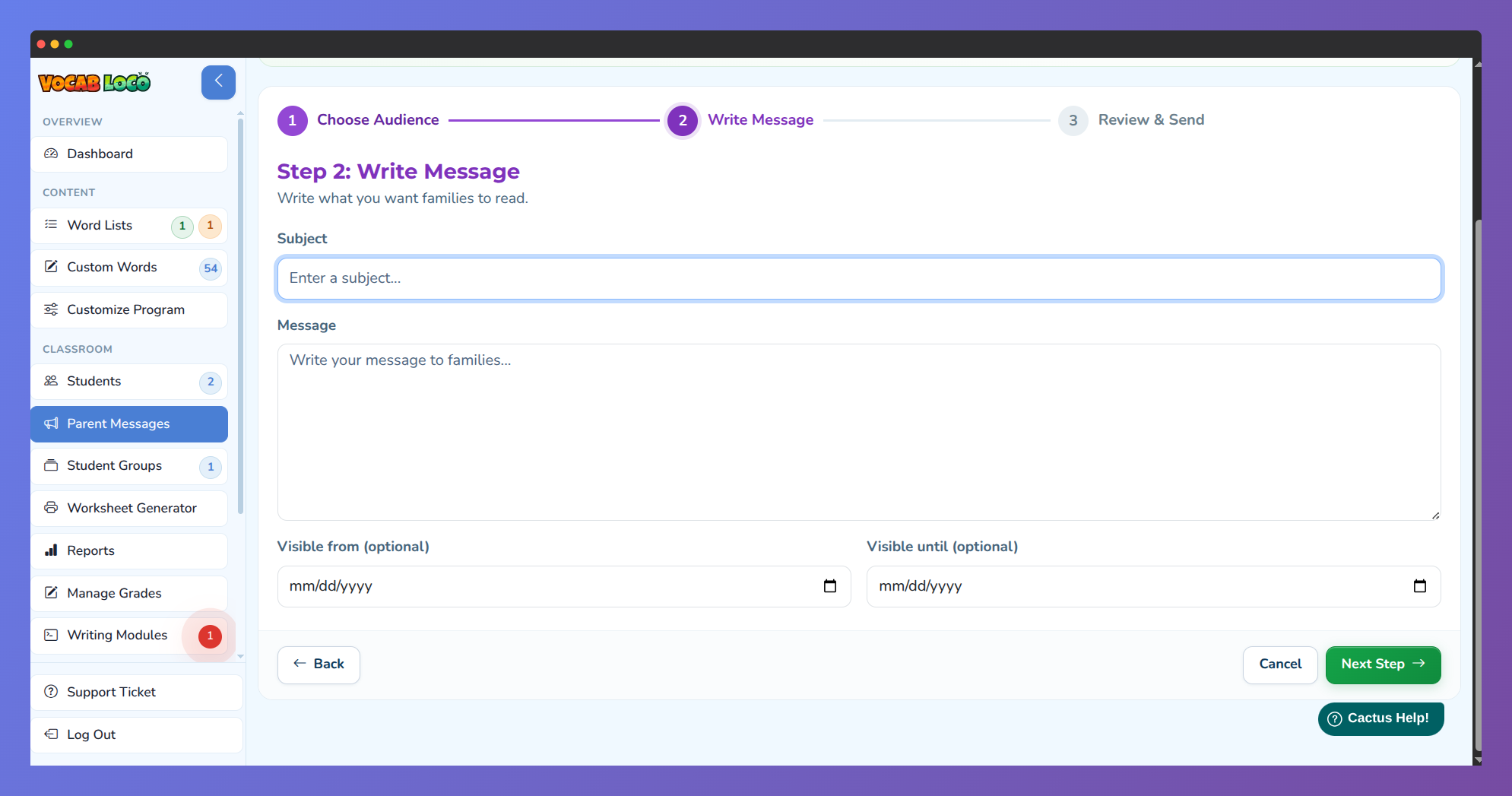 Parent Messages Step 2: Write Message with subject and body fields.
Step 4: Review and send
- In Step 3: Review & Send, check the message preview, audience summary, and visibility details.
- Use the notification switch if you also want families notified by email (they always see the message in their Vocab Loco Family portal).
- Click Send Message to deliver now — or Save as draft if you are not ready yet.
- Use Edit next to any summary row (or Edit Message) to go back and change audience, text, or dates before sending.
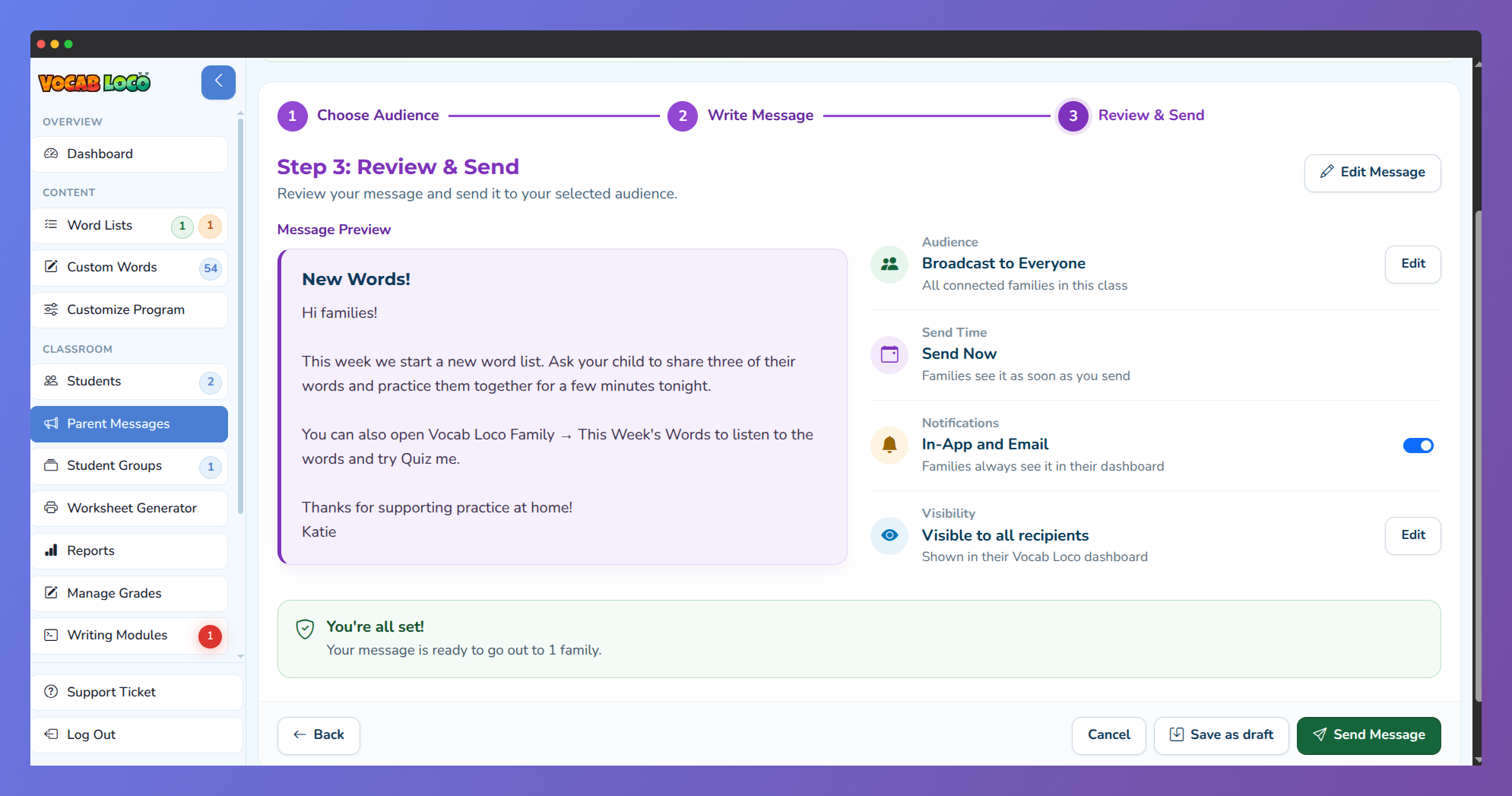 Parent Messages Step 3: Review & Send with message preview ready.
Step 5: Track read receipts and drafts
- Return to Parent Messages to see your sent list and drafts.
- Read status updates as families open the message, for example:
- Not read yet
- X of Y families have read it
- All recipients have read it
- Open a draft anytime to finish editing and send.
Q: Where do parents see my message?
A: In Vocab Loco Family under Messages. An unread badge appears when something new is waiting.
Q: Can I message a student who has not connected a parent yet?
A: Not until a family accepts the invite. Invite them from My Class first; until then they cannot receive Parent Messages.
Pro Tip: Use Parent Messages for reminders about word lists, test weeks, or practice at home — then check read receipts to see who still needs a follow-up.
Was this article helpful?
That’s Great!
Thank you for your feedback
Sorry! We couldn't be helpful
Thank you for your feedback
Feedback sent
We appreciate your effort and will try to fix the article