Vocab Loco gives teachers flexibility in how rewards are presented to students. With Pookie's House, Word Swapper, and the Games Page, you can motivate students while keeping learning front and center.
Pookie's House and Word Swapper
Where to find it: Teacher Dashboard → Customize Program
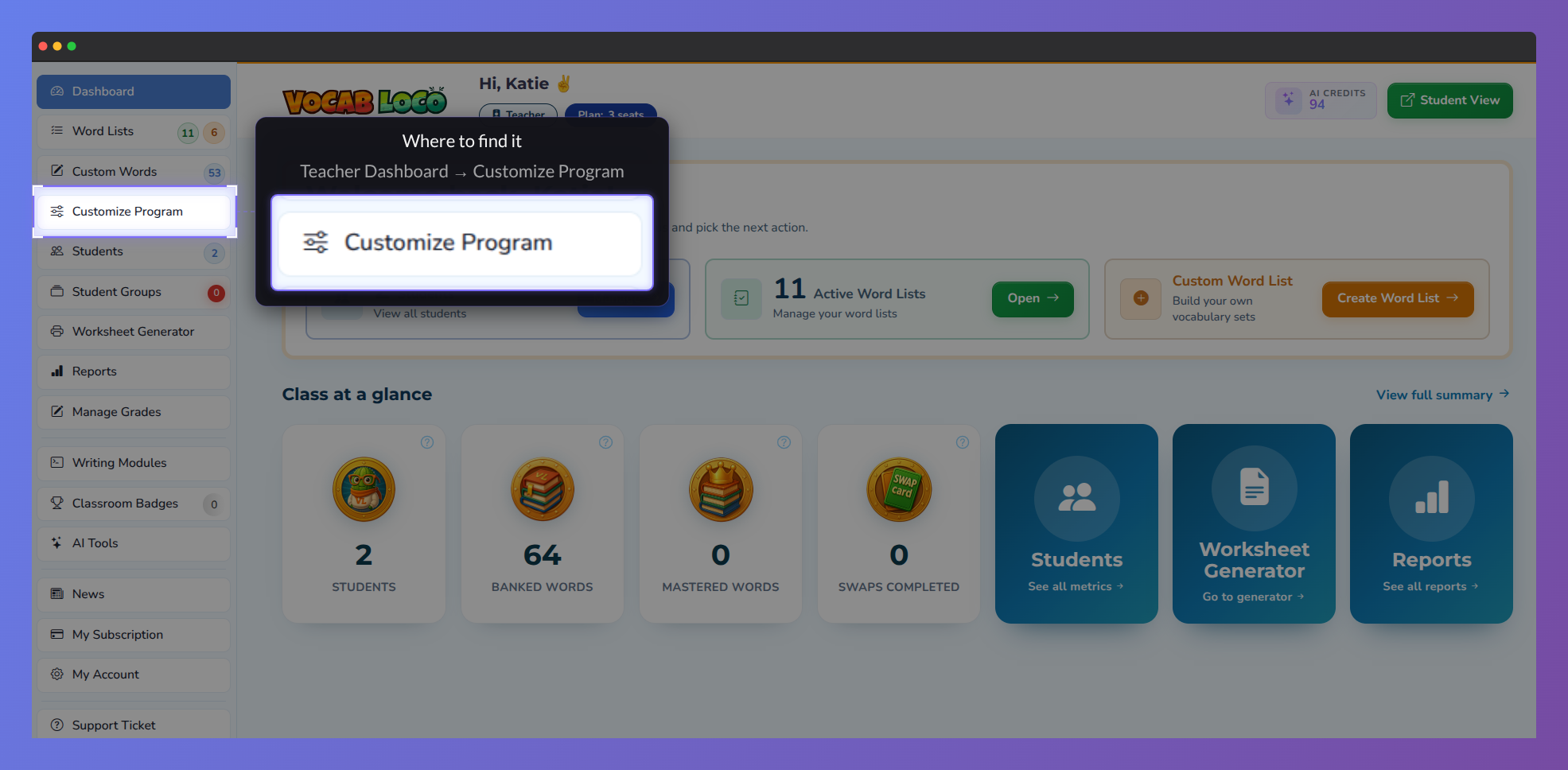
Screenshot of the Vocab Loco Teacher Dashboard highlighting the Customize Program option in the left sidebar, where teachers can manage program-wide settings and student activity controls.
Pookie's House
- Can be set to specific days (weekdays, weekends, or a single day).
- Can be limited by daily playtime (15 minutes, 30 minutes, 1 hour, etc.).
- Can also be blocked completely.
? Recommendation: Do not turn Pookie off completely. Pookie is where students continue reviewing mastered words after finishing a word list. This practice helps turn weekly vocabulary into "life words." Many teachers find the best balance is to allow Pookie on weekends only or with a time limit.
Word Swapper
- Can be enabled or disabled.
- Word Swapper takes vocabulary practice beyond memorization. Students "swap" words into real sentences and scenarios, applying vocabulary in context. This makes it both a fun game and a highly effective learning tool — one of the most motivating features in Vocab Loco.
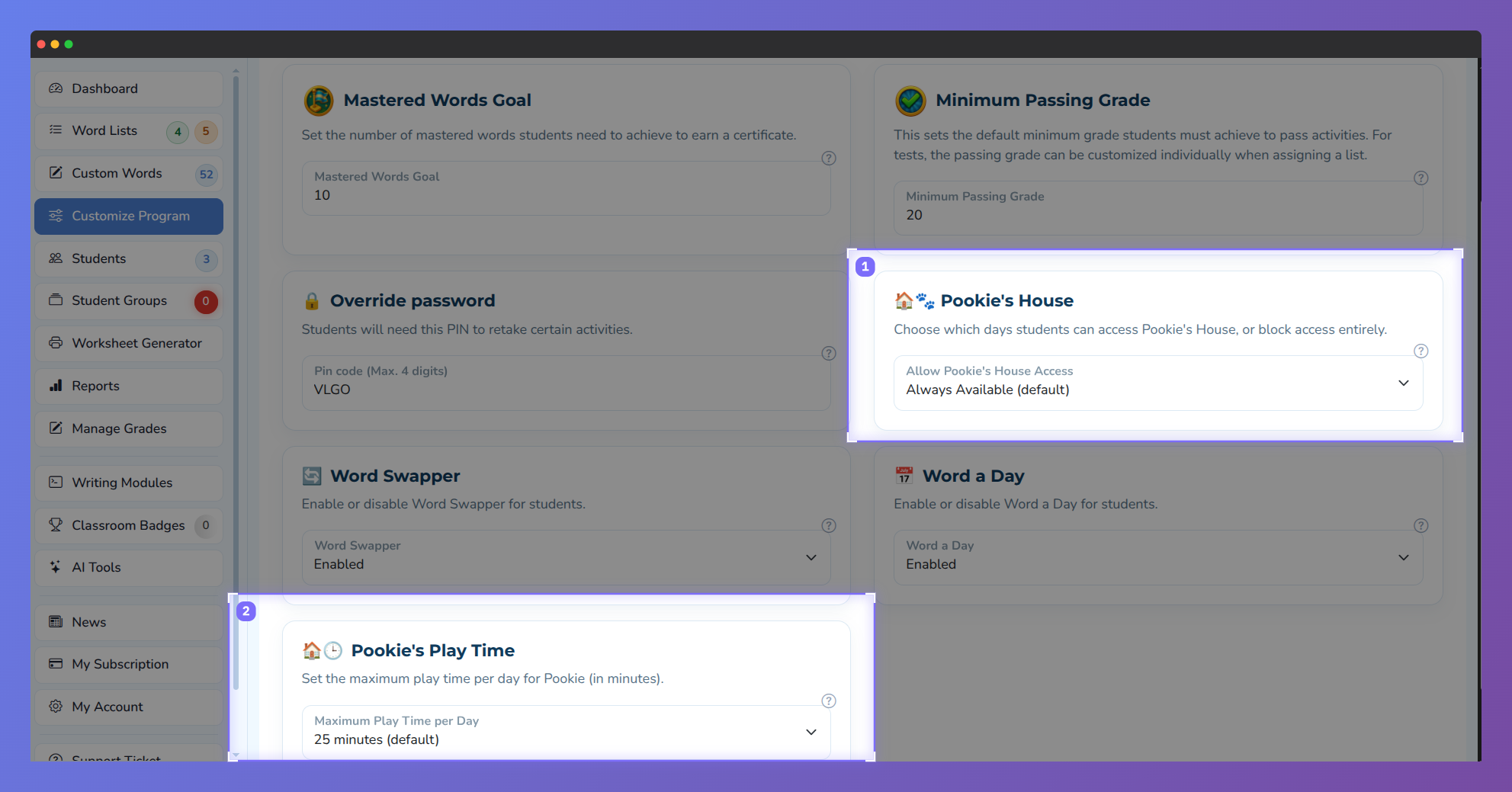
Screenshot of the Vocab Loco Customize Program settings page highlighting the Pookie’s House access controls and student play time settings, where teachers can manage availability and daily play limits.
Games Page
Where to find it: Teacher Dashboard → Customize Program → Games tab
- The Games Page can be turned off completely.
- You can allow access only on certain days (e.g., weekends or Fridays).
- A daily limit can be set for how many games students can play.
Screenshot of the Vocab Loco Games and Coins settings page highlighting the Games Page availability controls, where teachers can choose when students can access educational games.
Best practices
- Use time limits and day restrictions to keep rewards balanced with learning.
- Keep Pookie's House available in some form (weekends or time-limited), since it directly supports vocabulary review and long-term retention.
- Leave Word Swapper enabled whenever possible — it is uniquely effective for applying words in real-world contexts.
- Adjust Games to fit your classroom rhythm — a busy classroom may prefer Fridays and weekend-only access.
Activities order
All enabled activities (Flashcards, Spell and Learn, etc.) open together within a lesson. While tests can be customized in several ways, activities cannot be locked into a strict step-by-step sequence.
Was this article helpful?
That’s Great!
Thank you for your feedback
Sorry! We couldn't be helpful
Thank you for your feedback
Feedback sent
We appreciate your effort and will try to fix the article