The Student Dashboard is your home base in Vocab Loco. Everything you need — your word lists, progress, games, and rewards — is one click away from here. This guide walks you through each part of the page so you always know where to look.
Step 1: The top bar
- At the top of every page you'll find three buttons on the right side:
- Notification bell — shows your latest unread notifications. Click it to see a quick preview, or go to the full Notifications page to see everything.
- Change Voice — opens a panel where you can choose a text-to-speech voice, set the reading speed (Slow, Normal, or Fast), and pick a text highlight color.
- Log Out — signs you out of your account.
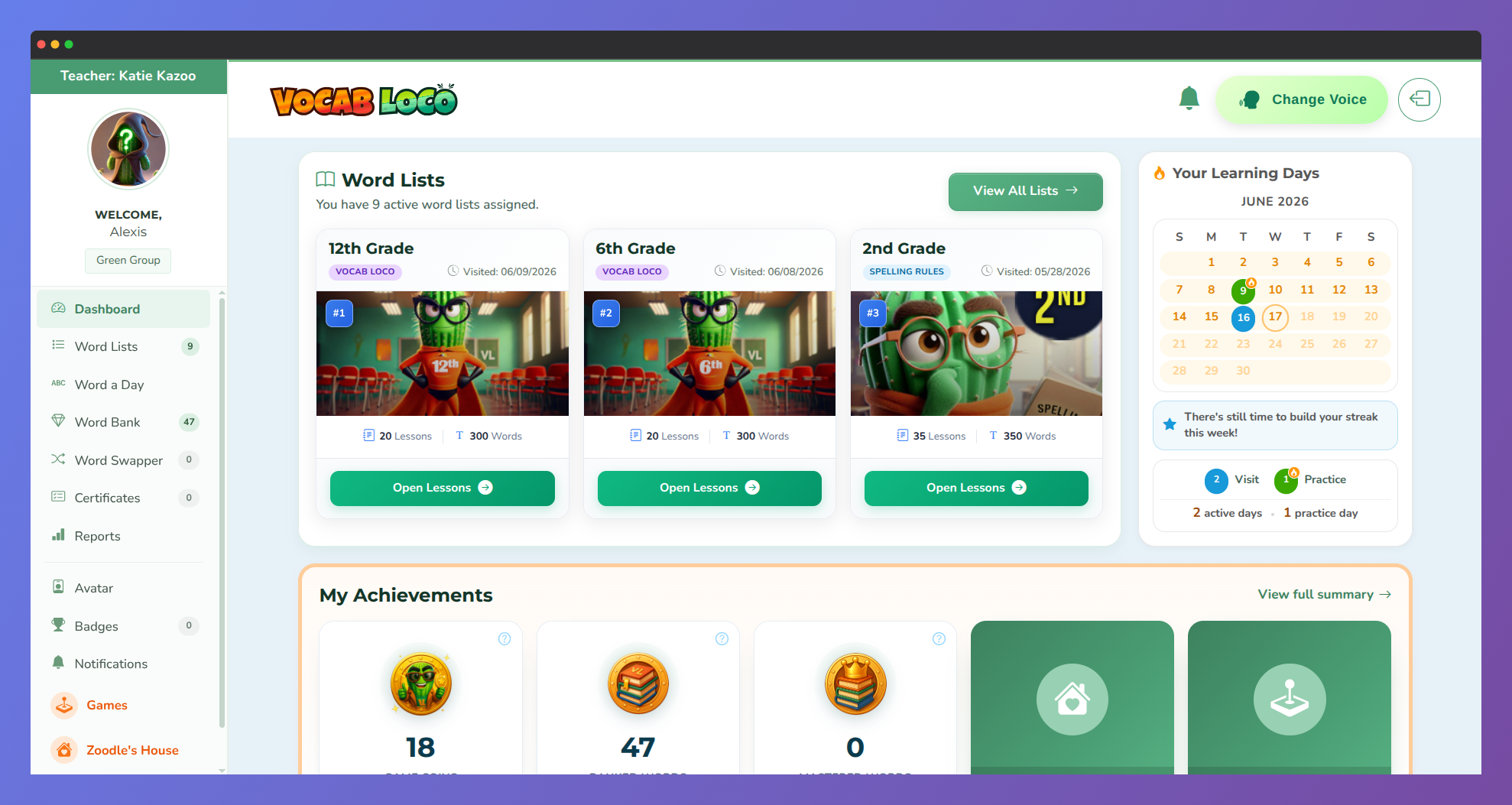
Screenshot of the Vocab Loco Student Dashboard displaying assigned word lists, progress tools, games, and learning modules available to the student.
Step 2: The left sidebar
- The sidebar stays on the left side of every page and is your main navigation menu.
- At the top of the sidebar you'll see your avatar, your name, and your teacher's name. Click the avatar to go to the Avatar page and change it.
- Below that, the navigation links take you to all the main areas of the platform:
| Link | What it does |
|---|---|
| Dashboard | Returns to this page |
| Word Lists | View all your assigned word lists |
| Word a Day | A new word to explore every day (if enabled by your teacher) |
| Word Bank | Words you've passed on a spelling or vocabulary test |
| Word Swapper | The word swap adventure game (if enabled by your teacher) |
| Certificates | Certificates earned by mastering words |
| Reports | Your full activity and progress summary |
| Avatar | Choose and unlock your avatar |
| Badges | View badges you've earned |
| Notifications | Messages and updates from your teacher |
| Games | Games and bonus activities |
| Pookie's House | Your virtual pet (if enabled by your teacher) |
Step 3: Your assigned word lists
- The top section of the dashboard shows up to three word list cards — one for each active assignment from your teacher.
- Each card shows the list title, number of lessons, number of words, and when you last opened it.
- If a list has a schedule, a badge will tell you whether it's Available, Coming Soon, or Expired.
- Click Open Lessons on any card to start working on that list. If you have more than three active lists, click View All Lists to see the rest.
Step 4: Quick access shortcuts
- Just below the page title, a row of shortcut buttons lets you jump to key sections without using the sidebar:
- Pookie Missions — scrolls down to your pet's daily missions (if enabled)
- My Garden — scrolls to your garden section (if enabled)
- Aquarium Health — scrolls to your aquarium widget
- My Progress — scrolls to your progress summary cards
- Word A Day — scrolls to the Word of the Day widget
Step 5: Dashboard widgets
- Below your word list cards, the dashboard displays a set of widgets with quick information and shortcuts:
- Your Learning Days — a monthly calendar that tracks your visit days and practice days, with a motivational message based on how active you've been. Practice days are marked with a fire icon.
- Word of the Day — shows today's featured word with its definition, synonyms, and an example sentence. You can save the word to your Word Bank or write a sentence using it directly from here. Visible only if enabled by your teacher.
- Word Swap Progress — shows your swaps completed and fish in your aquarium. Visible only if Word Swapper is enabled by your teacher.
- My Avatar — a preview of your current avatar with a link to change it.
- My Badges — a preview of your badge collection.
- Pookie's House — a shortcut to your virtual pet (if enabled by your teacher).
- Pookie Daily Missions — three daily tasks for your pet (Play, Eat, Wash Up) with status and direct GO buttons.
Step 6: Your progress summary
- The My Achievements section shows your key stats at a glance: Game Coins earned, Banked Words, Mastered Words, and Activity Points.
- Click Full Summary to go to your Reports page and see a complete breakdown of all your activity.
? Some sections — like Pookie's House, Word Swapper, and Word a Day — only appear if your teacher has turned them on. If you don't see them, that's normal!
Was this article helpful?
That’s Great!
Thank you for your feedback
Sorry! We couldn't be helpful
Thank you for your feedback
Feedback sent
We appreciate your effort and will try to fix the article