A: When active students exceed purchased seats, the Super User account enters a restricted mode — but students are not affected and can continue accessing the platform normally. More seats can always be added at any time to lift the restrictions.
Vocab Loco enforces seat limits as soon as the number of active students across all linked teachers exceeds the number of purchased seats. The restrictions activate immediately and remain in place until the seat usage is reduced or additional seats are purchased.
What Happens to the Super User Account
The Super User dashboard enters a restricted mode. Navigation is limited to the Students, Teachers, Membership, and Account pages — any attempt to access other sections redirects with the message: "You have more students than student seats purchased."
On the Students page, an overusage panel appears showing the current student count, the number of purchased seats, and how many students are over the limit. The Add new student button is disabled and bulk uploads are hidden until the overusage is resolved.
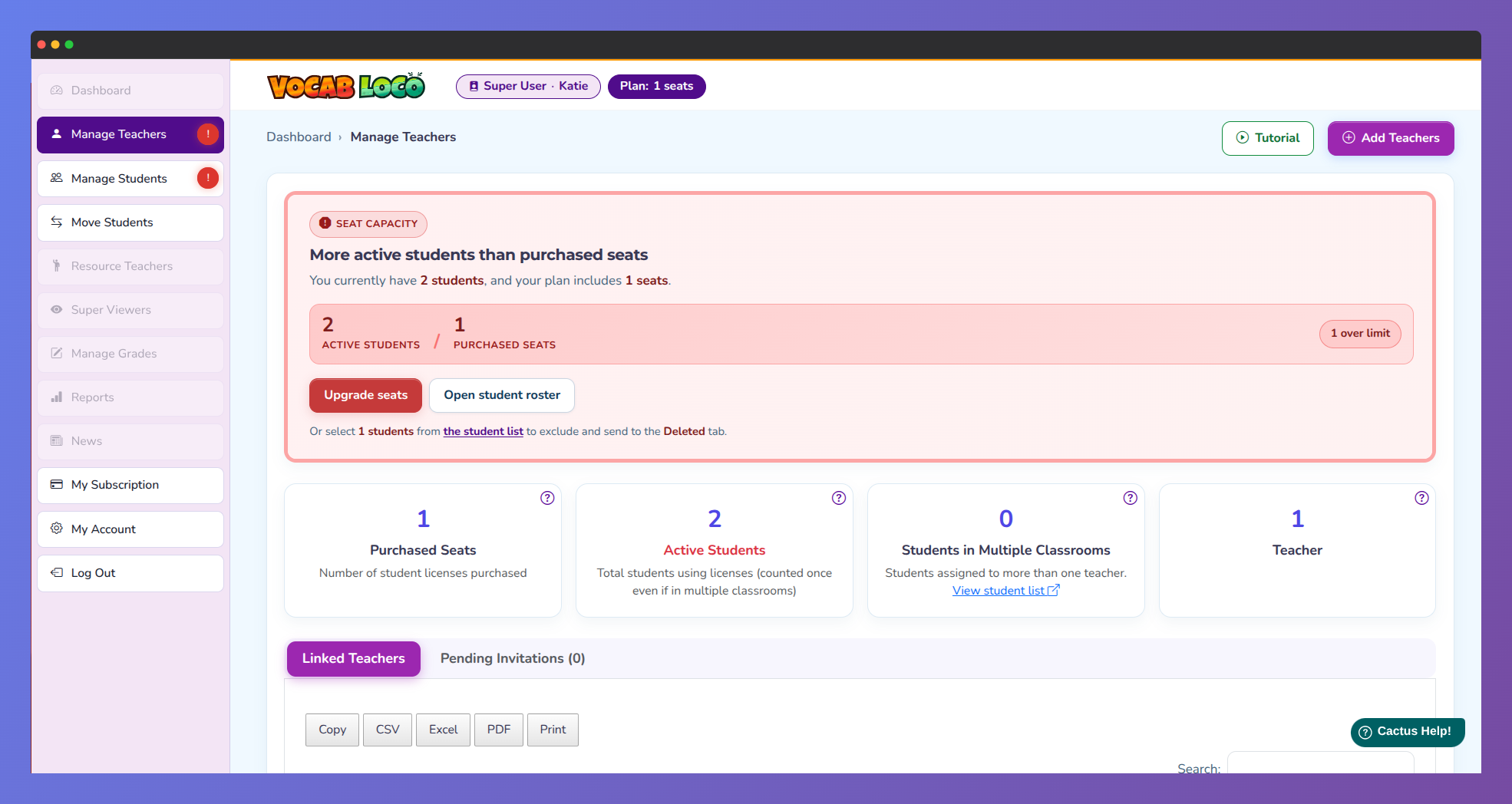
Screenshot of the Vocab Loco Super User Dashboard showing seat overusage management.
What Happens to Linked Teachers
Linked teachers see a warning on their My Class page and cannot add new students until the Super User resolves the overusage. Existing students and classes are not affected — all ongoing activity continues as normal.
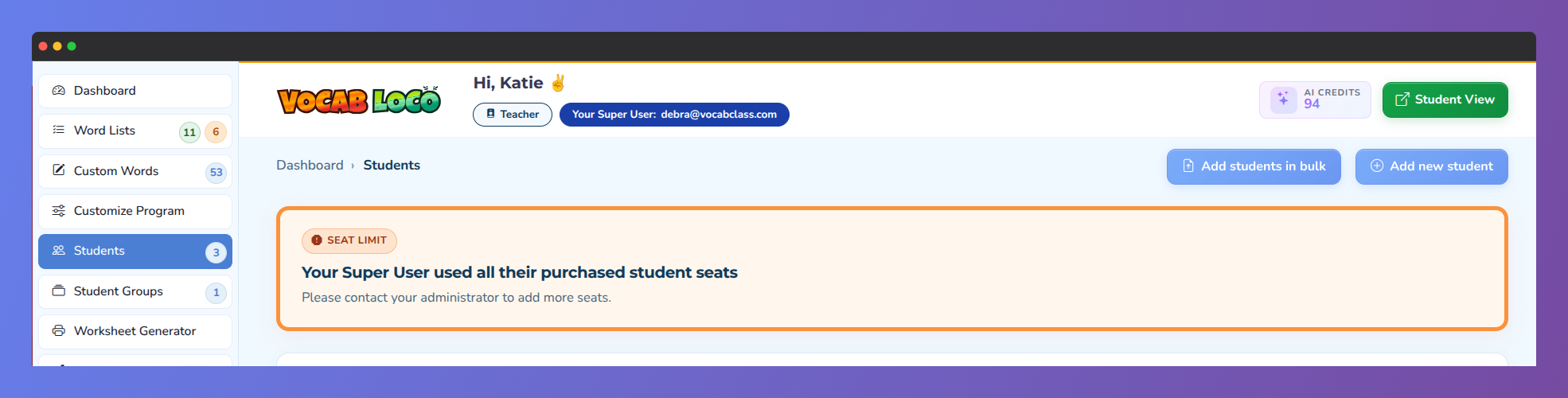
Screenshot of the Vocab Loco Teacher Panel displaying a seat limit warning when a Super User account has reached its purchased student capacity, temporarily restricting new student additions.
What Happens to Students
Students are not impacted. They can continue logging in and using the platform without interruption — the seat limit only restricts the ability to add new students, not access for existing ones.
How to Resolve the Overusage
- Add more seats: Click the Upgrade seats button in the overusage panel to purchase additional seats and lift all restrictions immediately. This is always available regardless of the current usage.
- Remove students: On the Students page, select and move students to the Deleted tab to bring the active count back within the purchased limit.
Was this article helpful?
That’s Great!
Thank you for your feedback
Sorry! We couldn't be helpful
Thank you for your feedback
Feedback sent
We appreciate your effort and will try to fix the article