Vocab Loco lets students hear words and sentences in two ways: the default Vocab Loco Voiceover (studio recordings) or Browser Text-to-Speech (TTS) using voices installed on the student's device.
Option A: Change the voice inside Vocab Loco (recommended)
- Open the Student Dashboard.
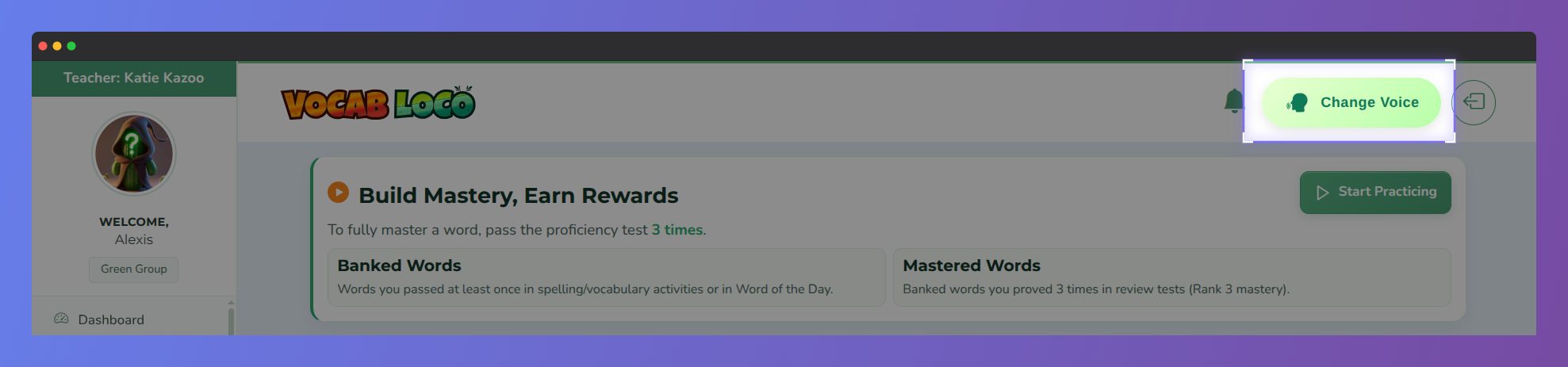
- Click Change Voice in the top right.
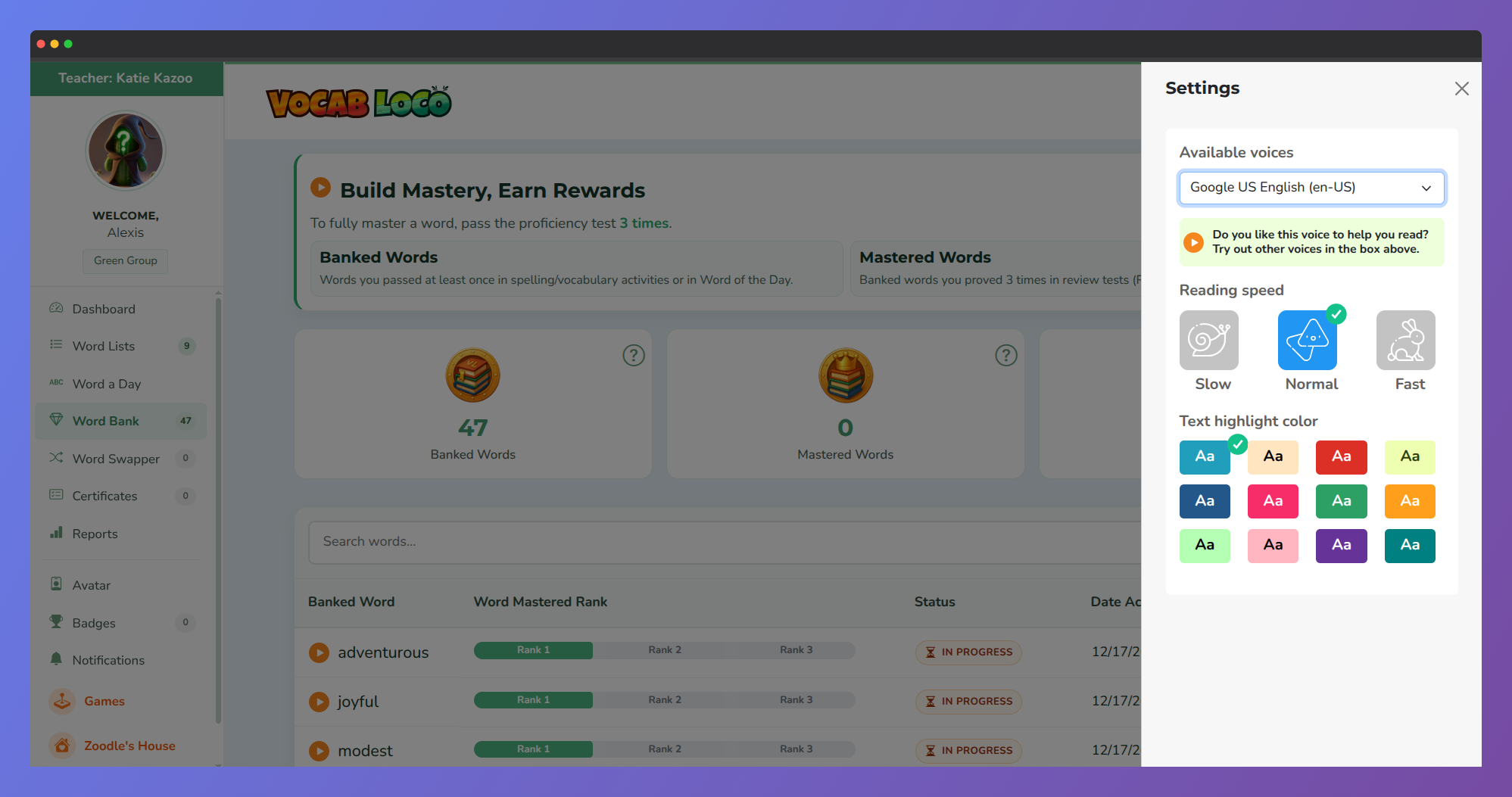
- Press Play to sample voices, then Save the one you like.
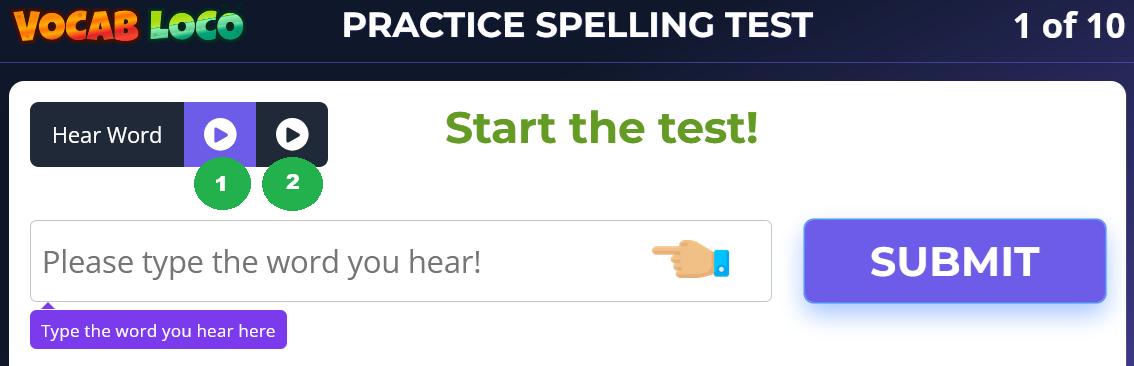
- Start any activity (e.g., Practice Spelling Test) to hear the selected voice.
Option B: Try a different browser (system Text-to-Speech)
Modern browsers (Chrome, Edge, Firefox, Safari) use your device's built-in voices. Switching browsers — or adding voices in your OS — often gives clearer or more natural options.
Windows (Edge or Chrome)
- Open Vocab Loco → Change Voice.
- Pick a local voice (e.g., Microsoft David, Zira, Mark), press Play to preview, then Save.
- Want more voices? Go to Settings → Time & language → Speech → Manage voices → Add voices, then return to Change Voice.
macOS (Safari or Chrome)
- Go to System Settings → Accessibility → Spoken Content → Voices to add or choose voices.
- Back in Vocab Loco → Change Voice, preview and Save your choice.
Chromebooks (ChromeOS)
- Open Settings → Accessibility → Text-to-Speech → Speech settings.
- Choose a preferred voice, then return to Vocab Loco → Change Voice and Save.
? Pro Tip: If a voice sounds off, try another browser on the same device — different browsers expose different voices and audio engines, which can make a big difference in clarity and pace.
Frequently asked questions
Q: Will changing the voice affect every module?
A: Yes — your saved choice is used anywhere Vocab Loco plays TTS audio for you.
Q: Why do my choices look different from a classmate's?
A: TTS voices come from each device and browser. Different computers have different voice lists.
Q: Can teachers control the voice for students?
A: Voice selection is per student device. Teachers can demonstrate Option A and suggest a preferred browser.
Q: A word sounds unclear. What should we do?
A: Send us the word and list — our team will re-record the default voiceover if needed.
Troubleshooting
No voices listed or only one voice:
Update your browser and OS. On Windows, install Microsoft voices. On macOS, add voices in System Settings.
Audio too fast, slow, or hard to understand:
Open Change Voice and test a few alternatives. Many voices differ in clarity and pacing.
Nothing plays:
Check device volume, headphones, Chromebook sound settings, and make sure the site has audio permissions enabled.
Notes for teachers
- We recommend students pick a clear, comfortable voice during the first week of use.
- If you require a single voice across devices (e.g., for assessments), have students use the default Vocab Loco Voiceover.
- For accessibility, students who benefit from slower pacing or different timbre may prefer specific TTS voices — encourage them to test and save their favorite.
Was this article helpful?
That’s Great!
Thank you for your feedback
Sorry! We couldn't be helpful
Thank you for your feedback
Feedback sent
We appreciate your effort and will try to fix the article