To access Vocab Loco, you'll need the username and password your teacher created for you. The login process takes just a few seconds and brings you straight to your dashboard.
Step 1: Go to the Vocab Loco login page
- Open your browser and go to the Vocab Loco website. On the home screen, you'll see options for students, teachers, and super users.
Step 2: Click "I'm a Student"
- Click the I'm a Student button. This takes you to the student login form.
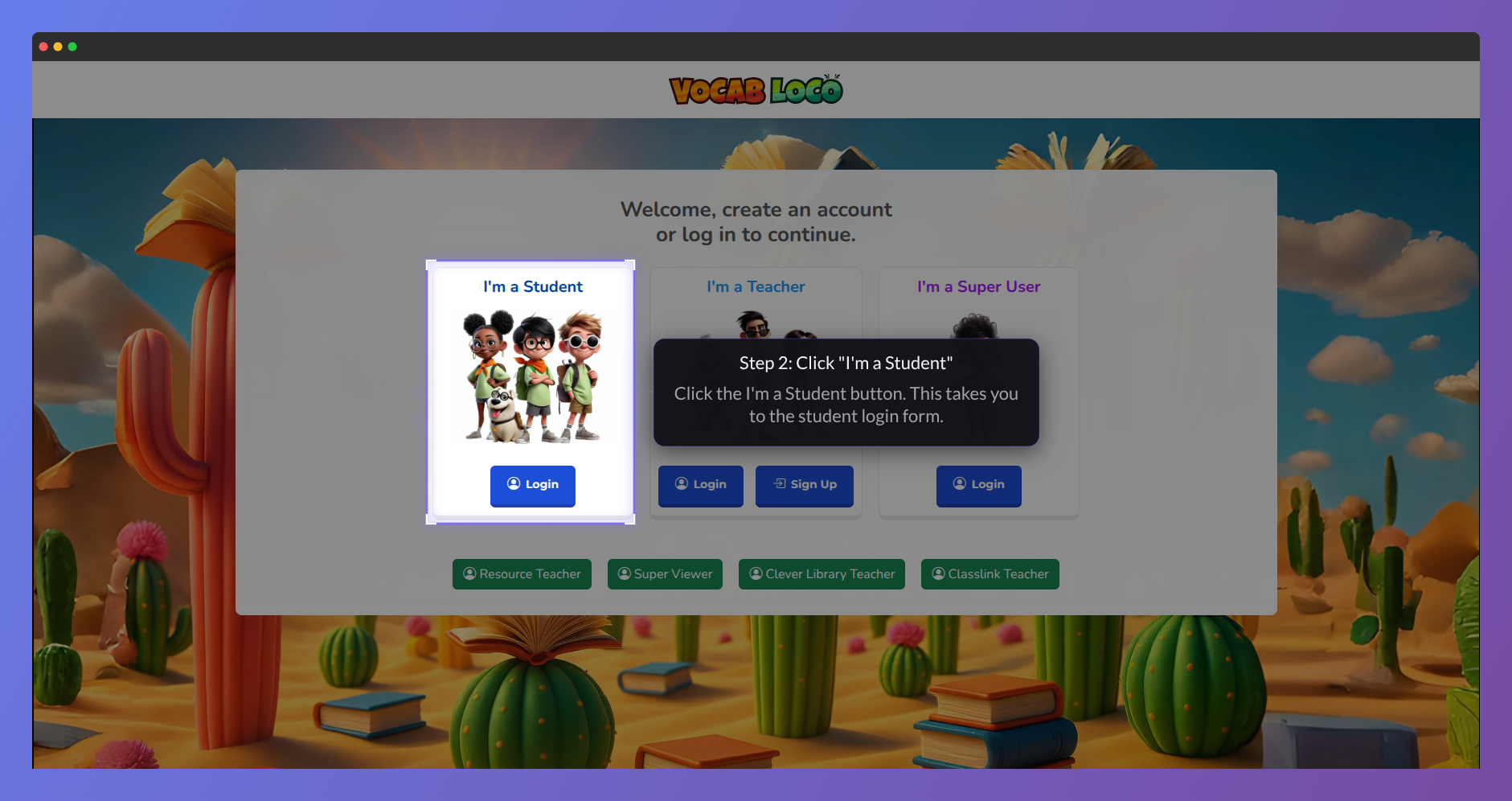
Screenshot of the Vocab Loco login selection page highlighting the “I’m a Student” option, which takes users to the student login form.
Step 3: Enter your username and password
- Type your Username and Password in the fields provided. Your teacher gave you these when they set up your account.
- Click the eye icon next to the password field if you want to check what you're typing.
Step 4: Click Login
- Click the Login button. If your credentials are correct, you'll be taken to your Student Dashboard right away.
- If you're enrolled with more than one teacher, you'll be asked to choose which class you want to work in before continuing.
Logging in through Clever or Classlink
If your school uses Clever or Classlink, your teacher may have set up single sign-on for your class. In that case, you log in through your school's Clever or Classlink portal — no separate username and password needed for Vocab Loco.
? Forgot your username or password? There's no self-service reset for students — just ask your teacher and they'll help you get back in.
Was this article helpful?
That’s Great!
Thank you for your feedback
Sorry! We couldn't be helpful
Thank you for your feedback
Feedback sent
We appreciate your effort and will try to fix the article