The Manage Students page gives you a full view of every student enrolled across all your linked teachers. From here you can add students manually, filter by teacher, remove enrollments, and restore them when needed.
In this article
How to open Manage Students
From your Super User Dashboard, click Manage Students in the left sidebar. At the top of the page you will see a summary showing the total number of active students and your purchased seat count.
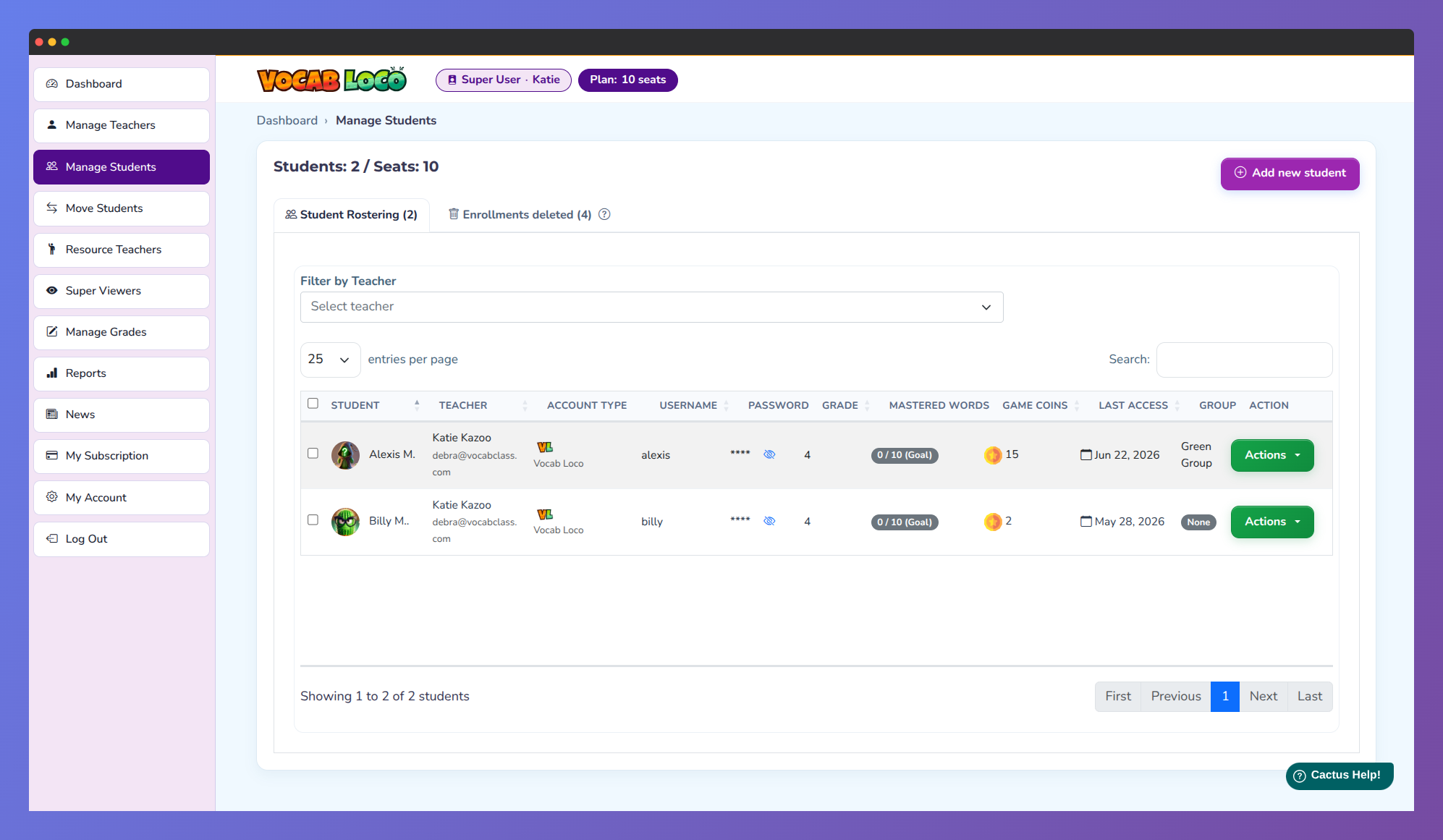
Screenshot of the Super User dashboard displaying student roster and account details.
The Student Rostering tab
The Student Rostering tab lists all active enrollments across your account. Each row shows the student name, assigned teacher, account type, username, password, grade, mastered words, game coins, last access date, and group.
Use the Filter by Teacher dropdown above the table to narrow the list to a specific classroom. You can also search and sort directly within the table.
Add a student
Click Add New Student in the top right corner to create a student account manually. Fill in the student details and assign them to a teacher.
The Add New Student button is only available if you have at least one linked teacher who has finished setting up their account. Teachers who have only been invited but have not yet confirmed their account will not appear as options.
Remove an enrollment
To remove a student from a classroom, use the action menu on the student’s row in the Student Rostering tab. Removed students are moved to the Enrollments Deleted tab and can no longer access that classroom.
To remove multiple students at once, check the boxes next to their names. A bar will appear at the bottom of the page. Click Delete to confirm the bulk removal.
Removing an enrollment does not delete the student account permanently. The student is moved to the Deleted tab and can be restored later.
Restore a deleted enrollment
Click the Enrollments Deleted tab to view all removed enrollments. To restore a student, use the action menu on their row. To restore multiple students at once, select them using the checkboxes and click Bulk Restore.
Once restored, the student regains access to their classroom and all their previous data, including word lists, mastered words, and game coins.
Students in Multiple Classrooms
If any students are enrolled in more than one classroom, a third tab called Students in Multiple Classrooms will appear. This tab lists each shared student alongside all the teachers they are enrolled with.
Students enrolled in multiple classrooms count as a single seat, not one seat per classroom. This tab helps you identify and manage shared enrollments.
Was this article helpful?
That’s Great!
Thank you for your feedback
Sorry! We couldn't be helpful
Thank you for your feedback
Feedback sent
We appreciate your effort and will try to fix the article