When you invite a teacher to join your Super User account, the invitation stays in Pending Invitations until the teacher accepts and links their account. From there, you can track who has not responded yet, resend the invitation if needed, or cancel it entirely.
Where to find Pending Invitations
From your Super User Dashboard, go to Manage Teachers in the left sidebar. At the top of the page, click the Pending Invitations tab. The tab shows the total number of outstanding invitations in parentheses. If there are no pending invitations, the tab is grayed out.
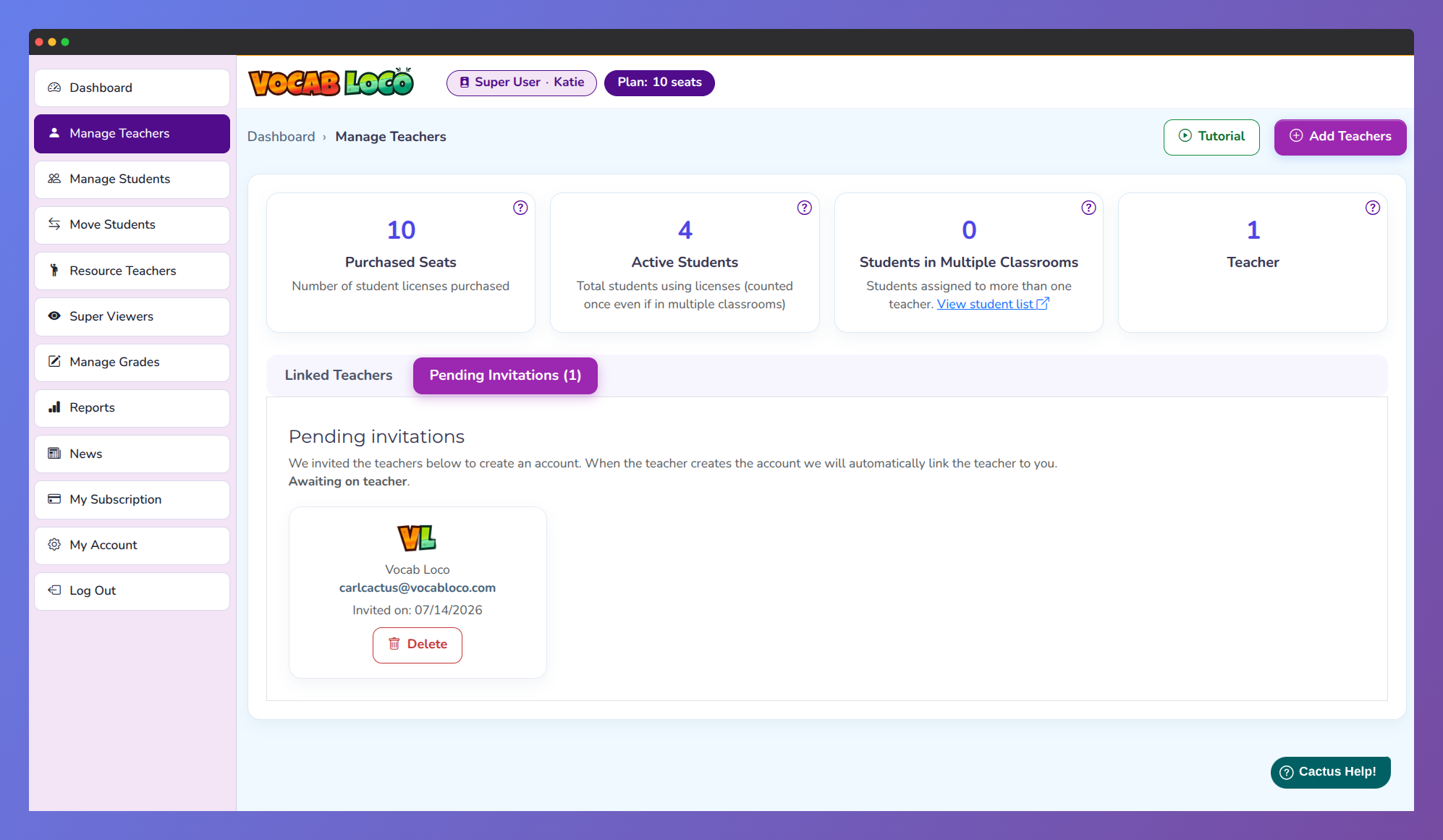
Screenshot of the Super User dashboard showing teacher management and pending invitations.
Each invitation card displays the teacher’s email address, the roster source (Vocab Loco, Clever, or ClassLink), and the date the invitation was sent.
An invitation remains pending until the teacher creates their account and confirms the link. No action is required on your end while you wait.
Resend an invitation
If the teacher has not responded after multiple automatic reminders, a Resend button will appear on their invitation card. Click Resend to send a new invitation email to that teacher.
The Resend button becomes available after the system has already attempted to deliver the invitation automatically. If you do not see the button yet, the invitation is still in its initial delivery window.
Delete an invitation
To cancel a pending invitation, click Delete on the teacher’s card. The invitation will be removed immediately and the teacher will no longer be able to use that invite link to join your account.
If you still want that teacher linked to your account, you can send a new invitation from the Linked Teachers tab at any time.
Was this article helpful?
That’s Great!
Thank you for your feedback
Sorry! We couldn't be helpful
Thank you for your feedback
Feedback sent
We appreciate your effort and will try to fix the article