Shareable Links let you turn any worksheet into a short, clean URL that anyone can open with one click. No login required. Share them by email, Google Classroom, social media, or any messaging app, and students or parents can download the worksheet instantly.
Step 1 — Go to the Worksheet Hub
From the Teacher Dashboard, click Worksheet Hub in the left sidebar.
Select your worksheets in Step 1, choose a word list in Step 2, and configure display options in Step 3.
Step 2 — Enable Shareable Links
In Step 4, find the Shareable Links section on the right side of the page.
Toggle Enable Shareable Links to turn the feature on.
Step 3 — Create a link
Click the Create Link button next to each worksheet you want to share. The short link is generated instantly and copied to your clipboard automatically.
A confirmation message appears: "Shareable link created! The link has been copied to your clipboard."
The link captures your current display settings, including Black & White mode and Word Bank Helper, so recipients always get the worksheet exactly as you configured it.
Step 4 — Share the link
Paste the copied link anywhere: email, Google Classroom, a messaging app, or social media. When someone clicks the link, they land on a page showing the worksheet name and a Download Worksheet button. No account or login is needed.
You can also share directly from the management page using the Share button, which includes ready-to-use options for Facebook, X (Twitter), and Email.
Step 5 — Manage your links
Click Manage Shareable Links in the Shareable Links section.
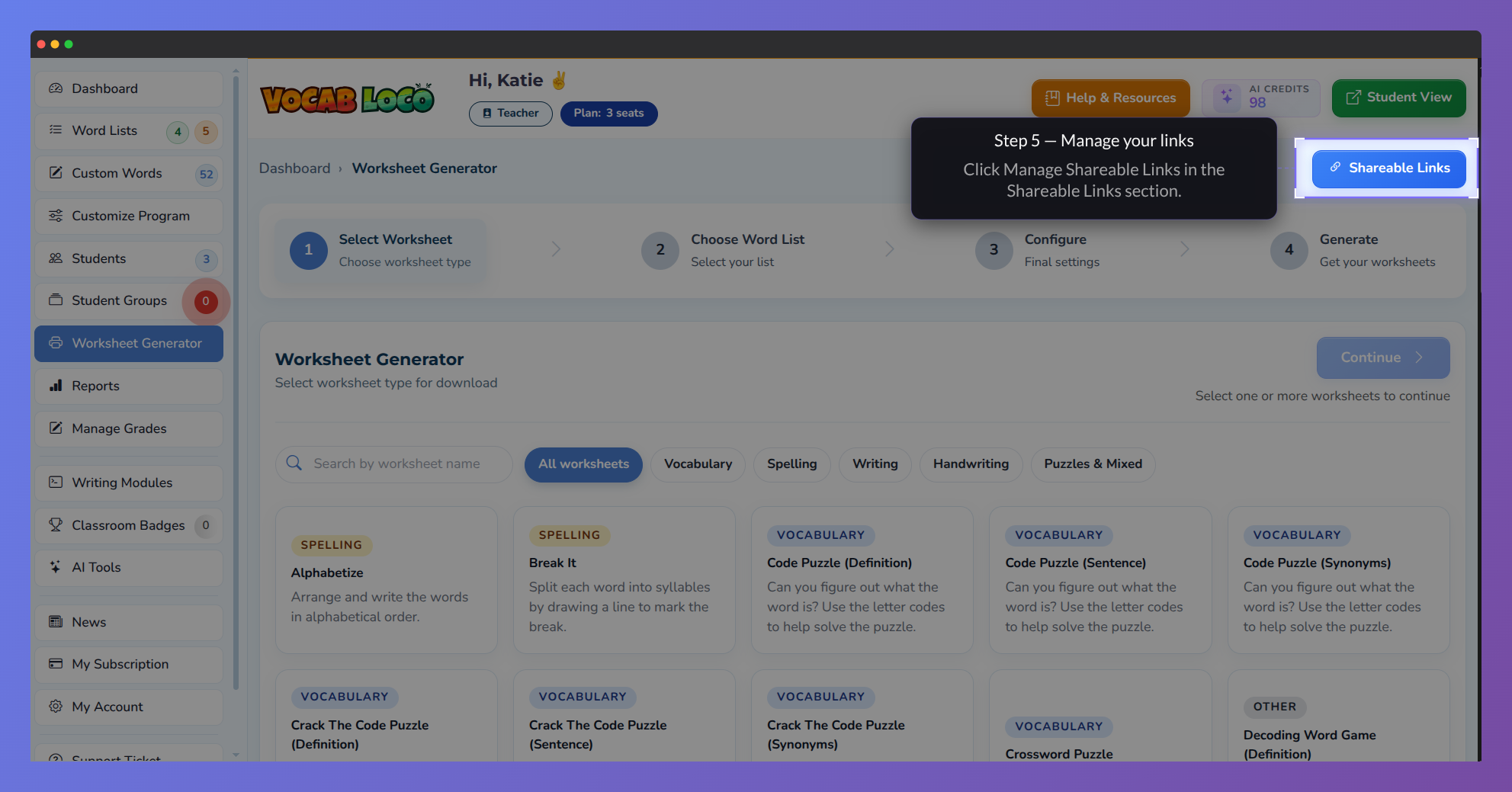 Screenshot of the teacher's area showing the sharable links management button.
The management page shows all your active links with the following details:
- Worksheet — the worksheet name.
- Group / Word List — the group and word list the worksheet was generated from.
- Word Bank and Black & White — the display settings applied.
- Visits — how many times the link has been opened.
- Created — the date the link was generated.
Use the Copy link button to copy any link again, or click Open worksheet to preview it.
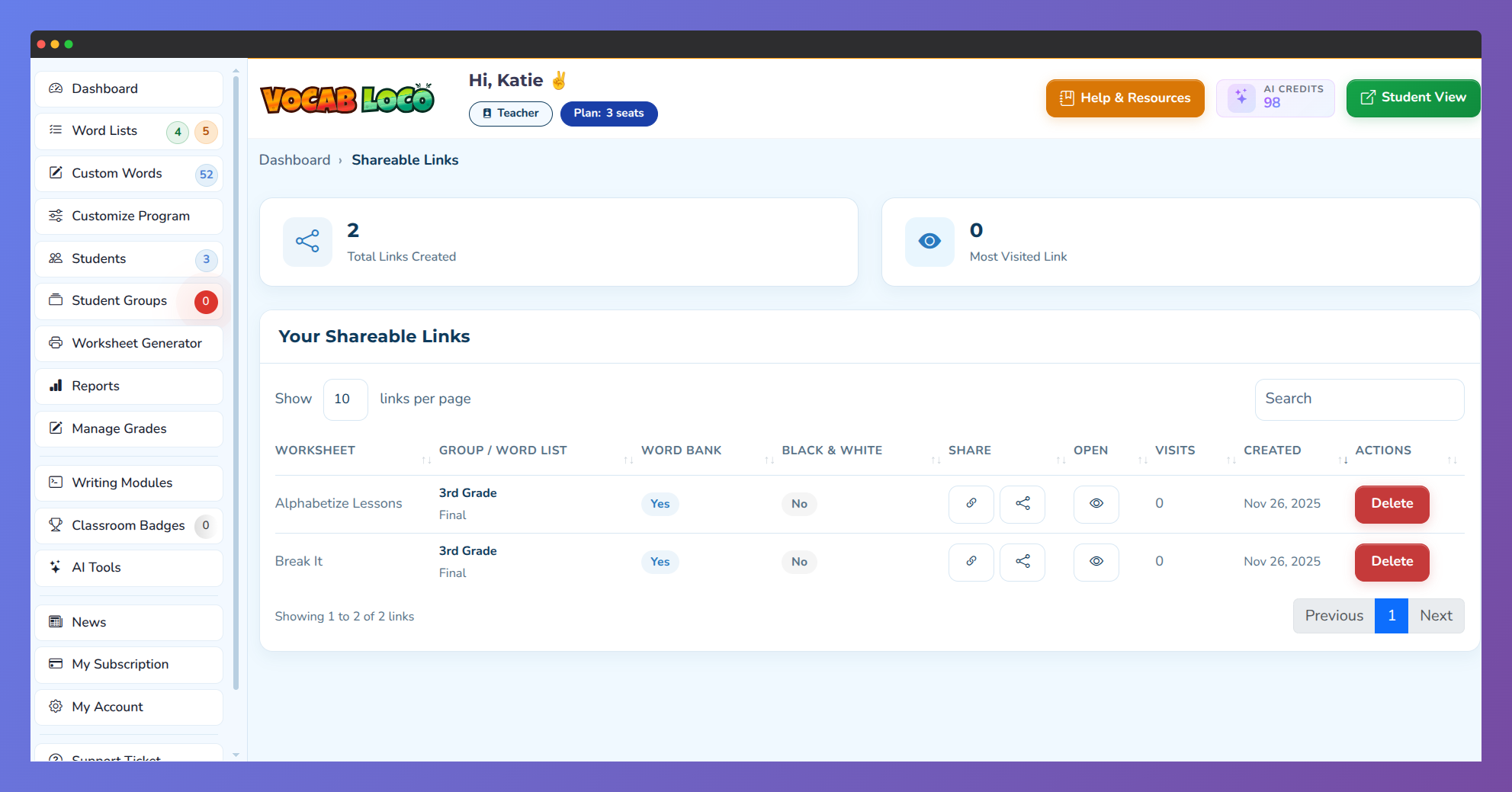
Screenshot of the teacher's area showing the shareable links management screen.
Step 6 — Delete a link
In the Actions column, click Delete next to the link you want to remove. Confirm by clicking Yes, delete it. The link is removed immediately and will no longer work for anyone who tries to open it.
Q: Do shareable links expire?
A: Links do not have a time-based expiration. They remain active as long as your account has an active plan and the link has not been manually deleted.
Q: Can I create more than one link for the same worksheet?
A: If a link already exists for the same worksheet and word list with the same settings, the system returns the existing link instead of creating a duplicate.
Was this article helpful?
That’s Great!
Thank you for your feedback
Sorry! We couldn't be helpful
Thank you for your feedback
Feedback sent
We appreciate your effort and will try to fix the article