Writing Modules give students a structured way to practice vocabulary through composition — either writing a free-form paragraph or crafting one sentence per word. As the teacher, you review every submission, leave feedback, and decide whether to approve it or send it back for a rewrite.
Step 1: Go to Writing Modules
- From your Teacher Dashboard, click Writing Modules in the left sidebar.
- The page opens on the Grade Writing tab, which lists all student submissions waiting for your review.
Note: Writing Modules are enabled per word list assignment. When assigning a word list to students, go to Step 3 (Activities) and toggle the writing module on. There are two types: Writing Paragraph — students write a free-form composition using their vocabulary words — and Sentence Writing — students write one sentence per word.
Step 2: Set up your writing prompts
- Click the Default Prompts tab to see the system prompts available to all teachers.
- Use the toggle next to each prompt to enable or disable it for your students. Only enabled prompts will appear when students write.
- Click the My Custom Prompts tab to manage any prompts you've created yourself.
Step 3: Add a custom prompt
- Click Add custom prompt in the top-right corner.
- Fill in the form:
- Your Writing Prompt — the instruction or question students will respond to.
- Select Reward Coins (1–5) — the number of game coins students earn for a successful submission.
- Click Save. The prompt appears in your My Custom Prompts tab and is available to your students immediately.
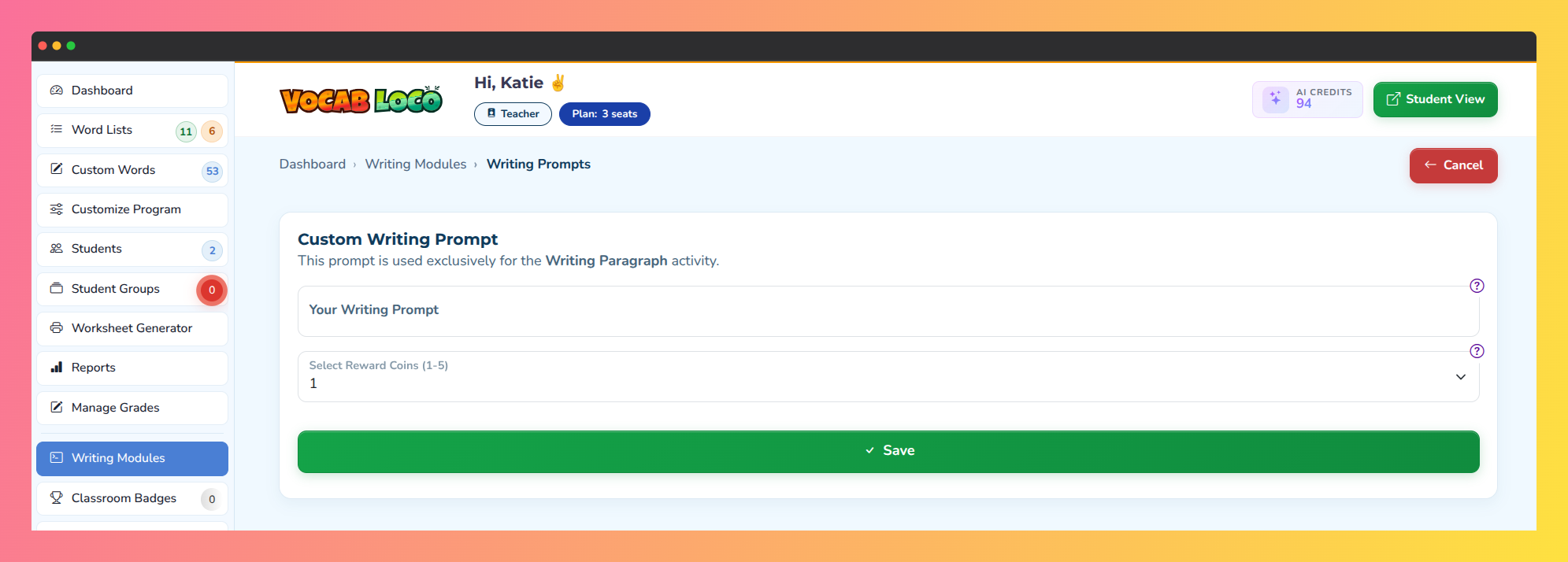
Screenshot showing the Custom Writing Prompt feature in the Vocab Loco Teacher Panel.
Step 4: Review pending submissions
- On the Grade Writingtab, submissions are listed with their current status:
- Needs grade — the student submitted and is waiting for your review.
- Graded: X% — the submission has been approved with a score.
- Redo required — you sent the submission back for the student to rewrite.
- Use the filters at the top to narrow submissions by status, grading method (AI or manual), or student group.
- Click Grade Now next to any pending submission to open the grading view.
Step 5: Grade a submission
- The grading view shows the student's full submission on the right, with vocabulary words highlighted where they appear in the text.
- A progress indicator shows how many of the word list words the student used.
- On the left panel, enter a grade (0–100) and an optional note. Use the quick comment chips to insert common feedback instantly:
- "Great word usage!"
- "Work on punctuation."
- "Try longer sentences."
- Click Save to approve the submission — the student receives their grade and earns their reward coins.
- Click Redo to send the submission back. The student will be notified and can revise and resubmit. Each attempt is saved in the submission history.
Pro Tip: Click View Attempts to see every version the student submitted, with dates and grades. Click Print Attempts to generate a PDF of the full history.
Step 6: Grade with AI
- On any ungraded submission, click Grade with AI to have the submission analyzed automatically. This uses 1 AI credit per submission.
- A confirmation modal shows the cost and your current credit balance before proceeding.
- Once the analysis completes, a results panel displays:
- An AI-suggested grade and written feedback.
- A status recommendation (Approved or Redo) based on the passing grade threshold.
- You can edit both the grade and the feedback before saving. Click Confirm & Save to apply the result.
Q: Can I change a grade after approving a submission?
A: Yes. Open the graded submission and click Edit Grade/Comment to update the score or feedback. The student will be notified of the change.
Q: What happens if I delete a submission?
A: Deleting a submission removes it permanently. This option is only available for submissions that have not yet been approved.
Was this article helpful?
That’s Great!
Thank you for your feedback
Sorry! We couldn't be helpful
Thank you for your feedback
Feedback sent
We appreciate your effort and will try to fix the article