Vocab Loco allows teachers to control which AI features run automatically for students. Follow the steps below to turn on AI auto-grading for writing activities.
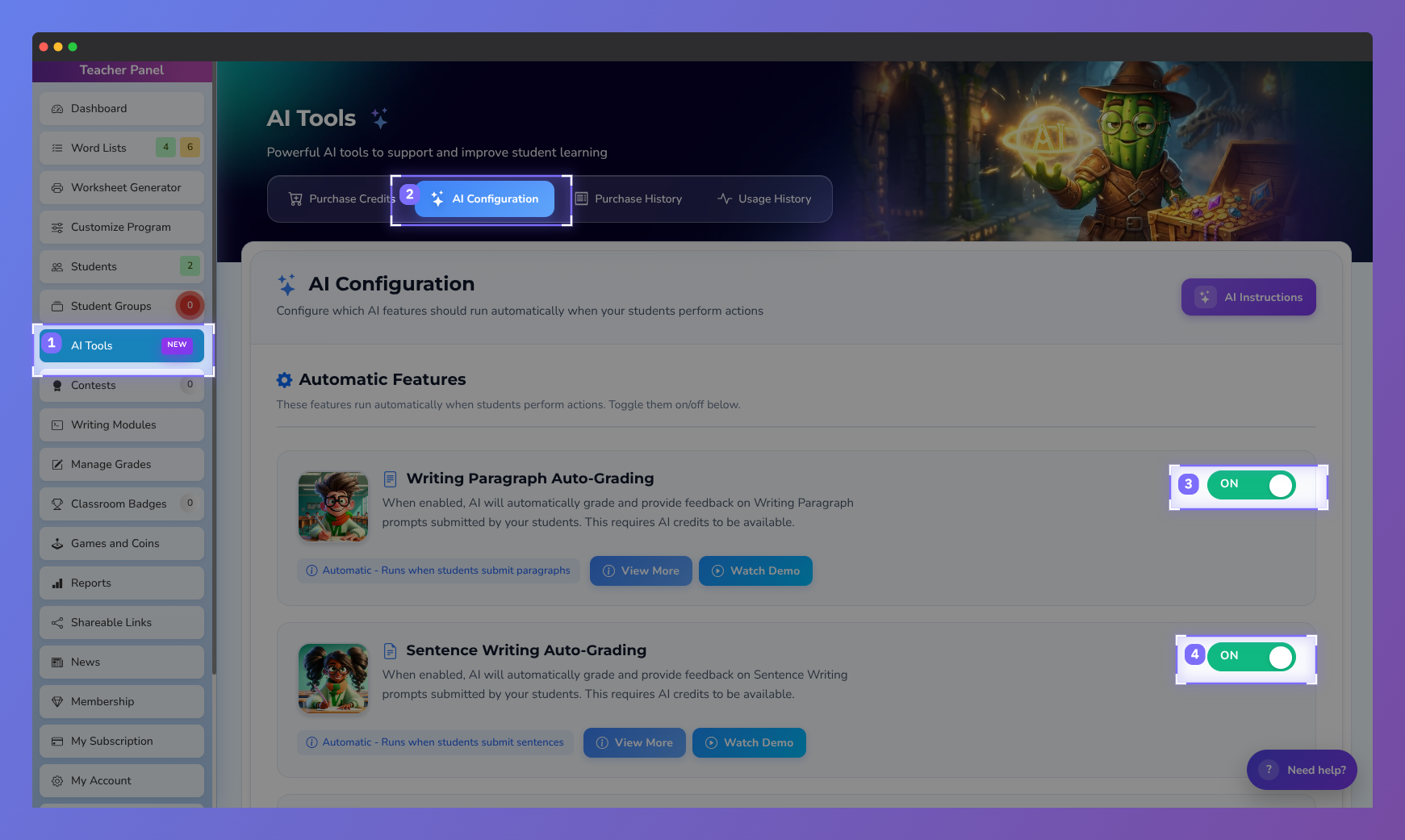
Screenshot of the Vocab Loco AI Tools page where teachers can configure AI-powered features, including automatic grading tools for writing paragraphs and sentence-writing activities.
Step 1: Open AI Tools
- From your Teacher Panel, click AI Tools in the left-hand menu.
Step 2: Go to AI Configuration
- At the top of the page, click AI Configuration.
- This is where you control which AI features run automatically for student work.
Step 3: Enable Auto-Grading Features
Under Automatic Features, locate the grading options:
- Writing Paragraph Auto-Grading
- Sentence Writing Auto-Grading
- Use the toggle switch on the right to turn each feature ON (green).
Important: When enabled, AI automatically grades student submissions and provides feedback. AI credits must be available for grading to occur.
Step 4: Confirm Your Settings
- Once toggled on, auto-grading runs automatically when students submit their work.
- No additional setup is required.
Helpful Notes
- Auto-grading runs only when the feature is turned on
- Teachers can turn features on or off at any time
- Graded results appear in Manage Grades and reporting tools
- Each AI-graded submission uses AI credits
AI Grading Tutorial
Was this article helpful?
That’s Great!
Thank you for your feedback
Sorry! We couldn't be helpful
Thank you for your feedback
Feedback sent
We appreciate your effort and will try to fix the article