The Tests Report gives you a detailed view of every spelling and vocabulary test your students have taken — including grades, pass rates, and the specific words each student got wrong. Use it to identify who needs extra practice and export results for your records.
Step 1: Go to the Tests Report
- From your Teacher Dashboard, click Reports in the left sidebar.
- On the Reports hub, click the Tests card. The report will load with your students' most recent test activity.
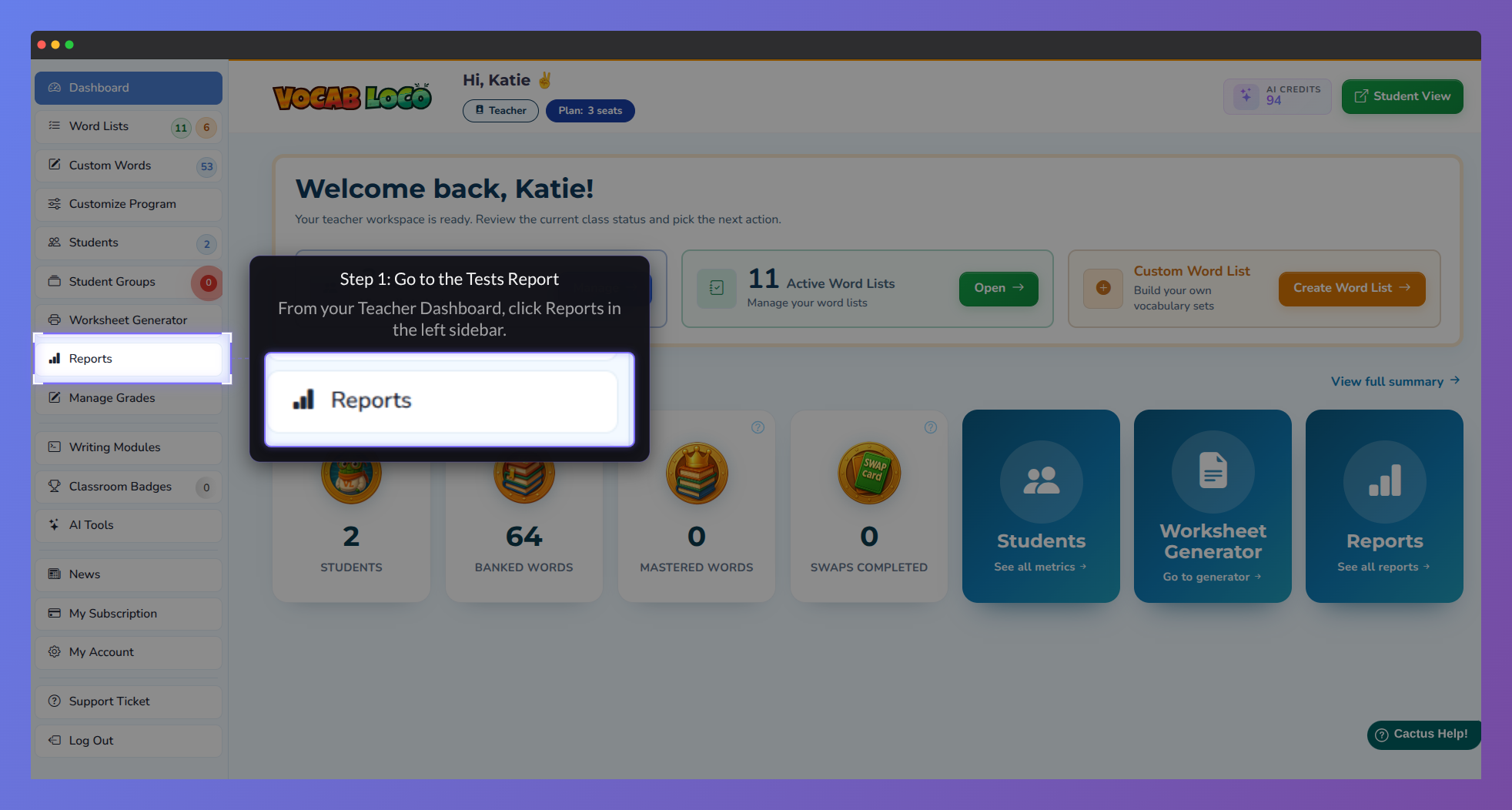
Screenshot showing the Reports section in the Vocab Loco Teacher Panel.
Step 2: Set your filters
- Use the filter bar at the top to narrow down the results:
- Date range — choose a time period (Today, Last 7 Days, Last 30 Days, or a custom range).
- Test Result — filter by Passed, Failed, or All (default).
- Filter by — select a specific word list module or leave it as All to see every test.
- Student(s) — select one or more students, or leave blank to include everyone.
- Click Filter to apply your selections. The summary cards, charts, and table will all update.
- Enable Include other classes if you want to see tests your students completed in another teacher's class. A Teacher column will appear in the table to identify the source.
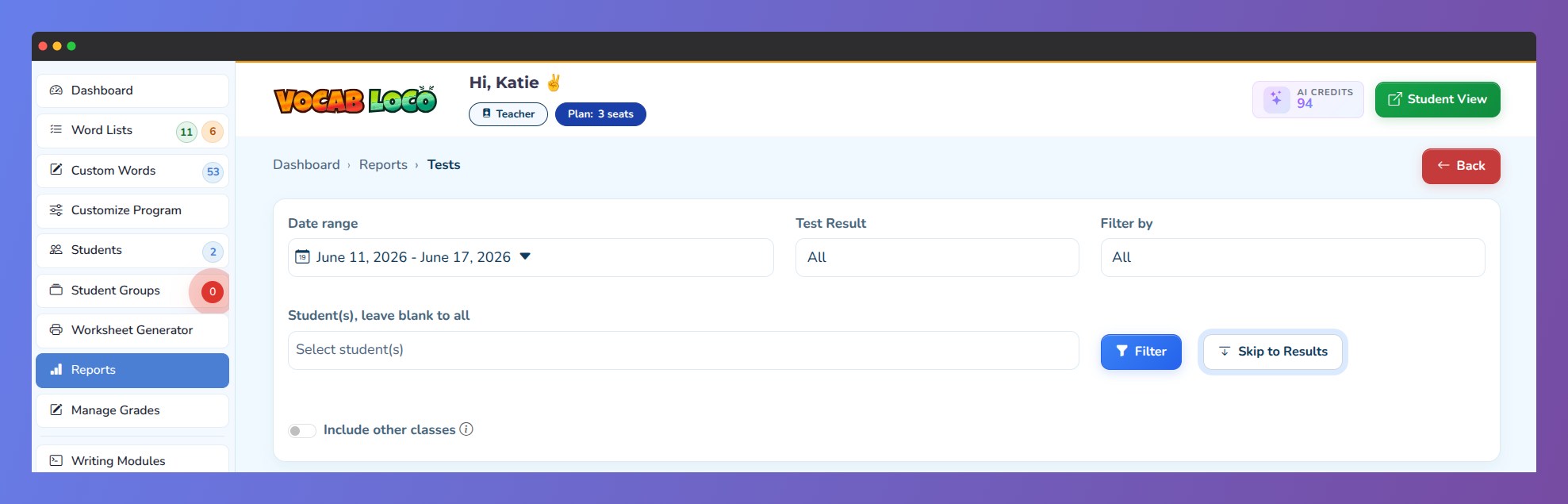
Screenshot showing the Tests Reports section in the Vocab Loco Teacher Panel.
Step 3: Read the summary and charts
- Four summary cards give you a quick snapshot of class performance for the selected period:
- Tests Taken — total number of test attempts.
- Tests Passed — how many attempts resulted in a passing grade.
- Test Average Grade — average score across all visible tests.
- Passing Rate — percentage of tests that met the passing threshold.
- Below the cards, two bar charts highlight patterns in errors:
- Top 10 Spelling Misspelled Words — the words students got wrong most often on spelling tests.
- Top 10 Vocabulary Incorrect Words — the words answered incorrectly most often on vocabulary tests.
Step 4: Review the results table
- The table shows one row per test attempt, with the following columns: student name, list group, word list, activity, date, passing grade required, and grade earned.
- Grades are color-coded at a glance:
- Green — the student met or exceeded the passing grade.
- Red — the student did not reach the passing grade.
- Use the Filter records search box above the table to find a specific student or word list quickly.
- Click Reorder by Last Name to sort the table alphabetically by student surname.
Step 5: View incorrect words for a specific test
- In the Incorrect column, click the blue button showing the number of wrong words (e.g., "3 Words") to open a detail panel for that test.
- The panel shows each word the student misspelled or answered incorrectly, alongside what they actually typed.
- Click the clipboard icon to copy a ready-made message — formatted as "[Student Name], practice these words: word1, word2…" — to share with the student or paste into a message.
- If the button is grayed out, the student scored 100% and had no incorrect words.
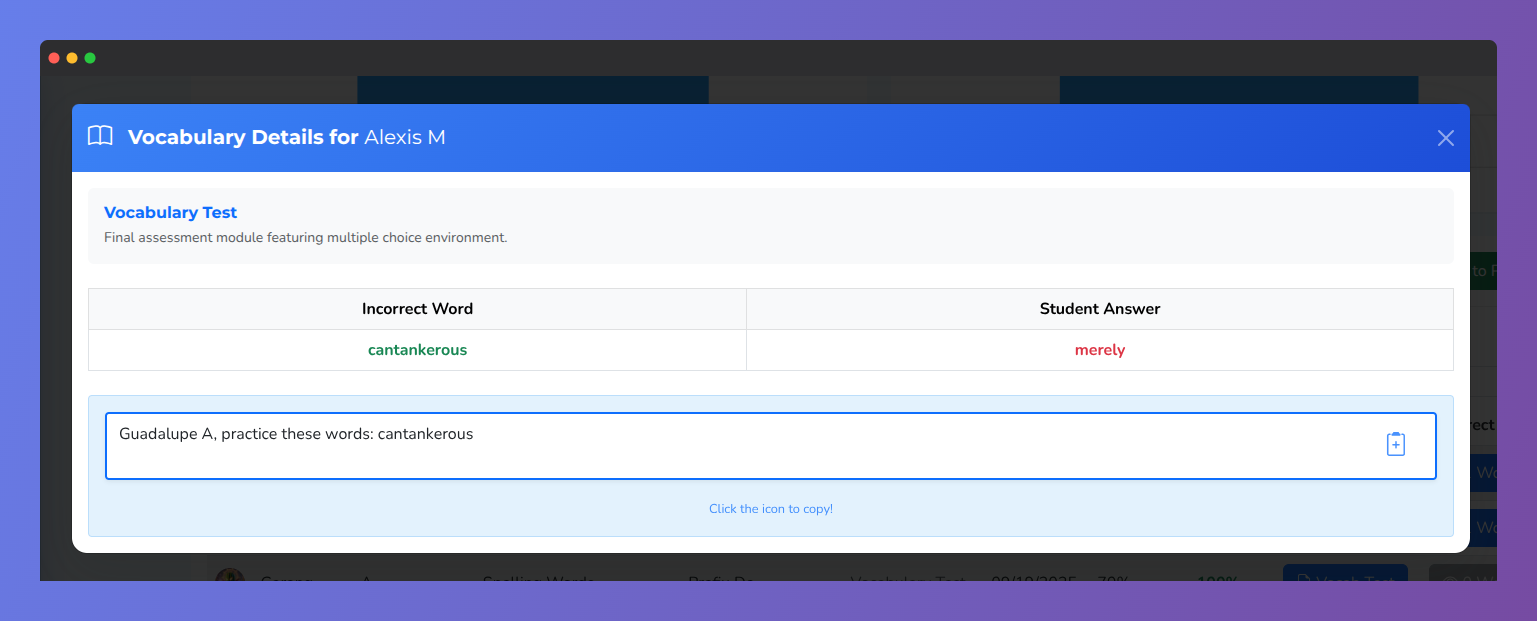
Step 6: Export test reports
- To export a single student's test as a PDF, click the Vocab Test or Spell Test button in the Print/PDF column. The PDF opens in a new window and includes the student's grade, a full word list with correct and incorrect answers, and a "Words to Practice" section.
- To export all visible tests at once, click Export All to PDF at the top-right of the table. This generates a single PDF with one page per student test.
- To export the table data in other formats, use the buttons below the filter bar: CSV, Excel, Copy, or Print.
Availability: The Tests Report is available to Teachers, Super Users, and Resource Teachers.
? Pro Tip: Filter by "Failed" and leave the date range broad to quickly identify students who have not yet passed a specific test — then use the Incorrect words button to see exactly which words to focus on with each student.
Q: Can I see tests from word lists I didn't assign? A: Yes. Enable the "Include other classes" toggle to show tests your students completed in other teachers' classes. A Teacher column will appear to identify the source.
Q: What is the passing grade threshold shown in the "Passing" column? A: It reflects the passing percentage you configured for each module. You can adjust it in the module settings inside your assigned word lists.
Was this article helpful?
That’s Great!
Thank you for your feedback
Sorry! We couldn't be helpful
Thank you for your feedback
Feedback sent
We appreciate your effort and will try to fix the article