Every custom word list group in Vocab Loco has a cover image that students see on their dashboard. You can change this cover at any time to better match the content of the list or your classroom's visual style.
Step 1 — Open your custom word lists
From the Teacher Dashboard, go to Word Lists in the left sidebar and open the My Lists tab.
Find the list group whose cover you want to change, click Settings on its card, then select Edit Cover & Title from the dropdown menu.
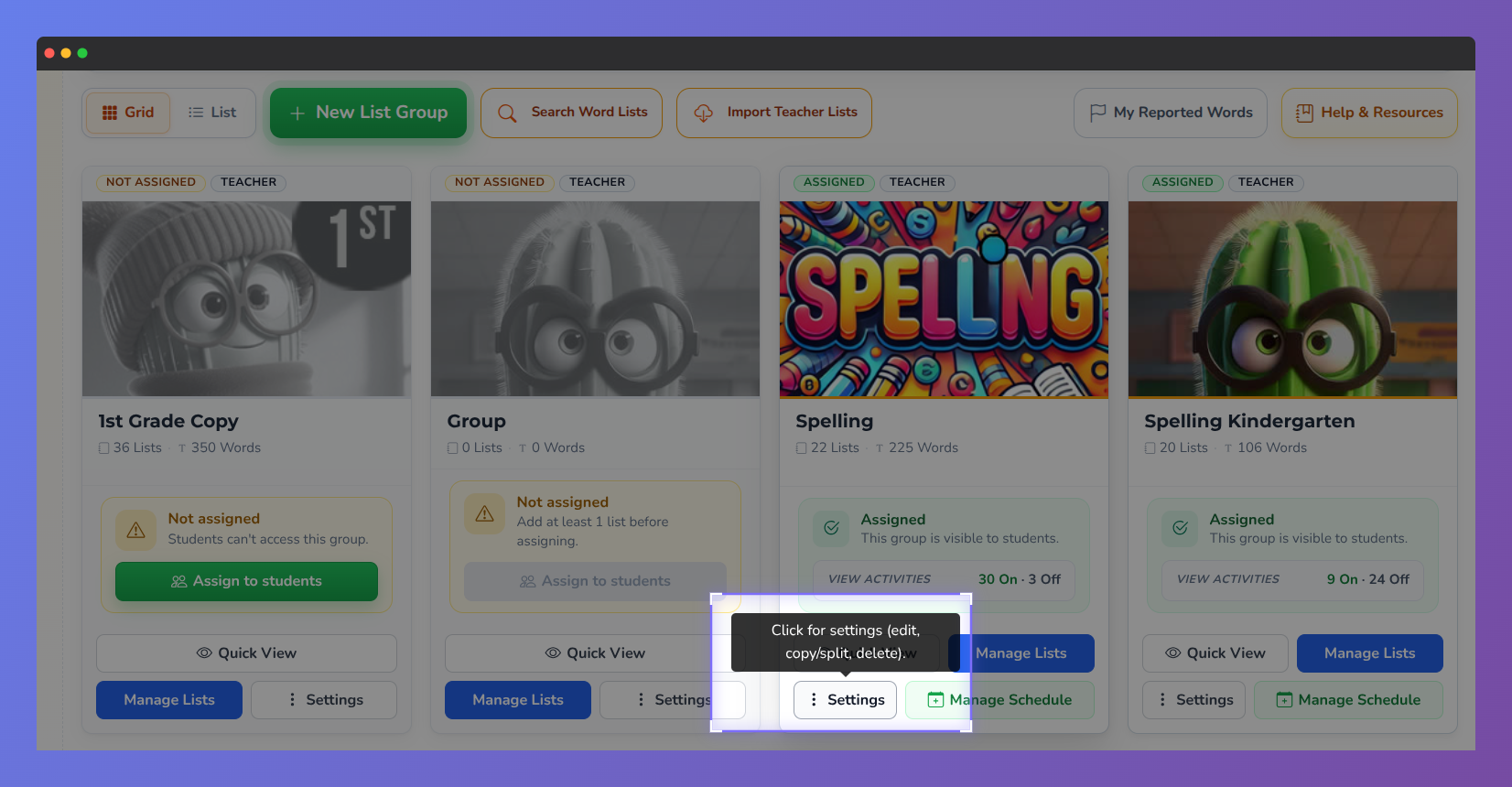
Screenshot of Vocab Loco in the custom word list area, showing the settings button.
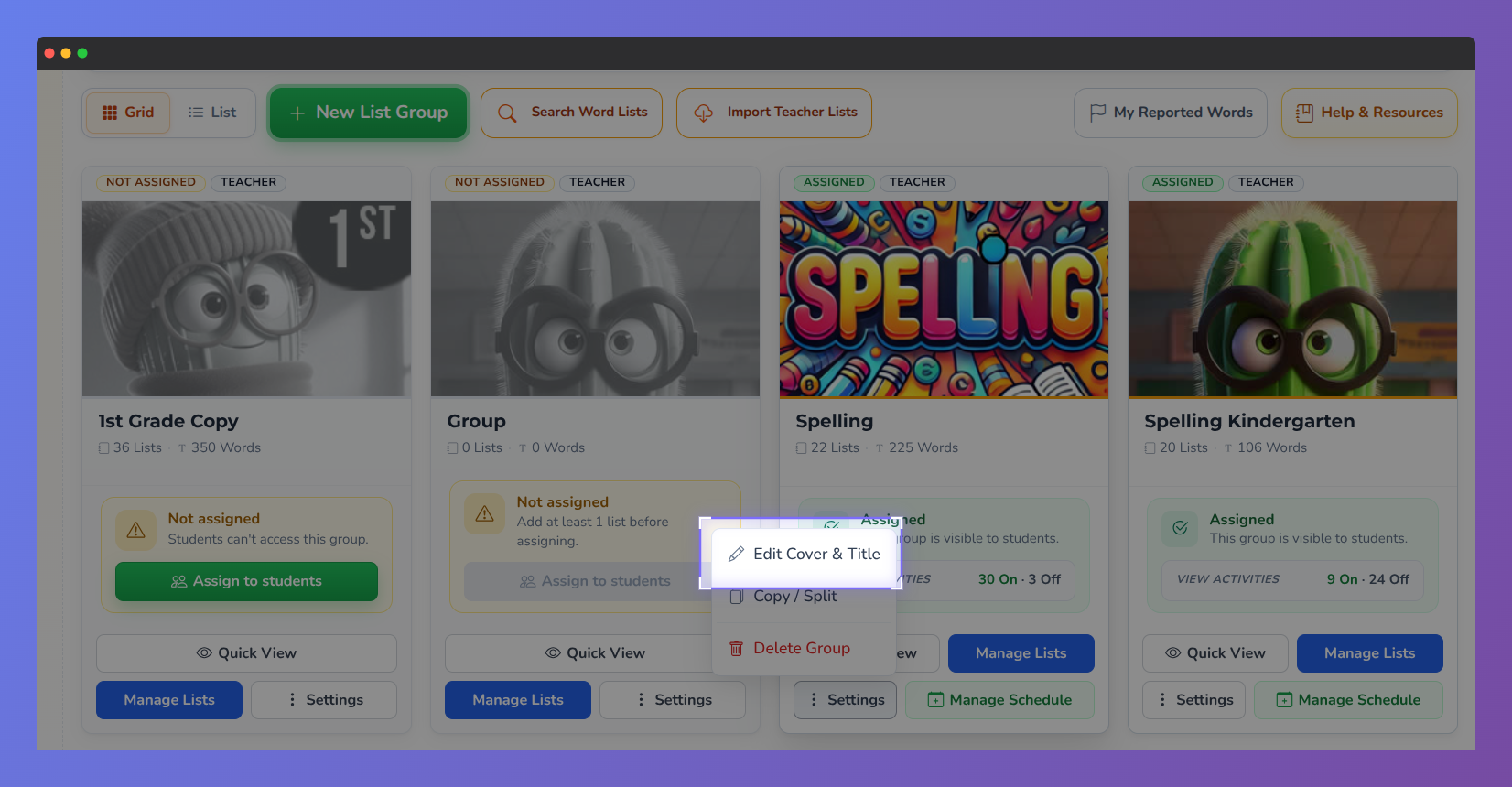
Screenshot of Vocab Loco in the custom word list area, showing the "Edit Cover & Title" button.
Step 2 — Go to the cover picker
In the list settings panel, scroll to the Choose a Cover Image section. The cover picker shows two tabs:
- Active Covers — the current cover library, aligned with the Vocab Loco Cover Identity System. These are the recommended covers for all new and existing groups.
- Inactive Covers — legacy covers from the previous library. These are no longer available for new groups, but existing groups that already use them will keep them until changed.
Step 3 — Choose a cover
Browse the Active Covers tab and click any cover to select it. Covers are organized by category, making it easy to find one that matches your list type. A checkmark appears on the selected cover.
Use the Go to vocabulary covers and Go to spelling covers shortcuts at the top of the section to jump directly to the right category.
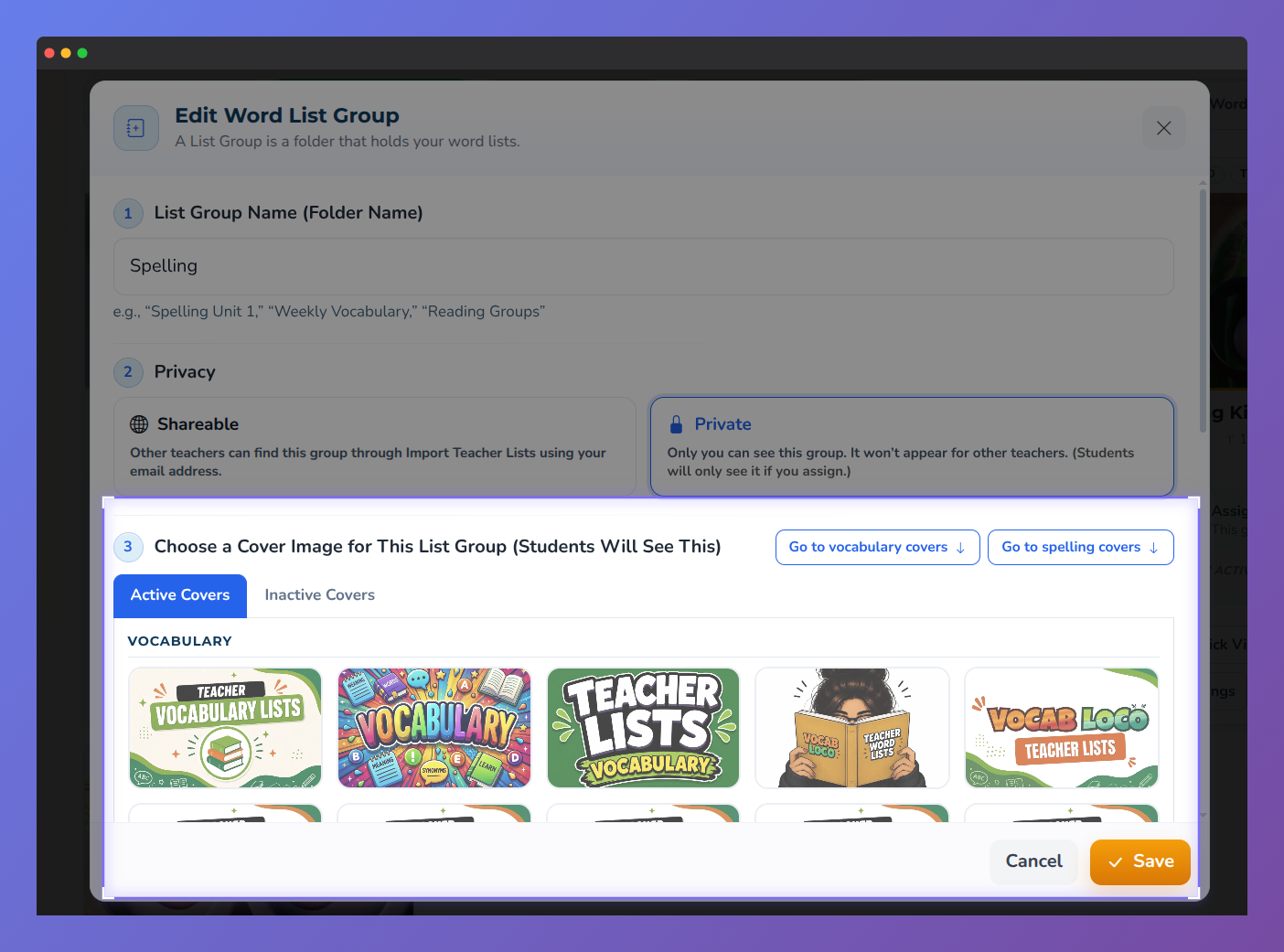
Screenshot of Vocab Loco in the custom word list area, showing the modal for editing the cover image and title.
Step 4 — Save your changes
Click Save at the bottom of the panel. The new cover is applied immediately and students will see it on their dashboard the next time they open their word lists.
Changing the cover of a Vocab Loco ready-made list
Vocab Loco ready-made lists use fixed covers and cannot be edited directly. If you want to use a ready-made list with a custom cover, you can copy the list first. Copying creates a new custom list group that you own, and you can then change its cover following the steps above.
Copying a ready-made list does not affect the original. Your copy is independent and fully editable, including the cover, title, and word content.
About the 2026–2027 recommended covers
The Active Covers library follows the Vocab Loco Cover Identity System, a design standard introduced for the 2026–2027 school year.
These covers are designed to be scannable at any size, so both teachers browsing the catalog and students looking at their dashboard can identify a list instantly.
Legacy covers are still supported for groups that already use them, but switching to an Active Cover is recommended for consistency across your classroom.
Was this article helpful?
That’s Great!
Thank you for your feedback
Sorry! We couldn't be helpful
Thank you for your feedback
Feedback sent
We appreciate your effort and will try to fix the article