If you already have word lists in VocabClass, you don’t need to retype them in Vocab Loco. A one-time import copies all of your VocabClass groups, lessons, and words into your Custom Word Lists, ready to edit and assign.
Before you start
- Your Vocab Loco account must use the same email address as your VocabClass account. That email is how we find your lists.
- If you sign in with Clever or ClassLink, your VocabClass account is matched by that same sign-in method — no extra step needed.
- The import is a copy. Nothing is changed or removed in VocabClass.
Note: The import runs only once per teacher account. All of your VocabClass data is transferred at once — you can’t import a few lists now and the rest later. After the import, you are free to edit, rename, or delete anything you brought over.
Step 1: Go to Custom Word Lists
- From your Teacher Dashboard, click Word Lists in the left sidebar.
- At the top of the page, select the Custom Word Lists tab.
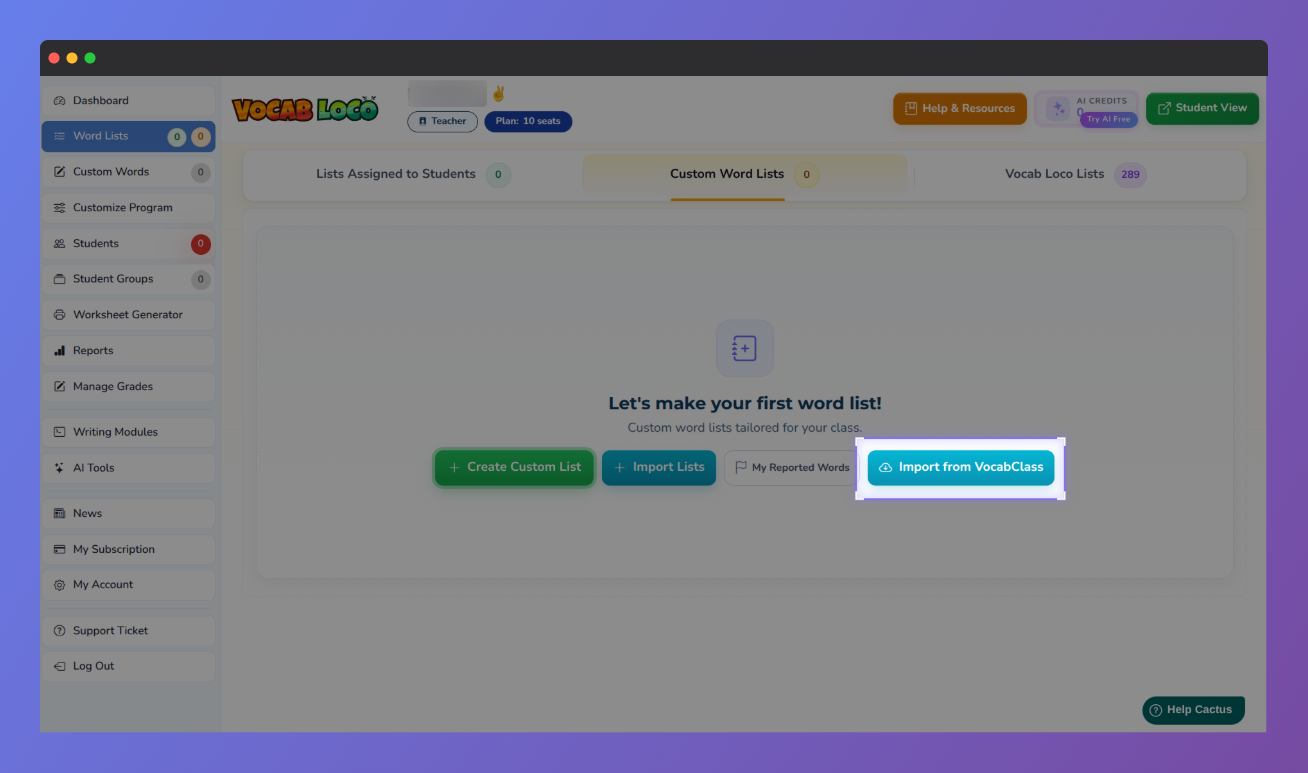 Vocab Loco screenshot highlighting the "Import from VocabClass" button.
Step 2: Click Import from VocabClass
- Look for the Import from VocabClass button (cloud icon) at the top of the Custom Word Lists tab. If you don’t have any custom groups yet, you’ll find the same button on the welcome screen, next to Create Custom List.
- Click it to open the Your VocabClass Lists window.
Note: The button only appears when we find VocabClass lists for your email and you haven’t imported yet. If it’s not there, see the questions at the end of this article.
Pro Tip: Don’t confuse it with the Import Lists button, which copies lists shared by other Vocab Loco teachers. To bring your own VocabClass content, use Import from VocabClass.
Step 3: Review your lists
- Your VocabClass content is shown grouped exactly as it is there: each group holds its lessons, and each lesson shows how many words it contains.
- Click any lesson title to expand it and read the full word list. Click again to collapse it.
- Take a moment to confirm this is the account you expected — this is your chance to review everything before it’s copied over.
Step 4: Click Import All Lists
- Click Import All Lists at the bottom of the window. The button shows a loading indicator while your groups are created.
- Keep the page open until it finishes. When it’s done, the window closes and the page refreshes automatically.
- If you change your mind, click Cancel to close the window. Nothing is imported, and the button stays available for later.
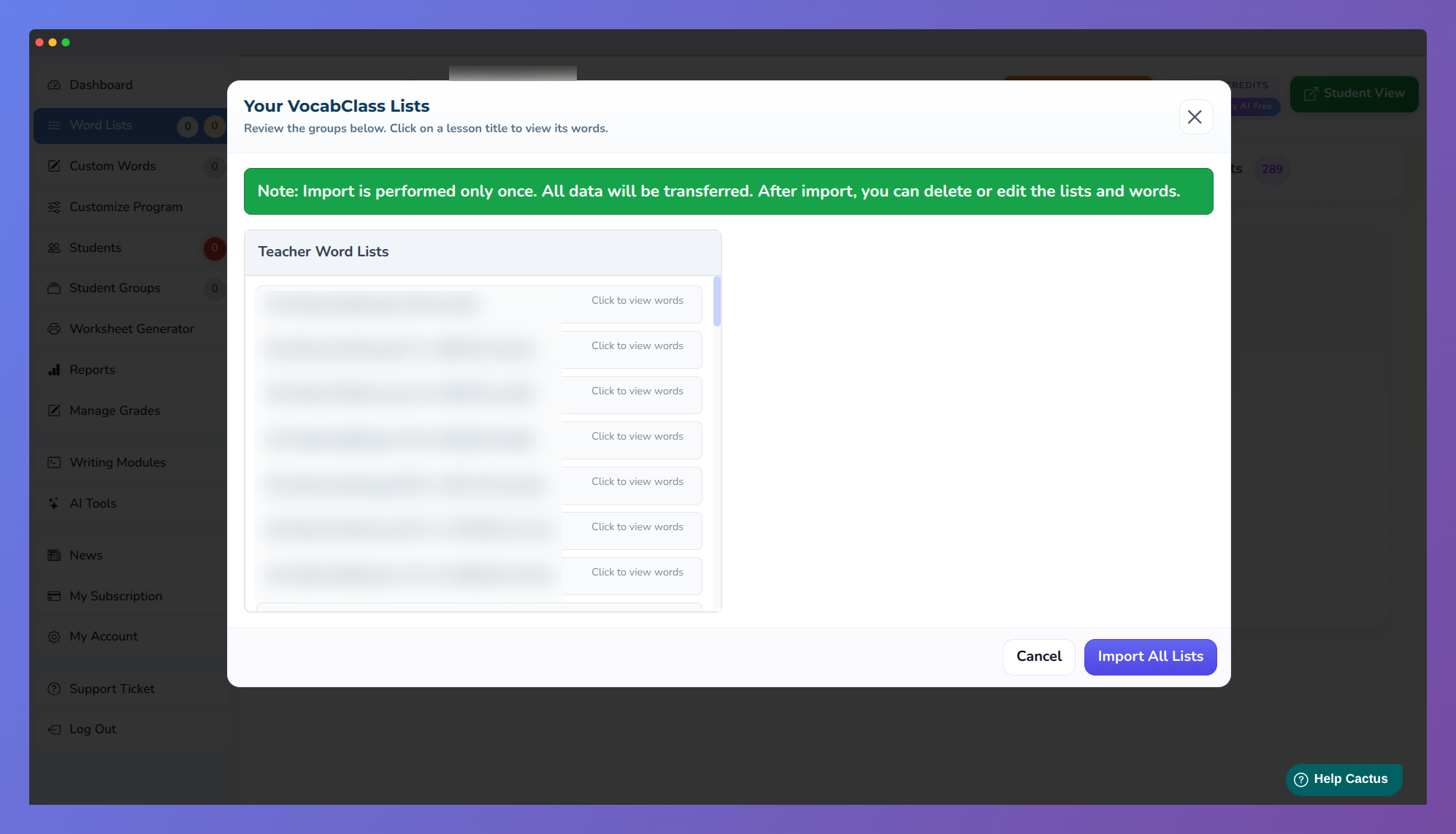 Screenshot of Vocab Loco highlighting the "Import from VocabClass" modal.
Note: Every VocabClass group becomes a custom list group in Vocab Loco, and every lesson becomes a word list inside it. Titles and words are copied as plain text, so special characters and accents are removed.
Step 5: Check and assign your groups
- After the page reloads, your imported groups appear as cards in the Custom Word Lists tab, marked Not Assigned.
- Use Quick View to preview a group, or Manage Lists to rename lists, edit words, or remove anything you don’t need.
- When a group is ready, click Assign to students to make it available to your class.
Pro Tip: Importing does not assign anything to students. Your class will only see a group after you assign it — see How to assign custom word lists to students for the full walkthrough.
Q: I don’t see the Import from VocabClass button. Why?
A: Either we found no VocabClass lists for your email address, or you have already imported once. Check that you signed in to Vocab Loco with the same email you use in VocabClass, and contact support if it still doesn’t appear.
Q: Can I import only some of my lists?
A: No. The import brings everything at once. After it finishes, delete the groups or lists you don’t want to keep.
Q: Can I run the import again to bring new VocabClass lists?
A: No. The import is available only once per account, so any list you create in VocabClass afterwards has to be added to Vocab Loco manually.
Q: Does importing change anything in VocabClass?
A: No. Your VocabClass account stays exactly as it is. Editing an imported list in Vocab Loco has no effect there.
Was this article helpful?
That’s Great!
Thank you for your feedback
Sorry! We couldn't be helpful
Thank you for your feedback
Feedback sent
We appreciate your effort and will try to fix the article