If you notice that a word or sentence is being pronounced incorrectly in a word list, you can report it directly from the Word Lists section. Reports are reviewed by the Vocab Loco support team, who will correct the audio as needed.
Step 1 — Open Audio Review
Go to Word Lists and find the group containing the list you want to review. There are three ways to open the Audio Review panel:
- Via Quick View: in the Vocab Loco Lists tab, click Quick View on any group. Each list inside the preview shows a Review Audio button — click it to open the review panel for that list.
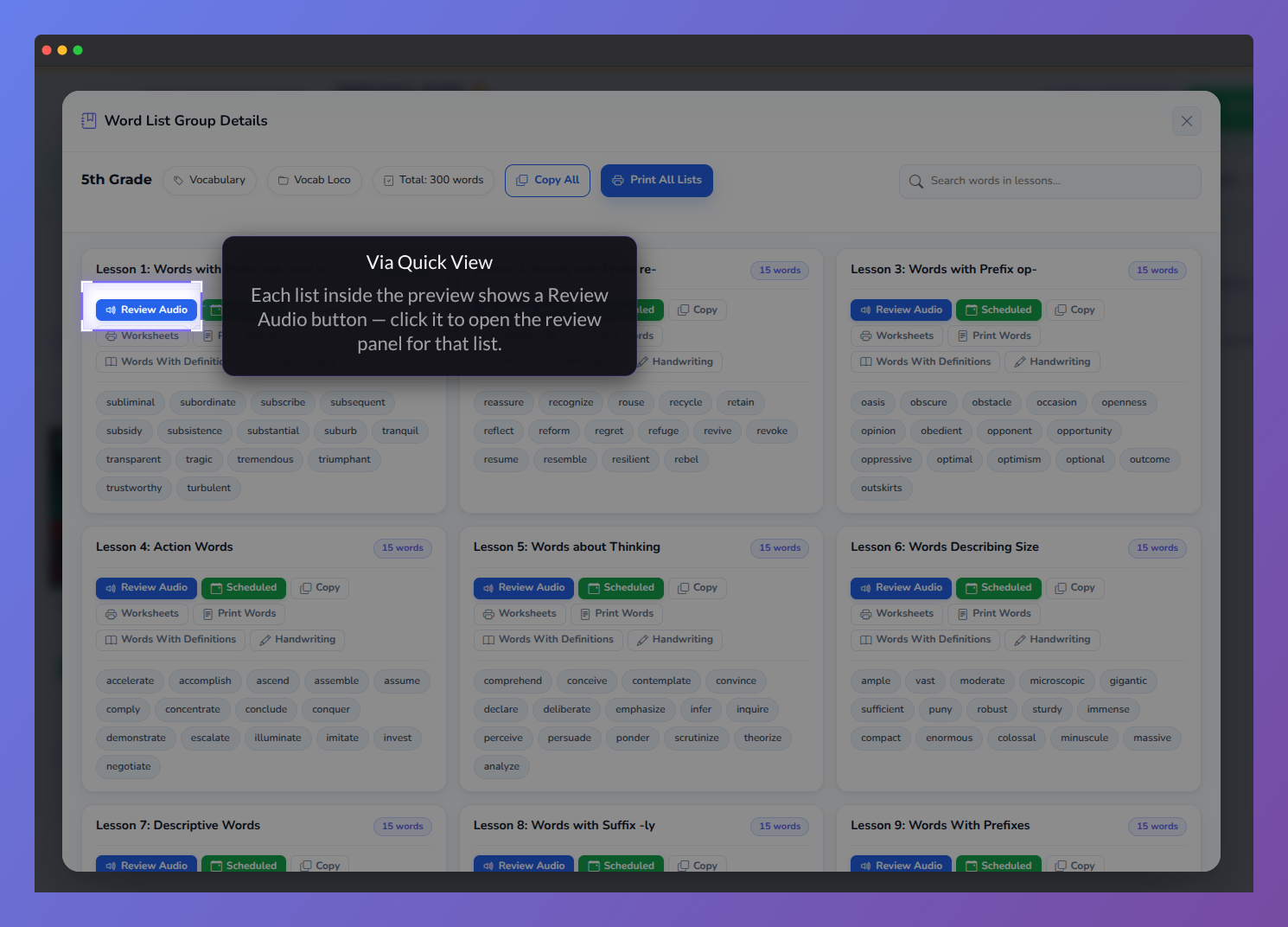
Screenshot of the Vocab Loco Word List Group Details preview showing lesson-by-lesson vocabulary content and review audio tool.
- Via the list menu: inside the word list editor, click the gear icon next to any list and select Review Audio from the dropdown menu.
- Via a specific word: inside the word list editor, click the volume icon on any word row in the words table to open the review panel focused directly on that word.
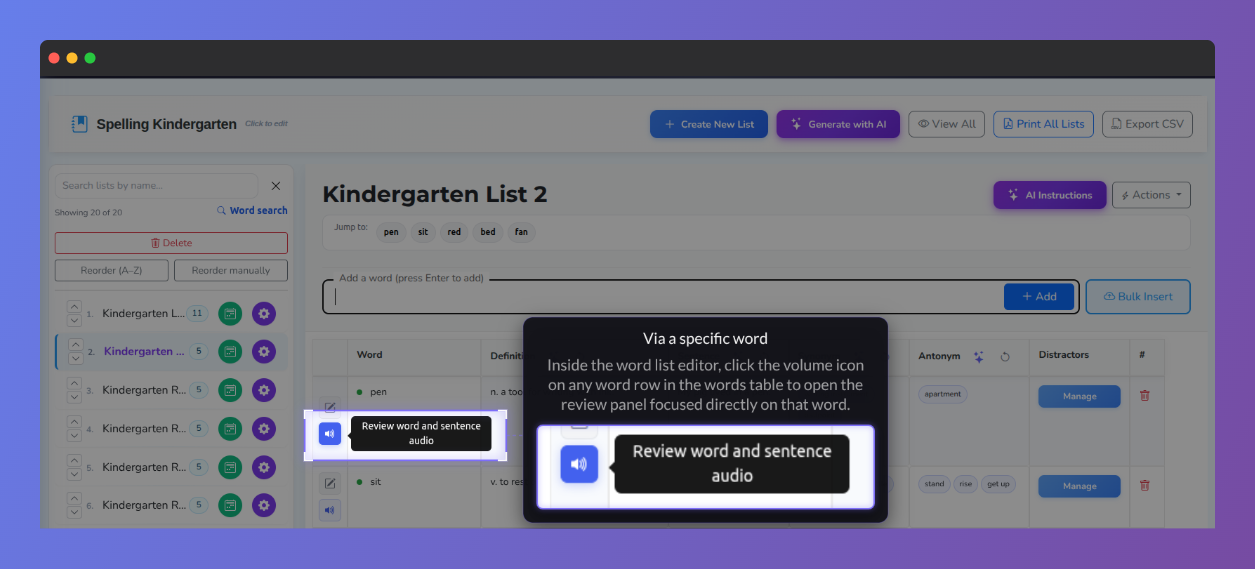
Screenshot of the Vocab Loco Custom Word List editor showing how teachers can review word and sentence audio for an individual vocabulary word.
Step 2 — Listen and identify the issue
The Audio Review panel opens on the Listen & review step. Each word in the list appears with play buttons for both the word audio and the sentence audio. Click play to listen and find the item with the incorrect pronunciation.
When you find the issue, click Report word to flag the word's pronunciation, or Report sentence to flag the sentence audio.
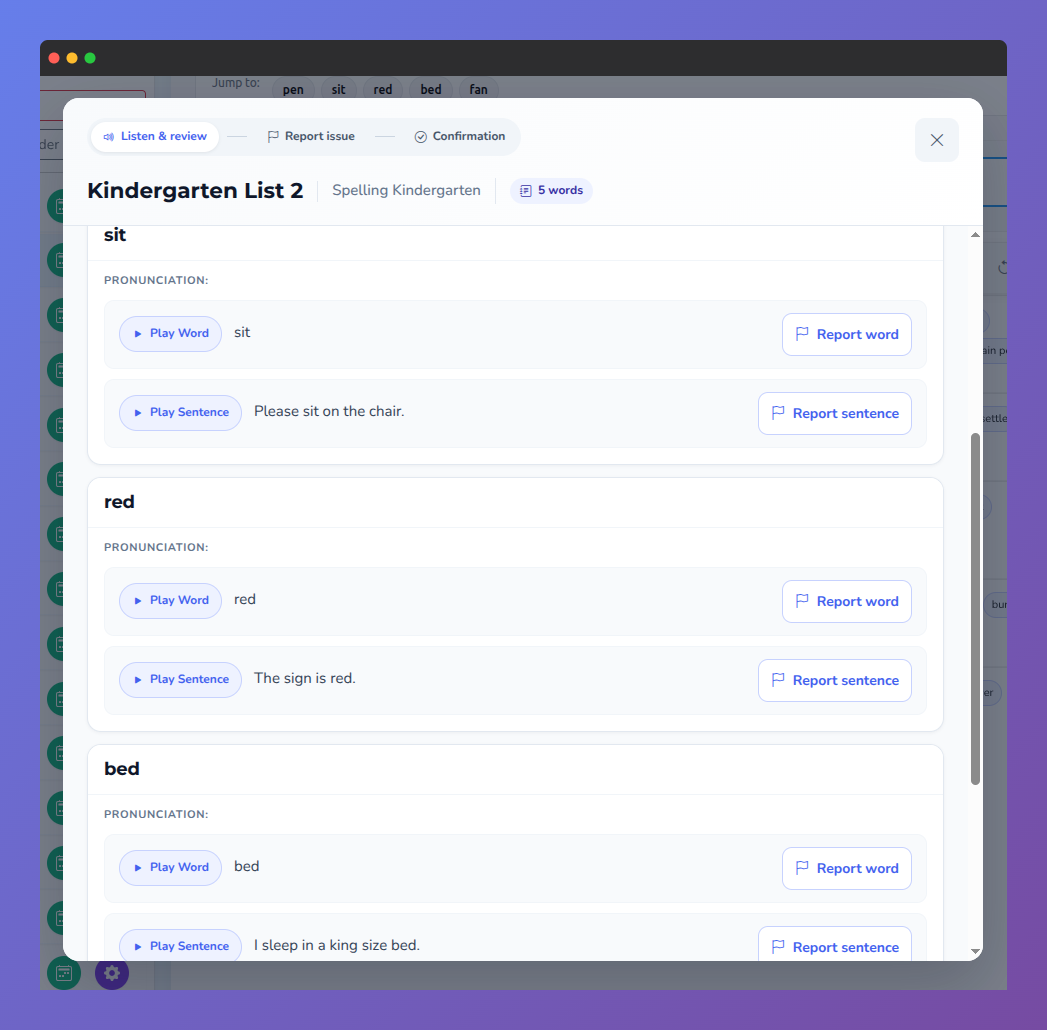
Screenshot of the Vocab Loco audio review panel showing how teachers can listen to word pronunciations and example sentences for every word in a vocabulary list.
Step 3 — Submit the report
On the Report issue step, describe the problem in the comment field. Be as specific as possible — for example, note whether the word is mispronounced, cut off, or sounds like the wrong word entirely. The comment must be at least 10 characters.
When ready, click Submit Report. A confirmation message will appear: "Report submitted — Our support team will review it soon." You can then close the panel or go back to review more words in the same list.
Each word and sentence can only have one active report at a time. If a report is already pending for an item, you will not be able to submit a duplicate until the existing one has been resolved.
Step 4 — Track your reported words
To see all the audio issues you have reported, go to the Word Lists section and click My Reported Words. This opens a list of every word and sentence you have flagged, so you can track the status of your reports over time.
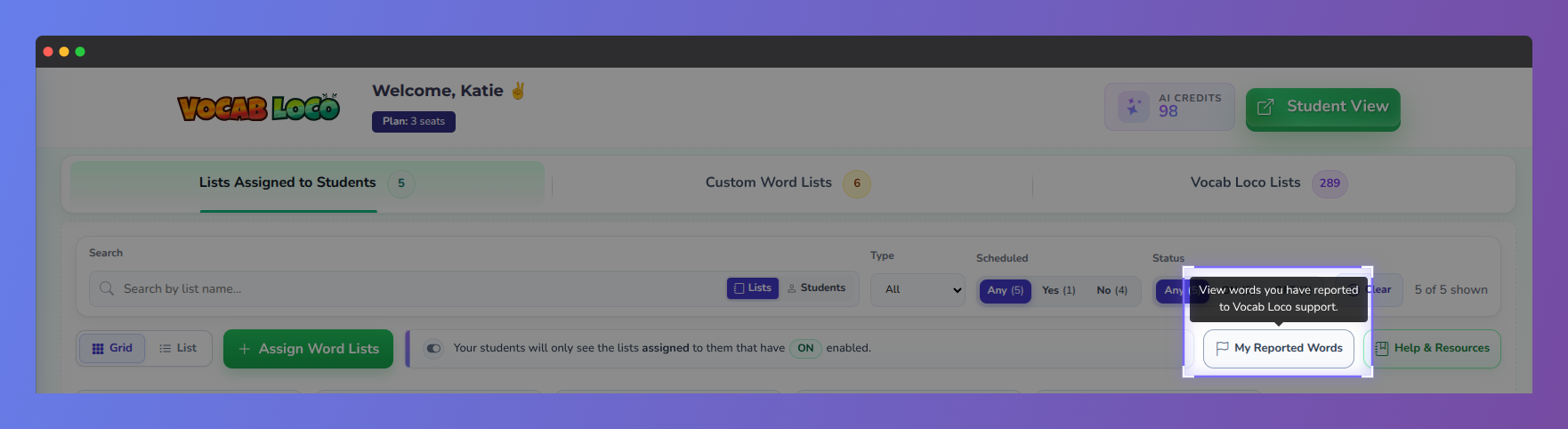
Screenshot of the Vocab Loco Word Lists dashboard showing the My Reported Words feature, where teachers can view words and sentences they have reported to the Vocab Loco support team for review.
Was this article helpful?
That’s Great!
Thank you for your feedback
Sorry! We couldn't be helpful
Thank you for your feedback
Feedback sent
We appreciate your effort and will try to fix the article