Sometimes students may use all their allowed tries on a Vocabulary Test or Spelling Test. When that happens, they will see this message: "No tries left. Ask your teacher for a PIN."
Teachers have two options to help students get another attempt.
Option 1: Use the Override PIN
Use this when a student needs one more attempt right away.
- From your Teacher Dashboard, click Customize Program in the left sidebar.
- In the Settings tab, scroll down to the Override Password section (lock icon ?).
- A 4-digit PIN code is displayed — share this with the student when they need another try.
- When the student enters the PIN, the test unlocks for one more attempt.
- You can reset the PIN anytime if you prefer a new code.
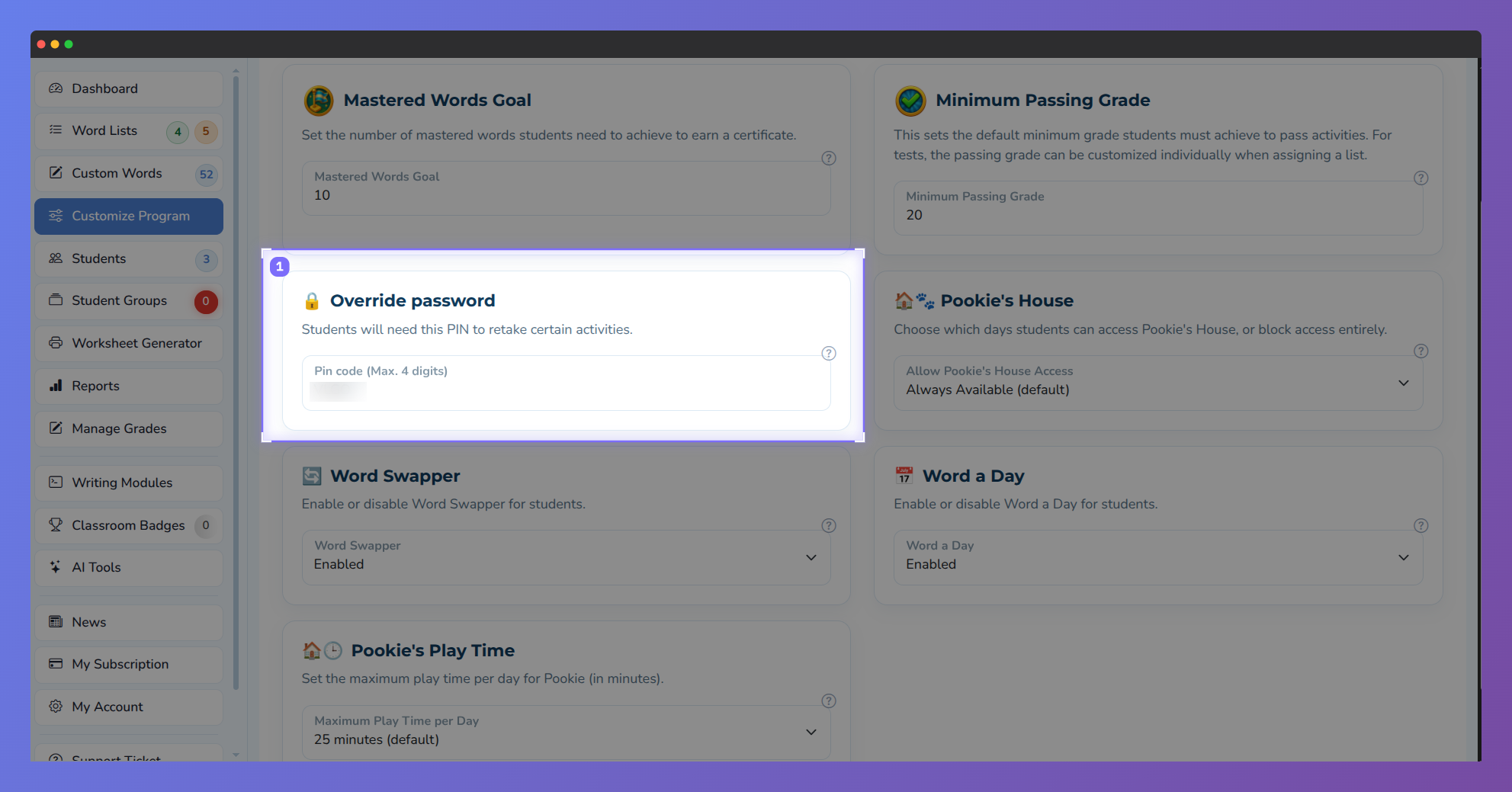
Screenshot of the Vocab Loco Customize Program settings page highlighting the Override Password section, where teachers can create a 4-digit PIN for student activity retries.
Option 2: Adjust test settings
Use this when your current test settings are too restrictive and you want to give all students more flexibility.
- Go to Word Lists and open the Lists Assigned to Students tab.
- Access the activity settings for the group and go to Step 3 – Modules.
- Under Spelling Test or Vocabulary Test, you can:
- Raise or lower the Minimum Passing Grade.
- Increase the Allowed Tries (e.g., from 1 to 3 tries).
⚠️ Note: These changes apply to all students assigned that word list.
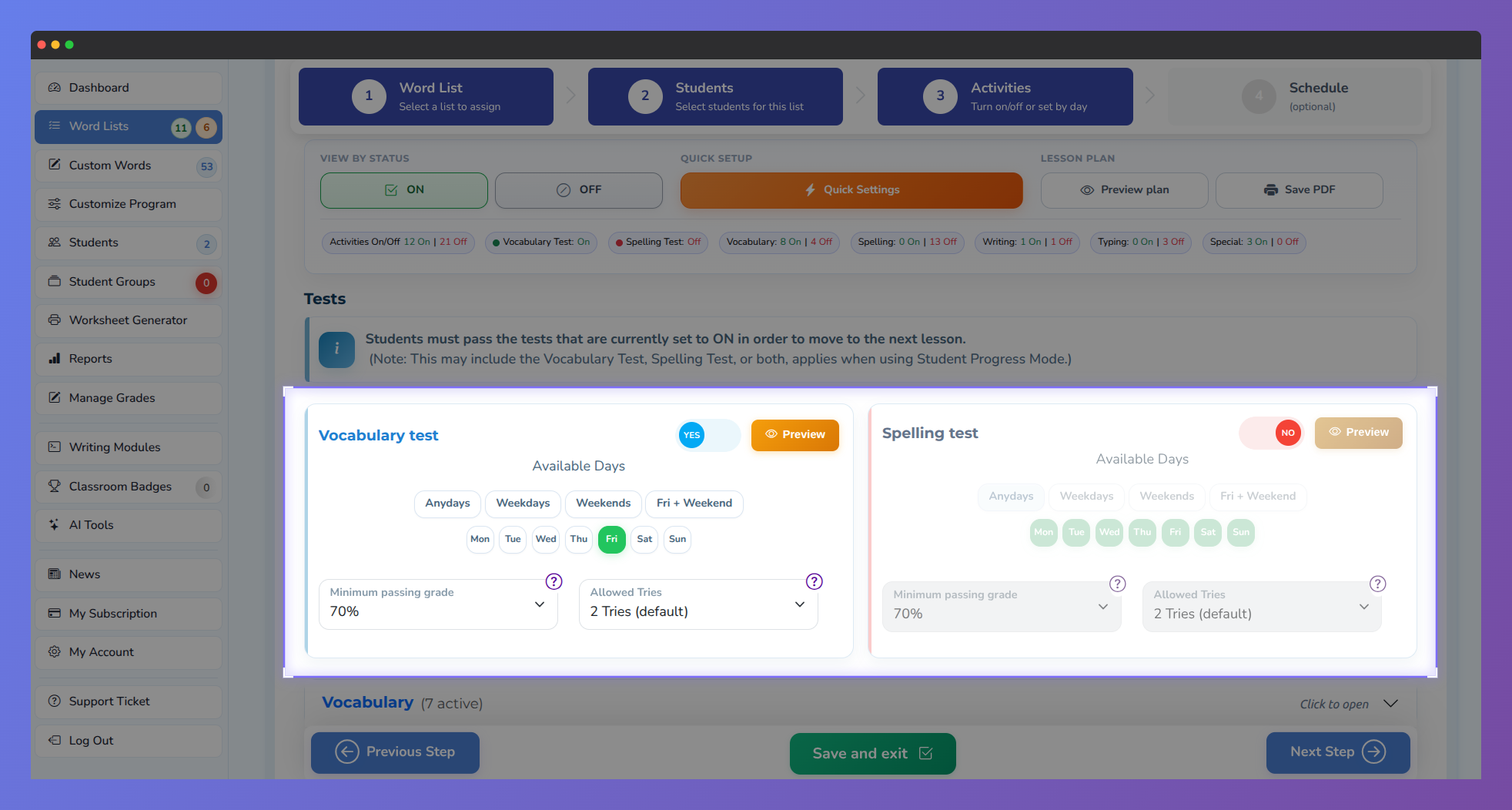
Screenshot of the Vocab Loco Activities settings page showing the Vocabulary and Spelling Test configuration panels, where teachers can adjust the Minimum Passing Grade and Allowed Tries for students.
For students
- If you run out of tries, ask your teacher for their Override PIN.
- Enter the code when prompted and the test will unlock for another attempt.
? Pro Tip: Use the Override PIN for quick one-time fixes. Adjust the test settings if students consistently run out of tries — it is a more permanent solution.
Was this article helpful?
That’s Great!
Thank you for your feedback
Sorry! We couldn't be helpful
Thank you for your feedback
Feedback sent
We appreciate your effort and will try to fix the article