Sometimes Clever imports students into classes that do not belong — for example, pulling all of a teacher's students into spelling, even though they only teach spelling to one grade. Instead of removing students one by one, you can bulk disable them.
Step 1: Go to Students
- Log into the teacher's account (or your own if you are the teacher).
- Click Students in the left sidebar.
Step 2: Filter by grade or section
- Use the filters at the top to narrow by Grade or Section.
- Example: Select Grade 7 and Grade 8 if those students should not be in Spelling.
Step 3: Deactivate all filtered students
- Once filtered, click the red Deactivate All button.
- This will disable only the students currently displayed in your filtered list.
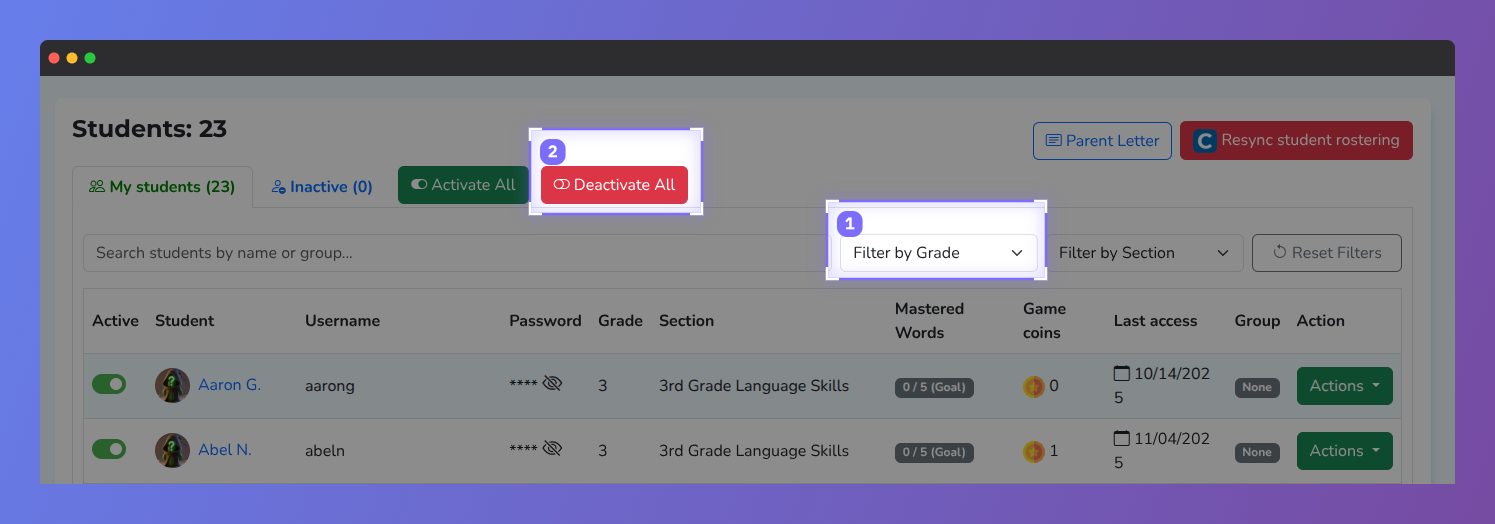
Screenshot of the Vocab Loco Students page highlighting the Grade filter dropdown and the Deactivate All button, which teachers can use to filter students by grade level and deactivate selected students in bulk.
? Pro Tip: If needed, you can always re-activate individual students or entire groups using the Activate All button.
Was this article helpful?
That’s Great!
Thank you for your feedback
Sorry! We couldn't be helpful
Thank you for your feedback
Feedback sent
We appreciate your effort and will try to fix the article