If you are using Clever Library rostering to bring students into Vocab Loco, follow these steps to ensure your classroom includes only the students you want.
Step 1: Resync your classroom roster
Resyncing updates your class to match your latest Clever roster.
- Log into your Clever Library account.
- Click on the Vocab Loco app icon.
- Go to the Students tab.
- Click the Resync student rostering button in the top-right corner.
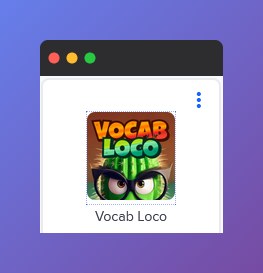
Screenshot of the Vocab Loco app icon inside Clever Library, which teachers can click to open Vocab Loco before accessing the Students tab and resyncing student rostering.
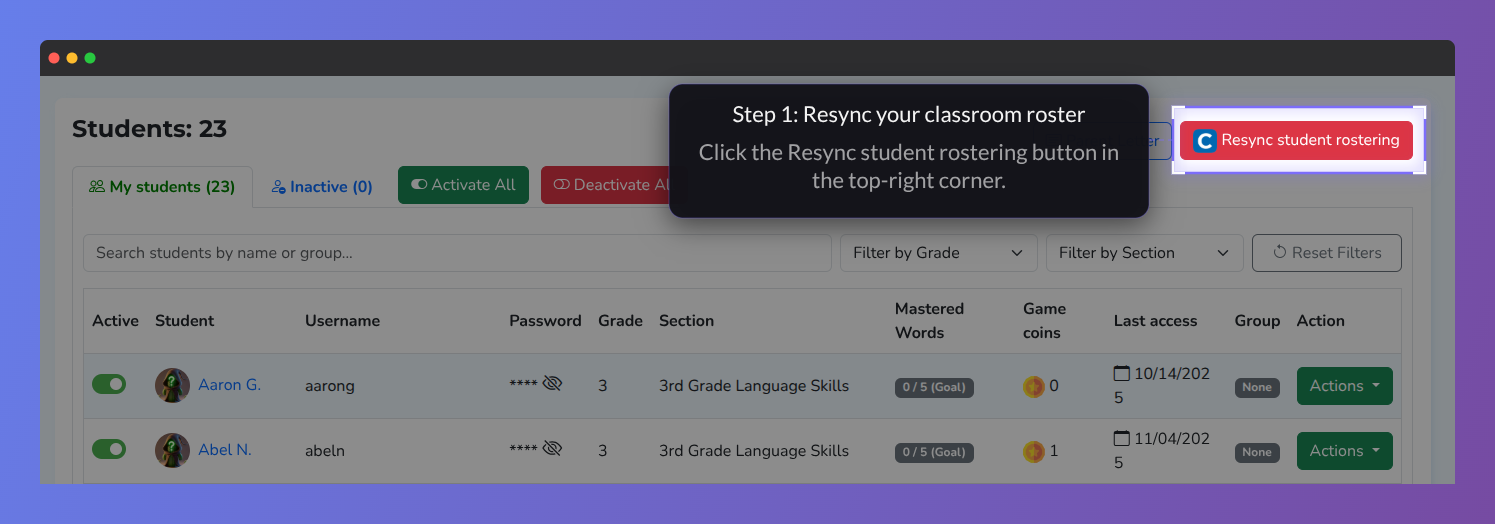
Screenshot of the Vocab Loco Students page highlighting the Resync Student Rostering button in the top-right corner, used to refresh and update the classroom roster.
? Pro Tip: If the button is blue, you are logged in correctly and can sync. If the button is red, you are not logged in through the Clever Library Teacher Portal.
How to fix a red button:
- Log out of Vocab Loco.
- Go back to the Clever Library portal.
- Launch Vocab Loco from the app icon.
- The Resync button will now be blue and clickable.
"Only the teacher can resync their roster. They must log into their account and open the app directly through Clever Library to enable syncing. If the button is disabled, it will appear red."
Step 2: Remove students you don't want
If a student should not be in your classroom:
- Toggle the Active switch off next to the student's name.
- The student will be deactivated and freed from your seat count.
? Pro Tip: Use the filters to quickly find students by grade or section.
In the example below, John P. is deactivated and no longer counted toward the seat total.
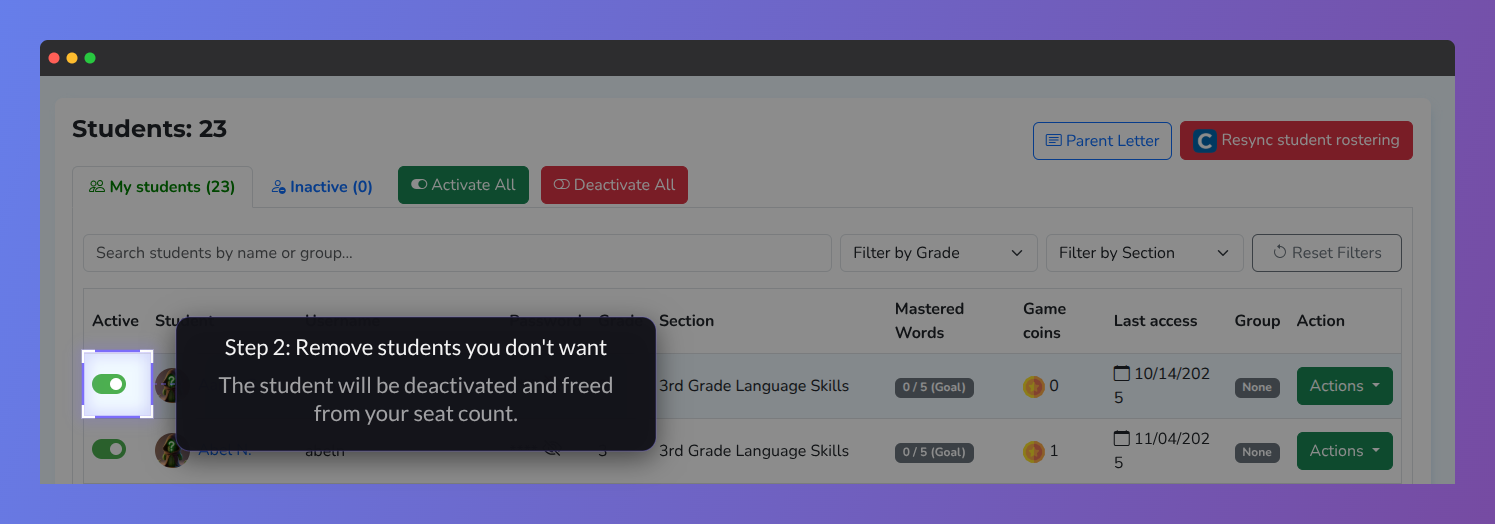
Screenshot of the Vocab Loco Students page highlighting the student activation toggle, which teachers can use to deactivate students and free up seat availability.
Step 3: Review your seat count
- After syncing and cleaning up, you will see exactly how many seats you are using.
- When renewing or purchasing, set your seat number to match the actual students in use.
- You can add seats at any time.
- The system will alert you if you go over your available seats.
Was this article helpful?
That’s Great!
Thank you for your feedback
Sorry! We couldn't be helpful
Thank you for your feedback
Feedback sent
We appreciate your effort and will try to fix the article