Student Groups let you organize your class into smaller sets — by reading level, grade, or any criteria that works for your classroom. Once created, groups appear as filters across reports and word list assignments, making it easier to track and manage specific students.
Step 1: Go to Student Groups
- From your Teacher Dashboard, click Student Groups in the left sidebar.
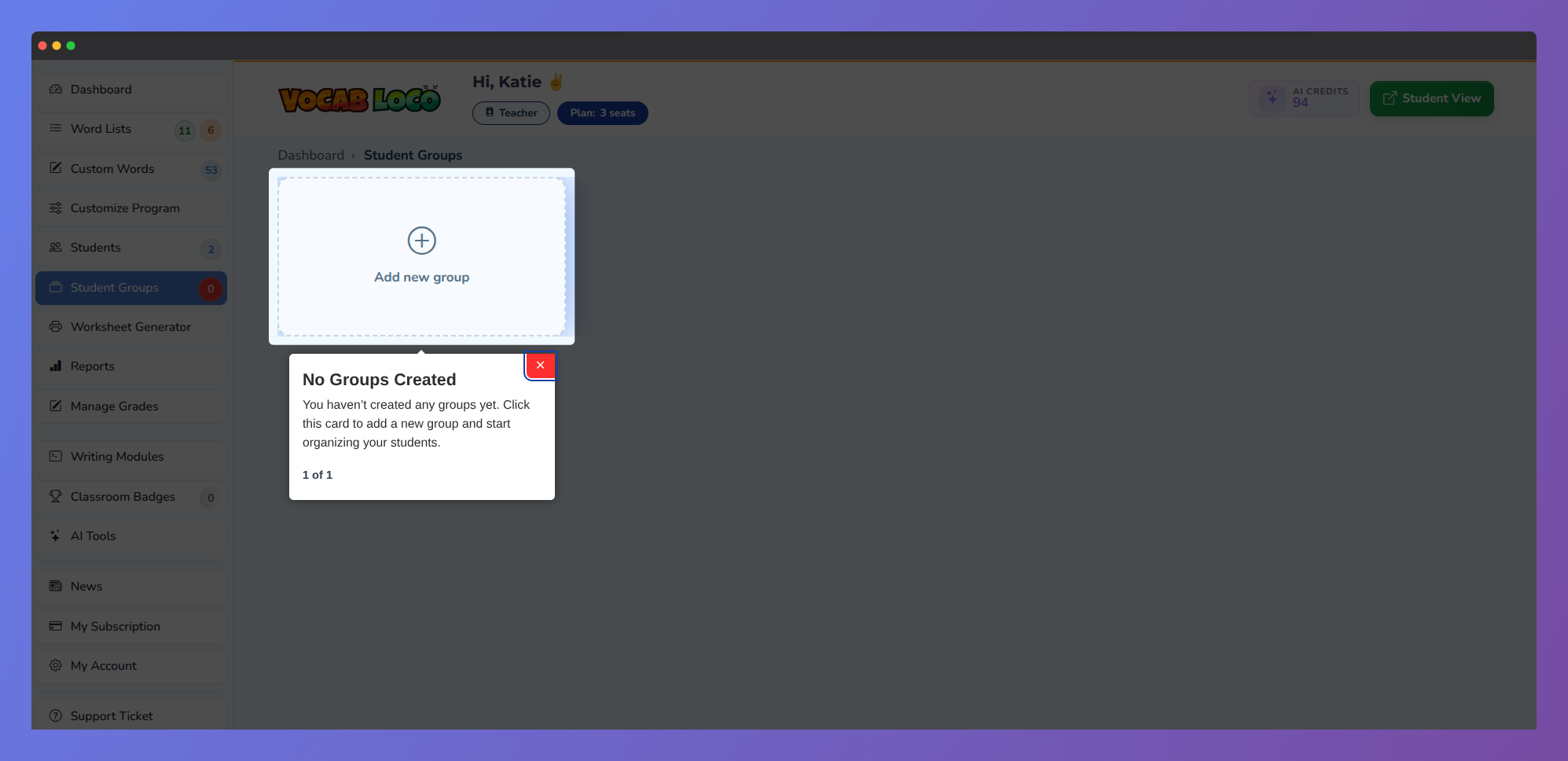
Screenshot of the Vocab Loco Student Groups page where teachers can create and organize custom student groups for differentiated instruction, assignments, and classroom management.
Step 2: Create a new group
- Click Add new group in the top-right corner of the page.
- On the form that opens, enter a name for your group in the Group Name field.
Step 3: Add students to the group
- Below the group name, a table lists your students. Check the box next to each student you want to include, or click Select All to add everyone at once.
- The badge above the table updates in real time to show how many students are selected.
- Click Save to create the group.
Pro Tip: Use descriptive group names that reflect the purpose — such as "Advanced Readers" or "Period 2" — so they're easy to identify when filtering reports.
Step 4: View students in a group
- On the Student Groups page, each group appears as a card showing the group name and the number of students.
- Click View Students on any card to open a panel listing every student in that group, along with their grade.
Step 5: Edit a group
- Click Edit group on the group card to open the edit form.
- From here you can rename the group or update its members:
- Students currently in the group can be removed.
- Students without a group can be added.
- Students in other groups can be moved to this one.
- Click Save when you're done.
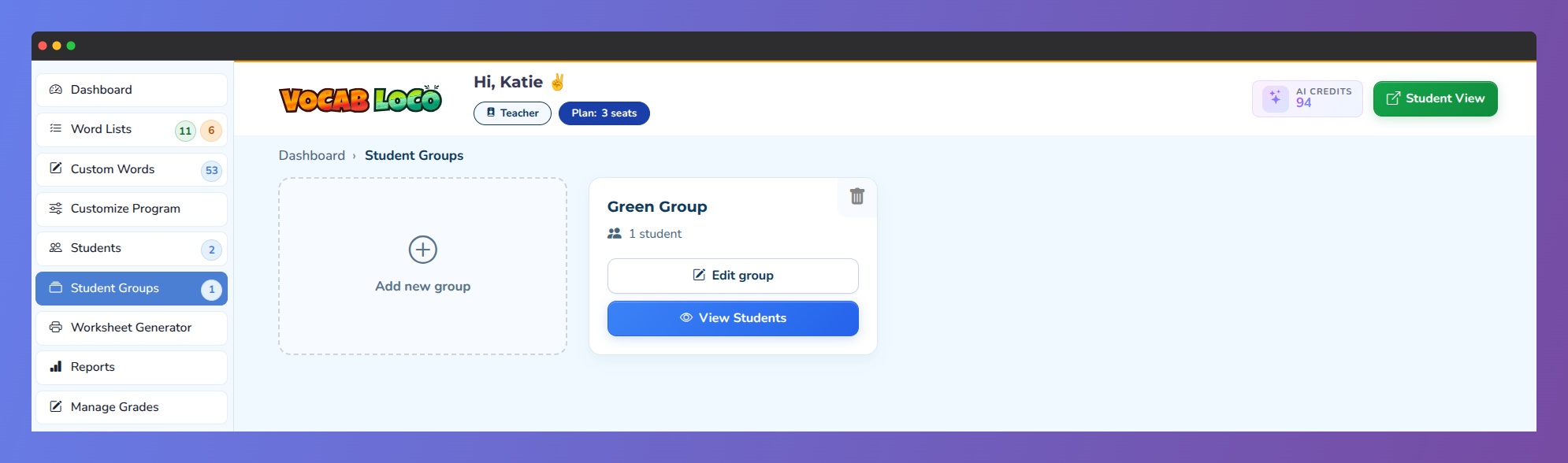
Screenshot of the Vocab Loco Student Groups management page showing options to create, edit, delete, and manage student groups, including viewing assigned students within each group.
Step 6: Delete a group
- Click the trash icon in the top-right corner of the group card.
- A confirmation dialog will appear. Click Yes, delete it! to confirm.
- Students in the deleted group are automatically removed from it — they remain in your class and are not deleted.
Q: Where do groups appear after I create them?
A: Groups become available as filters in your Reports (Tests, List Progress, Misspelled Words, and others) and in the student selector when assigning word lists — making it easy to target specific sets of students.
Q: Can a student be in more than one group?
A: No. Each student can only belong to one group at a time. Moving a student to a new group automatically removes them from their current one.
Was this article helpful?
That’s Great!
Thank you for your feedback
Sorry! We couldn't be helpful
Thank you for your feedback
Feedback sent
We appreciate your effort and will try to fix the article