When students are rostered through Clever, the platform only shares their first name and the first letter of their last name. Because of this, full last names are not automatically available in Vocab Loco. To help teachers manage their class more easily — especially for grading and sorting in larger groups — student display names can be edited manually at any time, and those changes will persist through future roster syncs.
Step 1: Go to My Class
- From your Teacher Dashboard, click Students in the left sidebar.
Step 2: Find the student and open the Actions menu
- Locate the student in your class list. In the last column of their row, click the Actions dropdown.
Step 3: Click Edit Student
- From the dropdown, select Edit Student. This opens the student's edit page.
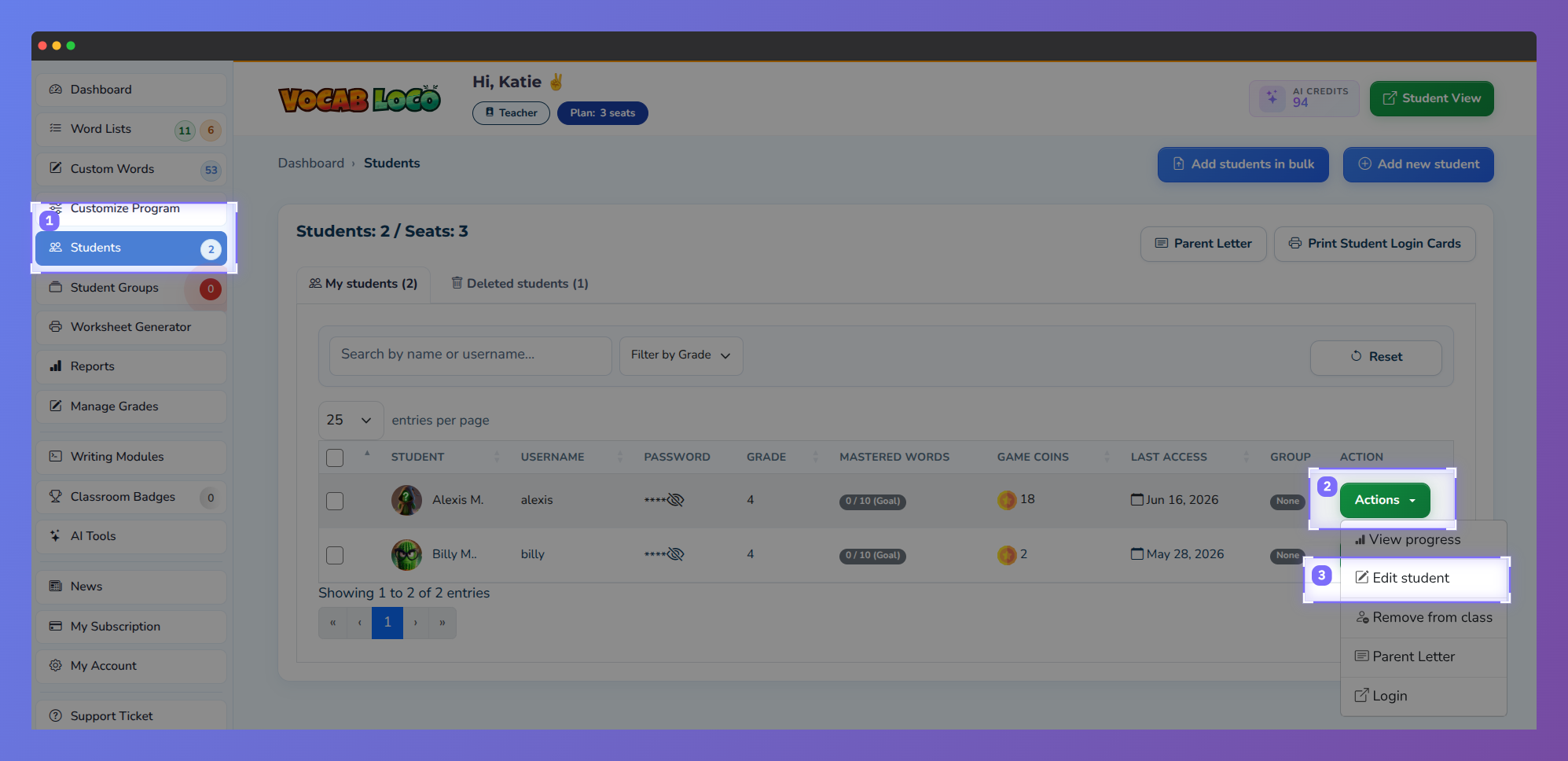
Screenshot of the Vocab Loco Teacher Panel Students page showing classroom roster management, student progress tools, filtering options, and action controls for editing and monitoring student accounts.
Note: For Clever-rostered students, only the First Name and Last Name fields are editable. All other fields — such as grade, group, username, and password — are managed by Clever and cannot be changed here.
Step 4: Update the Last Name field
- In the Last Name (Or first initial) field, replace the initial with the student's full last name — or add the remaining letters to complete it.
- The field accepts letters, spaces, apostrophes, hyphens, and periods.
Step 5: Save your changes
- Click Save to apply the changes. The updated name will appear across the platform immediately.
Note: We completely understand how helpful full last names are for grading and sorting — especially with larger classes — which is why we added the editable student name option. Update names at the start of the year and they'll stay in place throughout.
Q: Will my edits be overwritten the next time Clever syncs?
A: No. Name changes made through the Edit Student page are saved independently and will persist through future roster syncs.
Q: Can I edit the first name too?
A: Yes. Both the First Name and Last Name fields are editable for Clever-rostered students. You can adjust either field as needed.
Was this article helpful?
That’s Great!
Thank you for your feedback
Sorry! We couldn't be helpful
Thank you for your feedback
Feedback sent
We appreciate your effort and will try to fix the article