The Columns menu on supported reports lets you choose which columns to display and in what order. Your preferences are saved automatically and remembered the next time you open the report.
Where to find the Columns menu
On reports that support column customization, a Columns button appears in the toolbar above the table. Click it to open the columns menu.
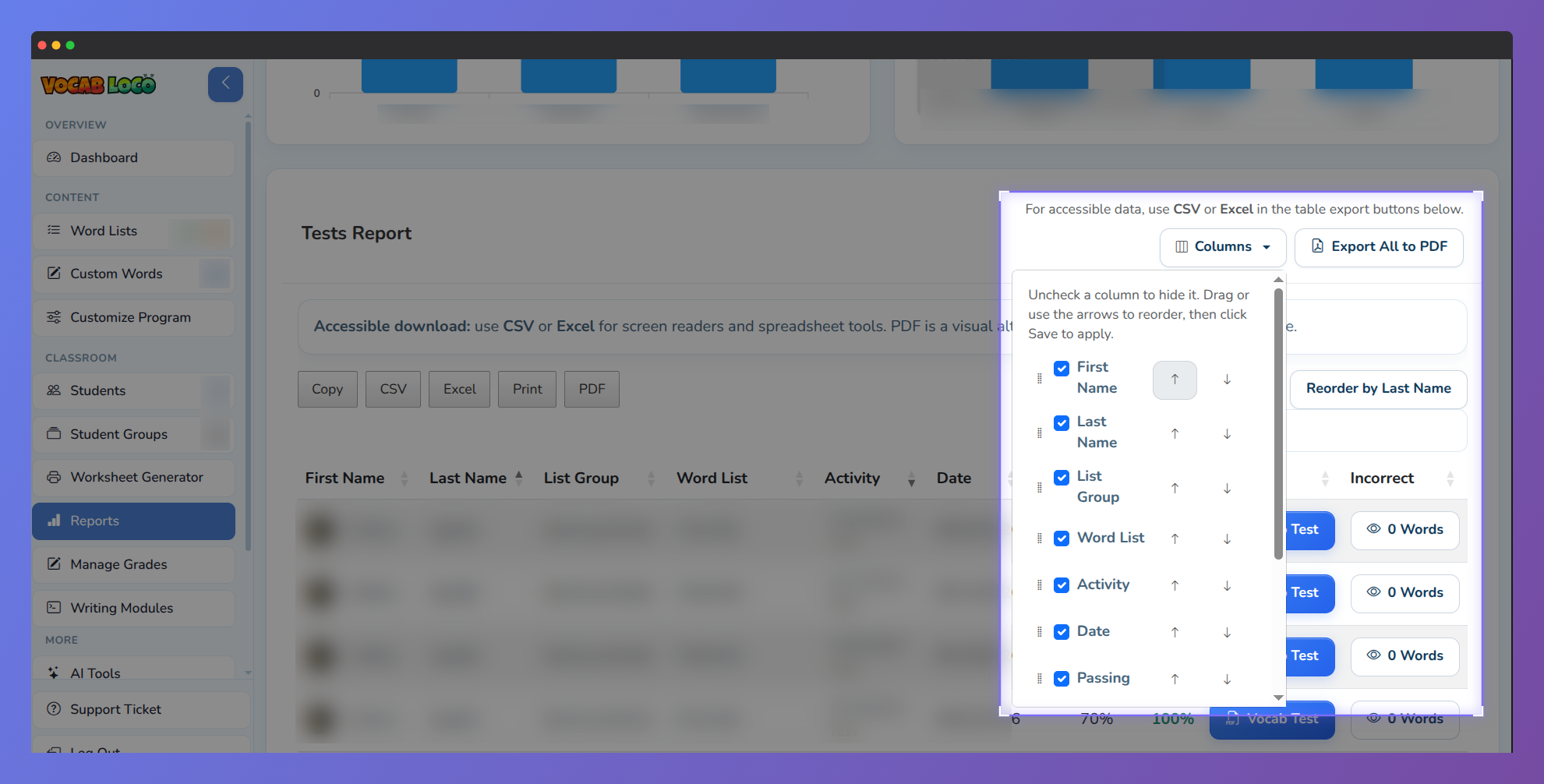 Screenshotof columns dropdown menu on a Vocab Loco report, listing columns with checkboxes to show or hide them and arrows to reorder.
When you have hidden or reordered columns, an Edited badge appears on the Columns button as a reminder that the view has been customized.
Hiding and showing columns
- Click the Columns button to open the menu.
- Uncheck any column you want to hide. Check it again to bring it back.
- Click Save to apply your changes.
Changes are a draft until you click Save. Closing the menu without saving discards them.
Reordering columns
You can change the order of columns in two ways:
- Drag and drop — Grab the grip handle on the left of any column row and drag it to a new position.
- Arrow buttons — Use the up and down arrow buttons on each row to move a column one position at a time.
Click Save to apply the new order to the table.
Saving and resetting
- Save — Applies and remembers the current column layout. Your preferences are stored in your browser, so they persist across sessions on the same device.
- Reset to default — Restores all columns to their original order and makes all columns visible again.
Because preferences are saved in the browser, your column layout on one device will not carry over to another device or a different browser.
Columns and exports
When you export a report, the exported file reflects your column layout — hidden columns are not included in the download.
Some columns may have special export behavior:
- Columns with interactive content (such as buttons or links) are visible on screen but excluded from exports, since they cannot be represented in a spreadsheet.
- Some columns are export-only — they are not shown in the on-screen table but are always included when you download the report.
Was this article helpful?
That’s Great!
Thank you for your feedback
Sorry! We couldn't be helpful
Thank you for your feedback
Feedback sent
We appreciate your effort and will try to fix the article