Several pages in Vocab Loco show data filtered by school year. If you cannot find a student's recent activity, a grade, or a report, it is likely because that work happened in a different period than the one currently selected. Switching the filter to the correct year or Summer will bring it back into view.
Where to find the filter
The school year filter is available on the following teacher pages:
- Manage Grades — filter grades and test scores by school year.
- Reports — filter all report data by school year.
- Achievements — view badge progress across school years.
- Writing Prompts — filter writing prompt submissions by school year.
- Student Progress — view an individual student's activity broken down by school year.
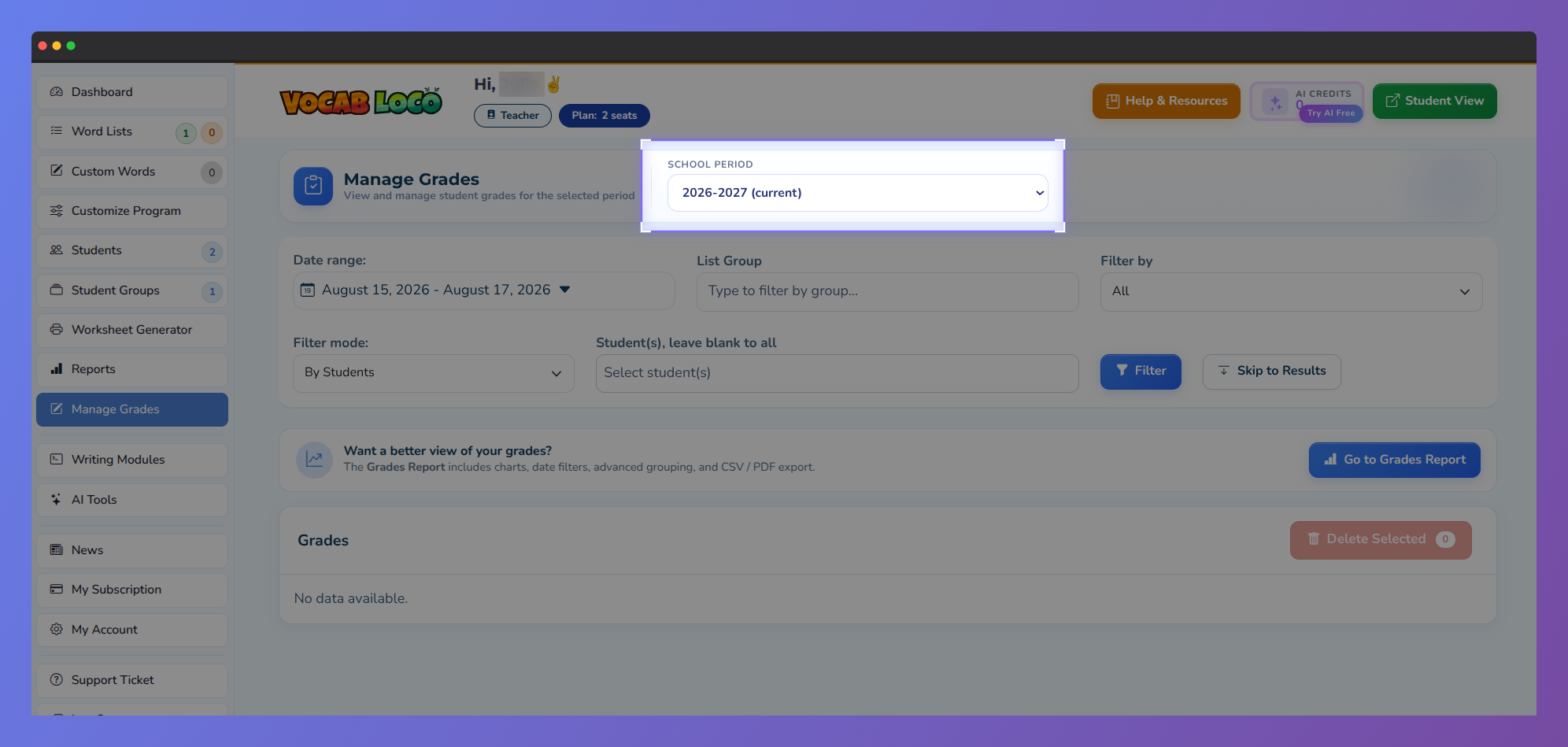
Screenshot of the Manage Grades page showing the School Period dropdown highlighted at the top of the page.
On each of these pages, the filter appears as a dropdown or tab selector near the top of the content area. The current school year is selected by default.
What the filter options mean
Each entry in the filter represents a school year configured in your account. Entries are labeled with the year range (for example, 2025–2026 or 2026–2027) and the current school year is marked as the active one.
- Selecting a past year shows only the activity, grades, and data from that period.
- All years in which your students had active enrollments will appear in the list.
- If you are a teacher linked to a Super User, the school years are defined by your Super User's calendar. You follow their schedule and see the same periods they have configured.
The Summer option
If your school uses the School Year With Summer Break calendar format, a Summer entry will appear in the filter whenever there is a gap between two consecutive school years — for example, between the end of 2025–2026 and the start of 2026–2027.
The Summer entry covers exactly the days in that gap. Any student activity that happened between school years — including work done just before a new year starts — will appear under Summer, not under either of the surrounding school years.
Q: I don't see a Summer option. Why?
A: Summer only appears if your calendar type is set to School Year With Summer Break and there is an actual gap between two years that has already started. If your calendar is year-round (no summer break) or if the next school year starts immediately after the previous one ends, no Summer entry is generated.
Why activity may appear in a different year
Student activity is always recorded with the date it happened. When you view a page like Manage Grades or Reports, only activity that falls within the selected school year's date range is shown.
Common situations where you may need to switch the filter:
- A student completed work just before the new school year started — that activity falls in Summer or the previous year.
- You are reviewing a student who was enrolled last year — switch to the previous year to see their records.
- A grade or report entry seems missing — it may have been recorded under a different period.
If you are not sure which period to look in, try selecting Summer first. Activity done in the days or weeks just before your school year's start date is the most common reason data appears "missing" from the current year view.
Was this article helpful?
That’s Great!
Thank you for your feedback
Sorry! We couldn't be helpful
Thank you for your feedback
Feedback sent
We appreciate your effort and will try to fix the article