When you need to know which word lists a specific student is working on, you don't have to open each list one by one. The Assigned Lists tab has a built-in Students search mode that filters your list view by student name — every list that includes that student will appear on screen instantly.
Step 1: Go to Word Lists
- From your Teacher Dashboard, click Word Lists in the left sidebar.
Step 2: Open the Assigned Lists tab
- At the top of the page, select the Assigned Lists tab.
- You will see all word list groups currently assigned to your class.
Step 3: Switch the search mode to Students
In the filter bar, you will find a Search field with two toggle buttons next to it: Lists and Students. By default, the Lists toggle is active and searches by list name.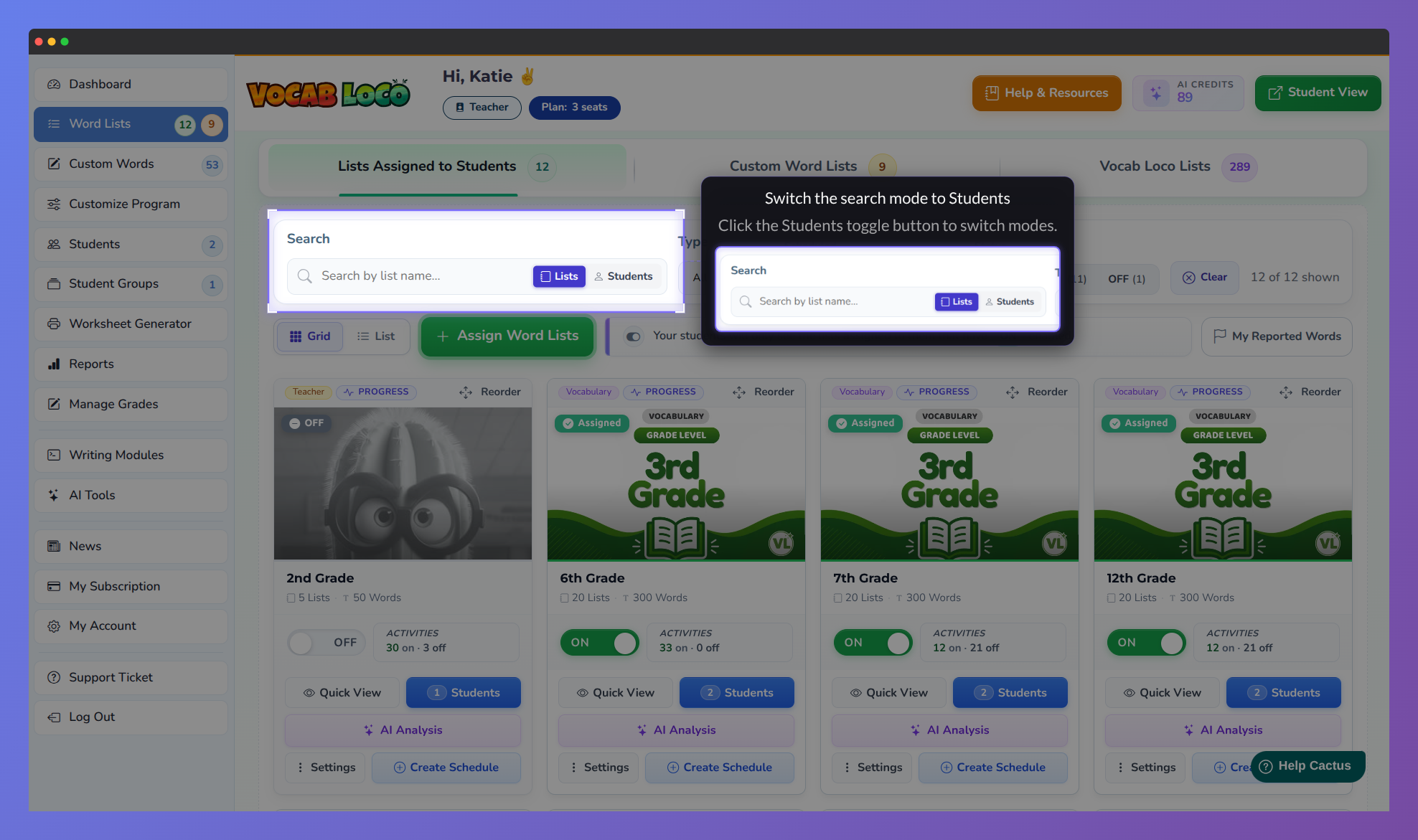
Screenshot of the search mode switcher showing how to switch from list search to student search.
- Click the Students toggle button to switch modes.
- The icon in the search bar will change to a person icon and the placeholder text will update to Search by student name...
Step 4: Type the student's name
- Type the student's name in the search bar. The list filters in real time.
- Only the word list groups that include that student will remain visible. Each matching card will display a badge with the student's name.
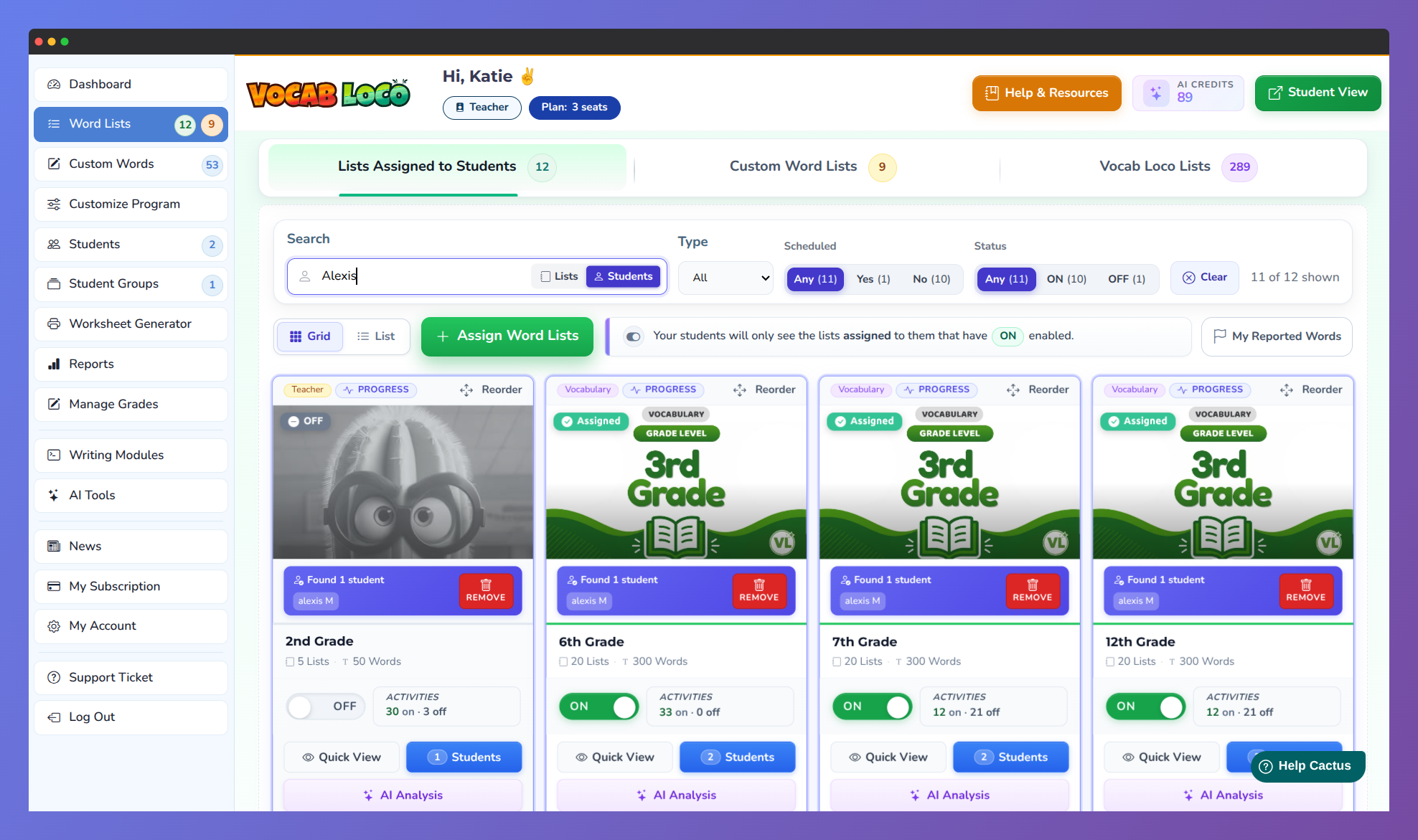
Screenshot of the teacher dashboard showing search results by student name.
Pro Tip: You can combine the student name search with the other filters — Type, Scheduled, and Status — to narrow results further. For example, search for a student and set Status to ON to see only the lists they can currently access.
Q: What if no lists appear after I type the student's name?
A: The student may not be assigned to any list yet, or another active filter may be hiding results. Click Clear to reset all filters and try again with just the student name search.
Was this article helpful?
That’s Great!
Thank you for your feedback
Sorry! We couldn't be helpful
Thank you for your feedback
Feedback sent
We appreciate your effort and will try to fix the article