The Manage Grades page gives you a centralized view of student grades across all your linked teachers. You can filter by date, teacher, and activity type, and edit or delete individual grades when needed.
How to open Manage Grades
From your Super User Dashboard, click Manage Grades in the left sidebar. The page loads all student grades across your organization, sorted by submission date.
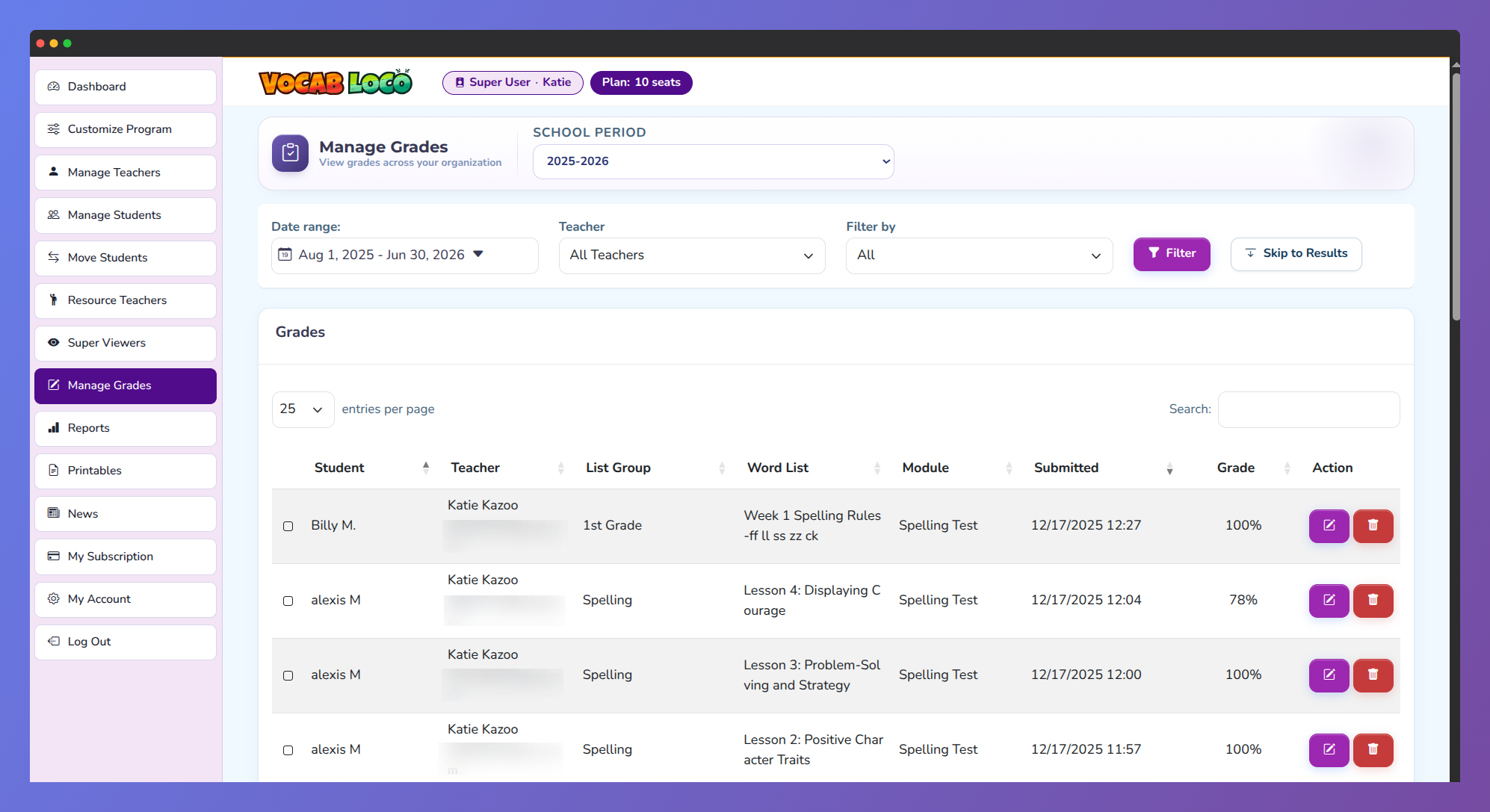
Screenshot of the Manage Grades page showing student assessment results across the organization.
Filter grades
Use the filters at the top of the page to narrow down which grades are displayed.
Date range: Click the date picker to select a start and end date. Only grades submitted within that period will appear.
Teacher: Use the Teacher dropdown to view grades from a specific classroom, or leave it set to All Teachers to see grades across the entire organization.
Filter by: Use the activity filter to focus on a specific module. You can filter by individual tests (Vocabulary Test, Spelling Test) or by activity group: Vocabulary Activities, Spelling Activities, Typing Activities, Writing Activities, or Special Activities such as Vocab Beats, Story Time, and Poems.
Edit a grade
To edit a grade, use the action menu on the grade’s row and select Edit. A dialog will open showing the current score. Enter a new value between 0 and 100 and click Save.
Editing a grade changes the recorded score for that specific activity submission. This may affect the student’s overall performance data visible to their teacher.
Delete a grade
To delete a grade, use the action menu on the grade’s row and select Delete. A confirmation dialog will appear showing the student name, teacher, module, score, word list, and submission date. Type confirm in the field and click Delete to proceed.
Grade deletion is permanent and cannot be undone. Review the details carefully before confirming.
Bulk delete grades
To delete multiple grades at once, check the boxes next to the rows you want to remove. A bulk delete option will become available. A confirmation dialog will show how many grades will be deleted. Type confirm and click Delete selected to proceed.
Was this article helpful?
That’s Great!
Thank you for your feedback
Sorry! We couldn't be helpful
Thank you for your feedback
Feedback sent
We appreciate your effort and will try to fix the article