A Super Viewer is a read-only account that gives someone access to your Vocab Loco reports without granting them full Super User permissions. Super Viewers see the same report data you see, and nothing else.
This is useful for administrators, coordinators, or district staff who need to monitor student progress across classrooms without being able to make changes to the account.
In this article
How to open Super Viewers
From your Super User Dashboard, click Super Viewers in the left sidebar. The page lists all Super Viewers you have created, along with their status, the number of teachers and students visible to them, and the date the account was created.
Add a Super Viewer
Click Add New Super Viewer in the top right corner. Fill in the first name, last name, and email address, then click Save.
An invitation email will be sent automatically to the address you provided. The Super Viewer will use the link in that email to set their own password and access their account.
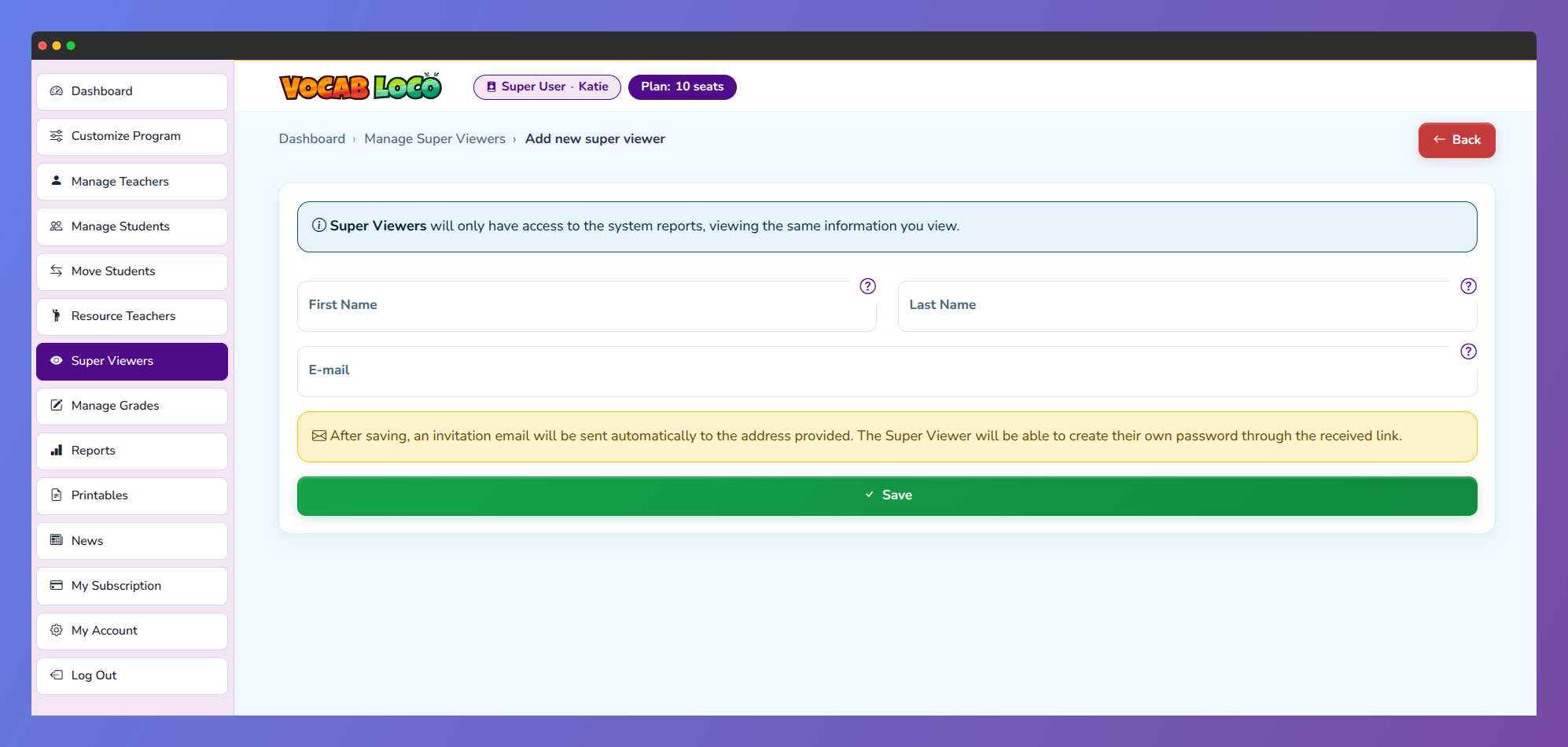
Screenshot of the Super Viewer invitation form for granting report access to additional users.
The email address cannot be changed after the Super Viewer account is created. Make sure the address is correct before saving.
Enable or disable a Super Viewer
Use the Status toggle switch on the Super Viewer’s row to enable or disable their access at any time. When disabled, the Super Viewer cannot log in but their account is not deleted.
Edit a Super Viewer
Use the action menu on the Super Viewer’s row and select Edit to update their first or last name. The email address is locked after creation and cannot be edited.
Resend the invitation
If the Super Viewer did not receive or has lost their invitation email, use the action menu on their row and select Resend Invitation. A new invitation link will be sent to their email address.
Delete a Super Viewer
To permanently remove a Super Viewer, use the action menu on their row and select Delete. This action cannot be undone. If you only want to temporarily block access, use the Status toggle instead.
Was this article helpful?
That’s Great!
Thank you for your feedback
Sorry! We couldn't be helpful
Thank you for your feedback
Feedback sent
We appreciate your effort and will try to fix the article