
You can easily change the order of your Teacher Word Lists using the Move Lists tool. This allows you to organize spelling or vocabulary units in the order you want students to see them.
Steps to Move a Word List
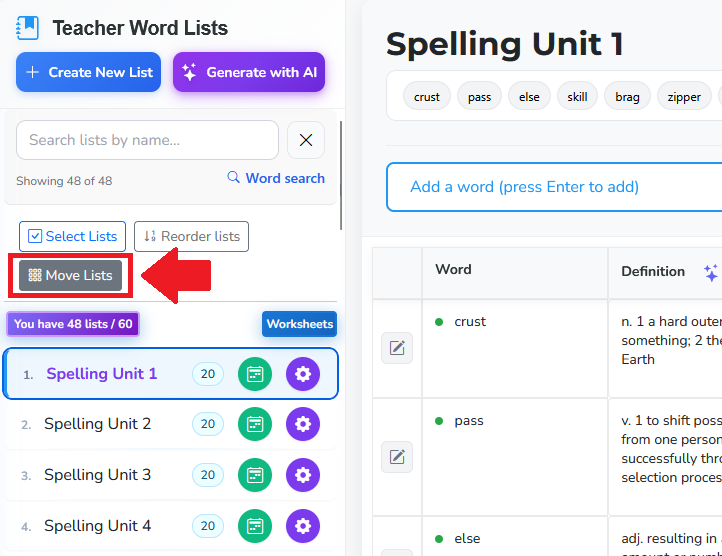
Go to Teacher Word Lists.
Click the Move Lists button.
A Move Lists pop-up window will open. (image)
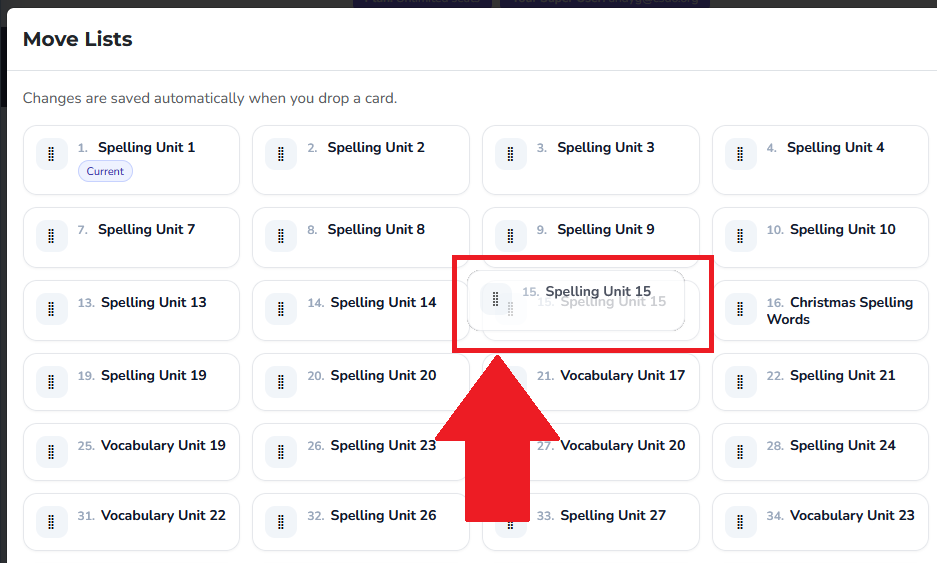
Find the list you want to move.
Click and hold the drag handle (the dotted icon on the left side of the list). (image 2)
Drag the list up or down to the new position.
Release to drop the list in place.
✅ Changes are saved automatically as soon as you drop the list.
Was this article helpful?
That’s Great!
Thank you for your feedback
Sorry! We couldn't be helpful
Thank you for your feedback
Feedback sent
We appreciate your effort and will try to fix the article