A: Word suggestions are usually caused by predictive text settings on the student’s device, not by Vocab Loco itself.
If students see word suggestions while taking spelling tests or activities, it may look like answers are being provided automatically. In most cases, these suggestions come from the device’s keyboard settings rather than from Vocab Loco.
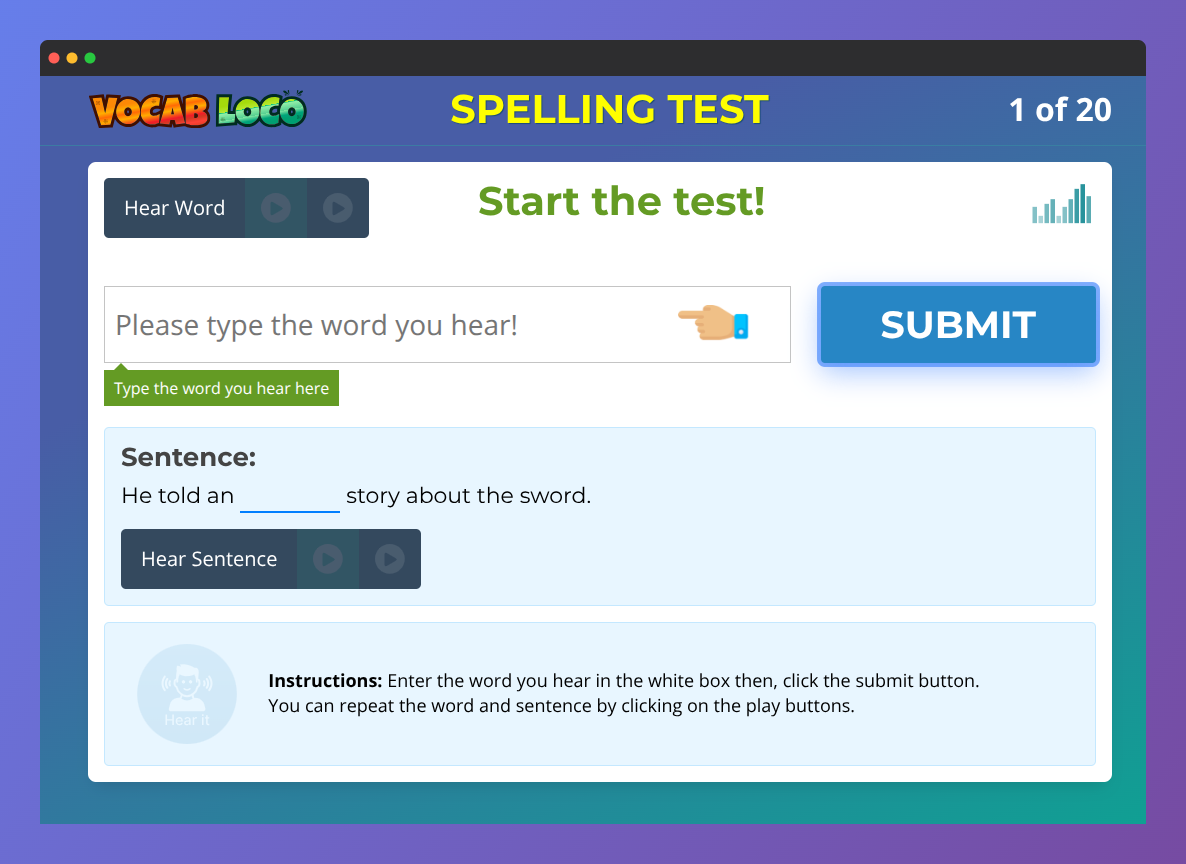
Screenshot of the Vocab Loco Spelling Test activity where students listen to a word and sentence audio prompt, type the correct spelling, and submit their answer.
What Is Causing This?
Vocab Loco is designed to disable common typing assistance features during tests and activities. However, some devices — especially iPads and mobile phones — may continue showing predictive text suggestions automatically.
These suggestions are generated by the device’s keyboard software and are not controlled by Vocab Loco.
Vocab Loco already disables:
- Autocomplete
- Spellcheck
- Special character assistance
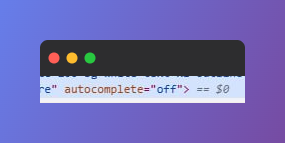
Close-up screenshot of the Vocab Loco spelling input field showing autocomplete disabled in the HTML code to help prevent predictive text and typing assistance during spelling activities.
Despite these protections, some operating systems may still override browser settings and display predictive suggestions.
How to Turn Off Predictive Text on iPad and iPhone
If students are using an iPad or iPhone, follow these steps to disable predictive text:
- Open the Settings app.
- Select General.
- Tap Keyboard.
- Turn off Predictive.
Once predictive text is disabled, word suggestions should no longer appear during spelling tests and typing activities.
Extra Tip: Use a Physical Keyboard
Using an external or Bluetooth keyboard often prevents predictive text suggestions from appearing entirely, making it a helpful option for spelling practice and assessments.
Was this article helpful?
That’s Great!
Thank you for your feedback
Sorry! We couldn't be helpful
Thank you for your feedback
Feedback sent
We appreciate your effort and will try to fix the article